---
title: "Distributing and Scaling Jobs"
canonical: https://trickest.com/docs/using-the-app/workflow-and-executions/distributing-and-scaling-jobs
description: "Split a file or folder coming from an upstream node into many parallel jobs, so the destination node runs once per line, per file, or per batch."
---
# Distributing and Scaling Jobs
## Overview
When a node receives a file or folder from an upstream node, you can **distribute** that input so the destination node runs as many parallel jobs instead of a single job. Each job receives one slice of the input (a line, a file, or a batch of lines), and the platform runs the jobs in parallel across the run's machines.
Distribution is configured per node from the destination node's modal. The available modes depend on the input type and the destination's parameter type.
---
## Where Distribution Applies
Distribution is available when:
- An upstream node produces **file** or **folder** output, and
- The destination is connected to that upstream node, and
- The destination node has at least one input that can accept the distributed form.
The dialog can offer a compatible input labeled **New connection**. In the illustrated script example, an upstream folder is already connected; choosing the file input creates an additional connection only when you apply **Distribute**.
When these conditions hold, a **Distribute** button is available on the destination node's modal.
If they do not hold, opening the dialog shows *"No inputs available to distribute."*
If an upstream node is already configured to distribute the same data, the dialog blocks new configuration with *"Already distributed by an upstream node."*
---
## The Three Modes
Distribution has three user-facing modes. Which one applies depends on the type of the upstream output and the type of the destination input:
| Mode | When it's offered | What each job receives |
| --- | --- | --- |
| **One job per line** | Upstream is a **file**; destination has a **string** parameter | One line of the file as a string value |
| **One job per batch** | Upstream is a **file**; destination has a **file** parameter | A chunk of the file (lines grouped into roughly equal batches) |
| **One job per file** | Upstream is a **folder**; destination has a **file** or **folder** parameter | One file from the folder |
When the input is a file and both **One job per line** and **One job per batch** apply, the dialog asks you to pick. In all other cases the mode is selected automatically.
> **Note** Folder distribution always runs in the "one job per file" form. There is no separate folder-batch mode.
---
## Opening the Distribute Dialog
Double-click the destination node on the canvas to open its modal.
Click **Distribute** in the modal action bar. The Distribute dialog opens.
---
## Filling Out the Wizard
The dialog has up to three steps: **Input**, **How to split**, and **Parameter**. Steps with only one valid choice are resolved automatically and shown as a read-only summary with an **Auto** pill. Steps with more than one option always require a selection.
Pick which connected input to distribute. The input picker is a dropdown listing every distributable connection on the node, including multiple connections that feed the same input port (each entry shows the source node name). If only one input is distributable, this step is auto-resolved.
Pick a mode (**One job per line**, **One job per batch**, or **One job per file**). Modes that do not apply to the chosen input are not offered. If only one mode applies, this step is auto-resolved.
Only shown when the mode is **One job per line**. Pick the string parameter on the destination node that will receive each line. If the destination has only one matching string parameter, this step is auto-resolved.
For batches, the platform calculates the batch size from the input count and requested machine count, subject to batch limits. You do not enter a batch size in this wizard. The resulting number of jobs can differ from the number of machines.
If source data is available, use the preview to check what will be split. A missing preview is not evidence that the input is empty; inspect the upstream run and file.
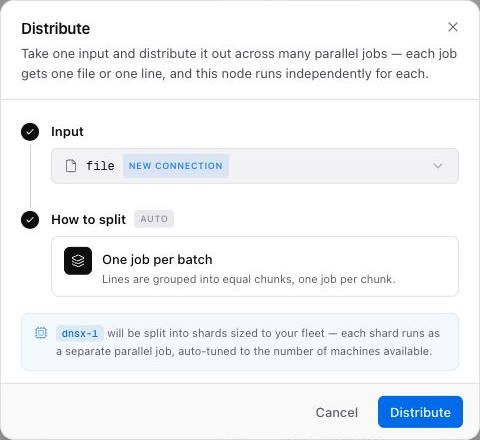 When all steps are complete, an outcome summary explains what will happen (for example, "your file input will fan out one line per job, spawning one parallel job per line").
Click **Distribute** to apply, or **Cancel** to close without changes.
---
## After Distribution
Once distribution is applied, the destination node is marked as distributed on the canvas. When the workflow runs, the platform creates one job per slice of the input and runs them in parallel up to the run's machine cap (see [Managed Machines](/docs/key-concepts/managed-machines#scaling)).
In the run view, select an individual task from the task list and use **Console** or **Files** to inspect its result. A task count is not a machine count: concurrency depends on the execution settings and available capacity.
To remove distribution, open the editable destination node’s inspector and select its **Distributed** toggle. You cannot change distribution from a historical run. A node marked **Parallel** inherits distribution from an upstream node; edit that upstream node to change or remove it.
---
## Next Steps
Learn the workflow editor layout and how to select and inspect nodes.
Add nodes, connect inputs and outputs, and run workflows.
Encapsulate workflows as reusable module nodes.
---
_Markdown source of https://trickest.com/docs/using-the-app/workflow-and-executions/distributing-and-scaling-jobs._
When all steps are complete, an outcome summary explains what will happen (for example, "your file input will fan out one line per job, spawning one parallel job per line").
Click **Distribute** to apply, or **Cancel** to close without changes.
---
## After Distribution
Once distribution is applied, the destination node is marked as distributed on the canvas. When the workflow runs, the platform creates one job per slice of the input and runs them in parallel up to the run's machine cap (see [Managed Machines](/docs/key-concepts/managed-machines#scaling)).
In the run view, select an individual task from the task list and use **Console** or **Files** to inspect its result. A task count is not a machine count: concurrency depends on the execution settings and available capacity.
To remove distribution, open the editable destination node’s inspector and select its **Distributed** toggle. You cannot change distribution from a historical run. A node marked **Parallel** inherits distribution from an upstream node; edit that upstream node to change or remove it.
---
## Next Steps
Learn the workflow editor layout and how to select and inspect nodes.
Add nodes, connect inputs and outputs, and run workflows.
Encapsulate workflows as reusable module nodes.
---
_Markdown source of https://trickest.com/docs/using-the-app/workflow-and-executions/distributing-and-scaling-jobs._