---
title: "Creating and Using Modules"
canonical: https://trickest.com/docs/using-the-app/workflow-and-executions/creating-and-using-modules
description: "Build a reusable workflow, expose its inputs and outputs, and add it as a module node."
---
# Creating and Using Modules
## Overview
A module contains a workflow that you can use as one node in another workflow. Its exposed inputs and outputs form the interface: callers supply those inputs and consume those outputs without configuring every internal node.
## Where to Find Your Modules
Open **Modules** in the main sidebar. Your account's access determines whether you can create and edit modules. If creation is unavailable, check the access message before following the steps below.
## Creating a Module
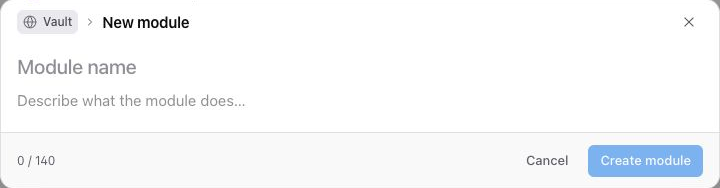
Select **Create module** to open **New module**, enter a name and description, then select **Create module**. The module editor opens with a canvas for its internal workflow.
 ## Building the Module
Add and connect nodes as you would in a workflow. Configure the internal inputs before deciding which ones callers should change. Open **Inputs & outputs** to define that public interface.
You do not need to run the module before exposing eligible inputs. Output selection is different: run the relevant nodes to produce the files you want to expose.
## Defining Module Inputs and Outputs
Choose **Expose input** in **Inputs & outputs**, then select an available input. A configured, nonempty value can make a primitive input eligible; if an input is missing, review its internal node configuration first.
Review **Name**, **Type**, **Description**, and **Required**, then select **Expose**. Use a name and description that explain the value callers should supply.
Run the relevant internal nodes and inspect the resulting files. Use the output chooser to select the file you want callers to receive and give it a meaningful name.
## Building the Module
Add and connect nodes as you would in a workflow. Configure the internal inputs before deciding which ones callers should change. Open **Inputs & outputs** to define that public interface.
You do not need to run the module before exposing eligible inputs. Output selection is different: run the relevant nodes to produce the files you want to expose.
## Defining Module Inputs and Outputs
Choose **Expose input** in **Inputs & outputs**, then select an available input. A configured, nonempty value can make a primitive input eligible; if an input is missing, review its internal node configuration first.
Review **Name**, **Type**, **Description**, and **Required**, then select **Expose**. Use a name and description that explain the value callers should supply.
Run the relevant internal nodes and inspect the resulting files. Use the output chooser to select the file you want callers to receive and give it a meaningful name.
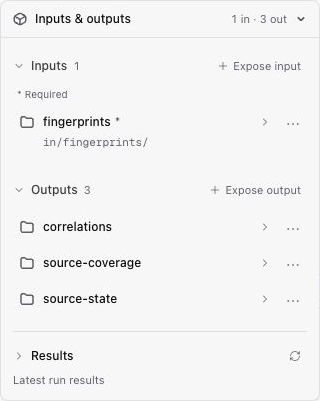 Expose only the inputs callers should configure and the outputs they need. An internal node's output is not part of the module interface until you expose it. Check the actual file contents before treating it as the module's result.
## Using a Module in a Workflow
Open **Add node** in the workflow's bottom toolbar, search for the module, and add it. Open the module node to supply its exposed inputs, then connect its exposed outputs to downstream inputs.
Test it in the calling workflow. Inspect the module's internal tasks if a result is missing or unexpected. To change the module's internal graph or interface, open its module editor rather than treating the calling node as the full definition.
## Next Steps
[Building and Debugging a Workflow](./building-and-debugging-a-workflow) covers testing and connecting individual steps. [Modules](/docs/key-concepts/building-blocks/modules) explains the reusable-workflow concept.
---
_Markdown source of https://trickest.com/docs/using-the-app/workflow-and-executions/creating-and-using-modules._
Expose only the inputs callers should configure and the outputs they need. An internal node's output is not part of the module interface until you expose it. Check the actual file contents before treating it as the module's result.
## Using a Module in a Workflow
Open **Add node** in the workflow's bottom toolbar, search for the module, and add it. Open the module node to supply its exposed inputs, then connect its exposed outputs to downstream inputs.
Test it in the calling workflow. Inspect the module's internal tasks if a result is missing or unexpected. To change the module's internal graph or interface, open its module editor rather than treating the calling node as the full definition.
## Next Steps
[Building and Debugging a Workflow](./building-and-debugging-a-workflow) covers testing and connecting individual steps. [Modules](/docs/key-concepts/building-blocks/modules) explains the reusable-workflow concept.
---
_Markdown source of https://trickest.com/docs/using-the-app/workflow-and-executions/creating-and-using-modules._