---
title: "Using Scripts"
canonical: https://trickest.com/docs/using-the-app/workflow-and-executions/using-scripts
description: "Write Python, Node.js, Bash, and Go scripts with file inputs, output files, and dependency setup inside Trickest workflows."
---
# Using Scripts
## Overview
A **script node** is a containerized environment that runs code you provide as part of a workflow. Scripts are useful when no built-in tool fits, when you need to glue tools together, or when you want to parse, filter, or reshape data between steps. For an introduction to what script nodes are and how they relate to other building blocks, see [Scripts](/docs/key-concepts/building-blocks/scripts) in Key Concepts.
This page covers the day-to-day use of scripts in the editor: how to add one, how to configure its arguments and inputs, how to run it, and how to create your own **private scripts** in the Library.
---
## Adding a Script Node
Use **Add node** to find a script in the language you need.
Select **Add node (+)** in the bottom canvas toolbar. The node library panel opens with a search box and lists tools, scripts, and modules you can add.
Search by name (for example, `bash`, `python`, `go`, `node`) or by what the script does. Click an entry, or drag it onto the canvas, to add the script node.
---
## Configuring a Script Node
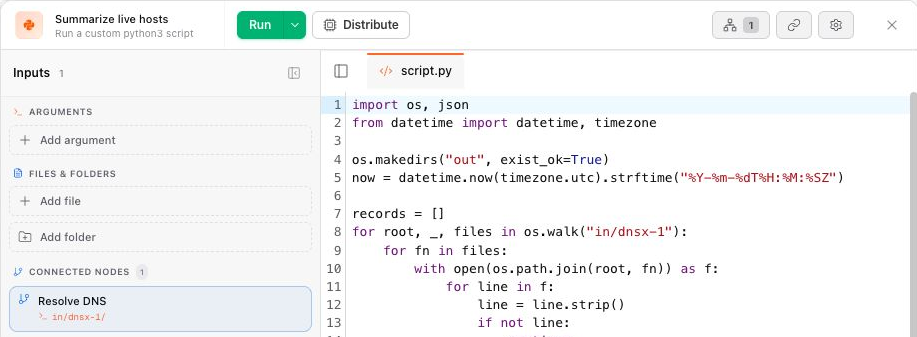
Double-click the script node's body, or select **Open node** from its controls, to open the inspector. Use **Show inputs** if its input panel is hidden. The modal has two main areas:
- **Left panel: Inputs.** This panel is split into **Arguments**, **Files & Folders**, and **Connected Nodes**. Each section is described below.
- **Center panel: Code editor.** A read-write code editor showing the script source, with syntax highlighting for the script's language. While a node is running or while you are viewing a past run, the editor switches to read-only.
A console below the code editor shows execution output when the node runs.
 ---
## Working with Script Arguments
Script arguments are CLI-style flags and values passed to the script when it runs. They are managed in the **Arguments** section of the Inputs panel.
### Detected Arguments
When you write argument-parsing code in the script (for example, Python `argparse` or `click`, Bash `case` or `getopts`, Go `flag`, Node `commander` or `yargs`), the editor detects the argument definitions automatically and lists them under **Arguments**. A small sparkles indicator on the right shows how many were detected, with a tooltip that reads *"N arguments detected from script"*.
Each detected argument shows:
- The flag (for example, `--target`, `-t`)
- A value field, or a toggle when the argument is boolean
- An optional description, surfaced as a tooltip on the flag
To set a value, type it directly into the value field next to the flag. For boolean arguments, flip the toggle.
> **Tip** Detected arguments stay visible even when no value is set, so you always see what the script supports. Setting an empty value (or toggling a boolean off) removes that argument from the run command.
### Custom Arguments
You can also pass arguments that are not detected from the script source. To add one:
Click **Add argument** below the existing arguments. An inline row appears with a flag field and a value field.
Type the flag (for example, `--verbose`) in the left field and the value in the right field. Press **Enter** to save, or **Esc** to cancel.
A custom flag with no value is saved as a boolean toggle. A row entered as a value with no flag is saved as a positional argument and passed in order to the script.
### Removing an Argument
Hover an argument row and click the small **x** on the right. Removing a detected argument clears its value but keeps the row visible. Removing a custom argument deletes it from the list.
---
## Connecting Inputs (Files and Folders)
Script nodes consume **file** and **folder** inputs, either added directly or connected from upstream nodes.
### Add Files Directly
The **Files & Folders** section of the Inputs panel lets you bring data in without an upstream node:
- Paste a public URL to a file
- Upload a file from your machine
- Pick a file you previously uploaded from the storage browser
### Connect From an Upstream Node
Drag a connection from an upstream node's output handle to the script node. An ordinary, nondistributed tool or script can connect its output folder directly without a picker. Other connection types may open a choice of inputs or distribution behavior. Check **Connected Nodes** and the mounted files to confirm what the script receives.
To remove a connection, open the script modal and click the disconnect action on the corresponding **Connected Nodes** entry.
For folder outputs and distributed inputs, the connect-mode picker may also offer a **distribution choice** (for example, "aggregate" vs. "continue"); pick the behavior you want and the connection is wired accordingly. For more on distribution, see [Distributing and Scaling Jobs](./distributing-and-scaling-jobs).
---
## Writing Scripts by Language
Choose the language that fits your task. The runtime is provided by the script node; additional dependencies belong to that node's environment. Installing a package on your laptop, in an agent sandbox, or in another workflow node does not install it for this script. Keep required setup in the script, or package it in a [private tool image](/docs/using-the-app/private-execution-networking/adding-private-tools).
### Input and Output Paths
Scripts run with `/hive` as their working directory. Connected inputs are mounted below `in/`; write the files you want to keep below `out/`.
| Path | Use |
| --- | --- |
| `in//` | Files received from a connected node. Check the mounted path and actual filename in the node's Inputs panel. |
| `out/output.txt` | The conventional output file for a downstream file connection. |
| `out/` | All result files, including JSON, CSV, reports, and subfolders, for a folder connection. |
The examples below read `in/source/output.txt`. Connect a node named `source` that writes `out/output.txt`, or replace the input path with your actual mount. For distributed upstream jobs, files can be nested in subdirectories; walk the input folder recursively when you need all results.
Printing to the console helps you debug, but does not replace writing an output file. Your code creates the result files; Trickest makes them available after the node finishes.
### Python
Use Python for JSON/CSV processing, API integrations, and reports. Standard-library modules such as `json`, `csv`, `pathlib`, and `urllib.request` need no installation.
For a third-party library, **install it inside the script before importing it** if it is not already provided by the image. A bare `pip install` line is shell syntax, so it cannot be pasted directly into Python code. Invoke pip through the current Python interpreter using `subprocess`, and fail the node if installation fails.
This example installs a pinned YAML parser, reads YAML from the connected file, and writes JSON:
```python
import json
import subprocess
import sys
from pathlib import Path
packages = Path(".python-packages").resolve()
subprocess.run(
[sys.executable, "-m", "pip", "install", "--target", str(packages),
"PyYAML==6.0.2"],
check=True,
)
sys.path.insert(0, str(packages))
import yaml
data = yaml.safe_load(Path("in/source/output.txt").read_text())
Path("out").mkdir(exist_ok=True)
Path("out/output.txt").write_text(json.dumps(data, indent=2) + "\n")
```
The local install directory avoids needing access to system package directories. `sys.path` makes it importable by the already-running Python process. Pin the package versions you have tested; do not depend on packages left over from an earlier execution. Installation needs access to the package registry and adds startup time to each job that executes it.
The Library's **XSS Scanner** workflow uses this pattern in its `report` node to install `xhtml2pdf` before generating a PDF. Its parsing code uses standard-library modules without installing them. See [pip's subprocess guidance](https://pip.pypa.io/en/stable/user_guide/#using-pip-from-your-program) for invoking pip from Python.
### Node.js
Use Node.js for JavaScript data processing and integrations. The Node script template uses CommonJS `require()`. Built-in modules such as `fs`, `path`, and `crypto` need no npm installation.
Install extra npm packages before requiring them. Run npm as a subprocess with explicit arguments; writing `npm install` directly in the JavaScript editor is not valid JavaScript.
This example performs the same YAML-to-JSON conversion as the Python example:
```javascript
const fs = require("fs");
const path = require("path");
const { execFileSync } = require("child_process");
const packages = path.resolve(".node-packages");
fs.mkdirSync(packages, { recursive: true });
execFileSync("npm", [
"install", "--prefix", packages, "--no-save", "--package-lock=false",
"yaml@2.8.1",
], { stdio: "inherit" });
const YAML = require(path.join(packages, "node_modules", "yaml"));
const data = YAML.parse(fs.readFileSync("in/source/output.txt", "utf8"));
fs.mkdirSync("out", { recursive: true });
fs.writeFileSync("out/output.txt", JSON.stringify(data, null, 2) + "\n");
```
Using a local package directory makes the installed module's location explicit. The pinned version keeps the requested dependency stable, and `execFileSync` throws if npm fails, stopping the script. See the [Node.js child process reference](https://nodejs.org/api/child_process.html#child_processexecfilesyncfile-args-options).
### Bash
Use Bash for shell pipelines, combining text files, and calling commands available in the script image. Quote paths and variable expansions so spaces are handled correctly. `set -euo pipefail` stops this example on failed commands, unset variables, or a failed pipeline stage.
This script sorts and removes duplicate lines from an input file:
```bash
#!/usr/bin/env bash
set -euo pipefail
mkdir -p out
LC_ALL=C sort -u "in/source/output.txt" > "out/output.txt"
```
The Library's **Subdomain Enumeration** workflow uses a Bash `merge` node to combine results from several upstream nodes, normalize hostnames, and write a deduplicated `out/output.txt` for DNS resolution.
A Bash node does not automatically contain every tool in the Library. A `command not found` error means the command is unavailable in that image or on its `PATH`. Add the matching tool as a workflow node, or use an image containing the commands you need. Do not assume `sudo`, root access, or a particular OS package manager is available in every script image.
### Go (Golang)
Use Go for compiled data processing. Select **Go** in the editor or search for `golang-script` in the Library. Write a complete program with `package main` and `func main()`; the script runner compiles it and then passes the configured arguments to the resulting program. Use the standard `flag` package when you need named arguments.
This example reads a text file, converts its contents to lowercase, and writes the result:
```go
package main
import (
"log"
"os"
"strings"
)
func main() {
data, err := os.ReadFile("in/source/output.txt")
if err != nil {
log.Fatal(err)
}
if err := os.MkdirAll("out", 0755); err != nil {
log.Fatal(err)
}
if err := os.WriteFile("out/output.txt", []byte(strings.ToLower(string(data))), 0644); err != nil {
log.Fatal(err)
}
}
```
Standard-library imports require no extra setup. Third-party imports must be available **before compilation**. Adding `go get` through `os/exec` inside `main()` cannot fix a missing import because the build fails before that code runs.
The current Go runner initializes a module when none exists, downloads dependencies declared in `go.mod`, and builds with `CGO_ENABLED=0`. It does not infer dependency versions from imports. For external modules, prepare a [private tool image](/docs/using-the-app/private-execution-networking/adding-private-tools) with your `go.mod`, `go.sum`, and build setup, or package the compiled program as a tool. Libraries requiring CGO also need a different build setup. See [Go dependency management](https://go.dev/doc/modules/managing-dependencies).
### Troubleshooting Dependencies and Outputs
| Symptom | What to check |
| --- | --- |
| Python `ModuleNotFoundError` | Install the package before importing it, using the same interpreter, and make the install directory importable. |
| Node.js `Cannot find module` | Install before `require()` and load from the directory where npm placed the package. |
| Package installation fails | Read the install log for registry access, runtime compatibility, permissions, or missing native build dependencies. |
| Go reports a missing module | Supply the module dependencies before compilation; runtime installation is too late. |
| Input file is missing | Check the connection, mounted path, filename, and any subdirectories from distributed jobs. |
| Logs show results but Outputs is empty | Write results under `out/`; console output alone is not an output file. |
---
## Running a Script Node
Script nodes execute the same way as tool nodes:
- Select **Run** in the inspector to test the script. Upstream dependencies may also run if their results cannot be reused. The platform builds the command (script invocation plus the configured arguments and inputs) and runs it on a machine from the chosen fleet. The console shows live output and the **Outputs** section lists files and folders the script produced.
- Select **Execute** in the workflow header to run the whole workflow, including this script node, end to end. See [Executing and Scheduling Workflows](./executing-and-scheduling-workflows).
> **Note** Your script must write result files under `/hive/out/` (`out/` relative to the working directory). Trickest exposes those files to downstream nodes when the script finishes.
---
## Private Scripts in the Library
A **private script** is a script you save to the Library so you (and your workspace) can reuse it across workflows like any other Library item. Private scripts live alongside public scripts, but only members of your vault can see and use them.
> **Note** Private scripts require the **Private Tooling** feature, available on Enterprise plans. If your account does not have the feature, the **Create Script** page shows an upgrade gate explaining how private scripts work.
### Creating a Private Script
From the sidebar, open **Library**. Filter to **Scripts** with **Visibility: Private** to see only your private scripts.
Click **+ Create** in the top-right and choose **Script**. The Create Script page opens.
Enter a **Name** (lowercase letters, numbers, and hyphens only) and choose a **Language** (Bash, Python, Go, or Node.js). A starter template is loaded into the code editor on the right; replace it with your script. Optionally fill in a **Description**, and expand **More** to add a **Source URL** or **Docs URL**.
Click **Create Script** in the top-right. You are returned to the Library, filtered to your private scripts, and the new script appears there. You can also press `Cmd+S` (or `Ctrl+S`) at any time to save.
### Editing or Deleting a Private Script
To edit, use **Edit** from the private script's actions. Review and save the source in its editor.
To delete, use **Delete** from the script's actions and review the confirmation. Check workflows that rely on the script before removing it.
### Using a Private Script in a Workflow
After it is saved, a private script behaves like any other Library item:
Open the workflow you want to use the script in.
Click **Add node**, search by the script's name, and add it to the canvas. The node modal looks the same as for any script node: code on the right, Inputs on the left.
Set arguments, connect inputs, and run the node (or run the workflow). Edits made inside the workflow's script node only affect that workflow's copy; to update the canonical version, open the script in the Library and edit it there.
---
## Next Steps
Add nodes, connect them, and run and debug workflows.
Split file and folder inputs into many parallel jobs.
Understand what script nodes are and how they relate to workflows and the Library.
---
_Markdown source of https://trickest.com/docs/using-the-app/workflow-and-executions/using-scripts._
---
## Working with Script Arguments
Script arguments are CLI-style flags and values passed to the script when it runs. They are managed in the **Arguments** section of the Inputs panel.
### Detected Arguments
When you write argument-parsing code in the script (for example, Python `argparse` or `click`, Bash `case` or `getopts`, Go `flag`, Node `commander` or `yargs`), the editor detects the argument definitions automatically and lists them under **Arguments**. A small sparkles indicator on the right shows how many were detected, with a tooltip that reads *"N arguments detected from script"*.
Each detected argument shows:
- The flag (for example, `--target`, `-t`)
- A value field, or a toggle when the argument is boolean
- An optional description, surfaced as a tooltip on the flag
To set a value, type it directly into the value field next to the flag. For boolean arguments, flip the toggle.
> **Tip** Detected arguments stay visible even when no value is set, so you always see what the script supports. Setting an empty value (or toggling a boolean off) removes that argument from the run command.
### Custom Arguments
You can also pass arguments that are not detected from the script source. To add one:
Click **Add argument** below the existing arguments. An inline row appears with a flag field and a value field.
Type the flag (for example, `--verbose`) in the left field and the value in the right field. Press **Enter** to save, or **Esc** to cancel.
A custom flag with no value is saved as a boolean toggle. A row entered as a value with no flag is saved as a positional argument and passed in order to the script.
### Removing an Argument
Hover an argument row and click the small **x** on the right. Removing a detected argument clears its value but keeps the row visible. Removing a custom argument deletes it from the list.
---
## Connecting Inputs (Files and Folders)
Script nodes consume **file** and **folder** inputs, either added directly or connected from upstream nodes.
### Add Files Directly
The **Files & Folders** section of the Inputs panel lets you bring data in without an upstream node:
- Paste a public URL to a file
- Upload a file from your machine
- Pick a file you previously uploaded from the storage browser
### Connect From an Upstream Node
Drag a connection from an upstream node's output handle to the script node. An ordinary, nondistributed tool or script can connect its output folder directly without a picker. Other connection types may open a choice of inputs or distribution behavior. Check **Connected Nodes** and the mounted files to confirm what the script receives.
To remove a connection, open the script modal and click the disconnect action on the corresponding **Connected Nodes** entry.
For folder outputs and distributed inputs, the connect-mode picker may also offer a **distribution choice** (for example, "aggregate" vs. "continue"); pick the behavior you want and the connection is wired accordingly. For more on distribution, see [Distributing and Scaling Jobs](./distributing-and-scaling-jobs).
---
## Writing Scripts by Language
Choose the language that fits your task. The runtime is provided by the script node; additional dependencies belong to that node's environment. Installing a package on your laptop, in an agent sandbox, or in another workflow node does not install it for this script. Keep required setup in the script, or package it in a [private tool image](/docs/using-the-app/private-execution-networking/adding-private-tools).
### Input and Output Paths
Scripts run with `/hive` as their working directory. Connected inputs are mounted below `in/`; write the files you want to keep below `out/`.
| Path | Use |
| --- | --- |
| `in//` | Files received from a connected node. Check the mounted path and actual filename in the node's Inputs panel. |
| `out/output.txt` | The conventional output file for a downstream file connection. |
| `out/` | All result files, including JSON, CSV, reports, and subfolders, for a folder connection. |
The examples below read `in/source/output.txt`. Connect a node named `source` that writes `out/output.txt`, or replace the input path with your actual mount. For distributed upstream jobs, files can be nested in subdirectories; walk the input folder recursively when you need all results.
Printing to the console helps you debug, but does not replace writing an output file. Your code creates the result files; Trickest makes them available after the node finishes.
### Python
Use Python for JSON/CSV processing, API integrations, and reports. Standard-library modules such as `json`, `csv`, `pathlib`, and `urllib.request` need no installation.
For a third-party library, **install it inside the script before importing it** if it is not already provided by the image. A bare `pip install` line is shell syntax, so it cannot be pasted directly into Python code. Invoke pip through the current Python interpreter using `subprocess`, and fail the node if installation fails.
This example installs a pinned YAML parser, reads YAML from the connected file, and writes JSON:
```python
import json
import subprocess
import sys
from pathlib import Path
packages = Path(".python-packages").resolve()
subprocess.run(
[sys.executable, "-m", "pip", "install", "--target", str(packages),
"PyYAML==6.0.2"],
check=True,
)
sys.path.insert(0, str(packages))
import yaml
data = yaml.safe_load(Path("in/source/output.txt").read_text())
Path("out").mkdir(exist_ok=True)
Path("out/output.txt").write_text(json.dumps(data, indent=2) + "\n")
```
The local install directory avoids needing access to system package directories. `sys.path` makes it importable by the already-running Python process. Pin the package versions you have tested; do not depend on packages left over from an earlier execution. Installation needs access to the package registry and adds startup time to each job that executes it.
The Library's **XSS Scanner** workflow uses this pattern in its `report` node to install `xhtml2pdf` before generating a PDF. Its parsing code uses standard-library modules without installing them. See [pip's subprocess guidance](https://pip.pypa.io/en/stable/user_guide/#using-pip-from-your-program) for invoking pip from Python.
### Node.js
Use Node.js for JavaScript data processing and integrations. The Node script template uses CommonJS `require()`. Built-in modules such as `fs`, `path`, and `crypto` need no npm installation.
Install extra npm packages before requiring them. Run npm as a subprocess with explicit arguments; writing `npm install` directly in the JavaScript editor is not valid JavaScript.
This example performs the same YAML-to-JSON conversion as the Python example:
```javascript
const fs = require("fs");
const path = require("path");
const { execFileSync } = require("child_process");
const packages = path.resolve(".node-packages");
fs.mkdirSync(packages, { recursive: true });
execFileSync("npm", [
"install", "--prefix", packages, "--no-save", "--package-lock=false",
"yaml@2.8.1",
], { stdio: "inherit" });
const YAML = require(path.join(packages, "node_modules", "yaml"));
const data = YAML.parse(fs.readFileSync("in/source/output.txt", "utf8"));
fs.mkdirSync("out", { recursive: true });
fs.writeFileSync("out/output.txt", JSON.stringify(data, null, 2) + "\n");
```
Using a local package directory makes the installed module's location explicit. The pinned version keeps the requested dependency stable, and `execFileSync` throws if npm fails, stopping the script. See the [Node.js child process reference](https://nodejs.org/api/child_process.html#child_processexecfilesyncfile-args-options).
### Bash
Use Bash for shell pipelines, combining text files, and calling commands available in the script image. Quote paths and variable expansions so spaces are handled correctly. `set -euo pipefail` stops this example on failed commands, unset variables, or a failed pipeline stage.
This script sorts and removes duplicate lines from an input file:
```bash
#!/usr/bin/env bash
set -euo pipefail
mkdir -p out
LC_ALL=C sort -u "in/source/output.txt" > "out/output.txt"
```
The Library's **Subdomain Enumeration** workflow uses a Bash `merge` node to combine results from several upstream nodes, normalize hostnames, and write a deduplicated `out/output.txt` for DNS resolution.
A Bash node does not automatically contain every tool in the Library. A `command not found` error means the command is unavailable in that image or on its `PATH`. Add the matching tool as a workflow node, or use an image containing the commands you need. Do not assume `sudo`, root access, or a particular OS package manager is available in every script image.
### Go (Golang)
Use Go for compiled data processing. Select **Go** in the editor or search for `golang-script` in the Library. Write a complete program with `package main` and `func main()`; the script runner compiles it and then passes the configured arguments to the resulting program. Use the standard `flag` package when you need named arguments.
This example reads a text file, converts its contents to lowercase, and writes the result:
```go
package main
import (
"log"
"os"
"strings"
)
func main() {
data, err := os.ReadFile("in/source/output.txt")
if err != nil {
log.Fatal(err)
}
if err := os.MkdirAll("out", 0755); err != nil {
log.Fatal(err)
}
if err := os.WriteFile("out/output.txt", []byte(strings.ToLower(string(data))), 0644); err != nil {
log.Fatal(err)
}
}
```
Standard-library imports require no extra setup. Third-party imports must be available **before compilation**. Adding `go get` through `os/exec` inside `main()` cannot fix a missing import because the build fails before that code runs.
The current Go runner initializes a module when none exists, downloads dependencies declared in `go.mod`, and builds with `CGO_ENABLED=0`. It does not infer dependency versions from imports. For external modules, prepare a [private tool image](/docs/using-the-app/private-execution-networking/adding-private-tools) with your `go.mod`, `go.sum`, and build setup, or package the compiled program as a tool. Libraries requiring CGO also need a different build setup. See [Go dependency management](https://go.dev/doc/modules/managing-dependencies).
### Troubleshooting Dependencies and Outputs
| Symptom | What to check |
| --- | --- |
| Python `ModuleNotFoundError` | Install the package before importing it, using the same interpreter, and make the install directory importable. |
| Node.js `Cannot find module` | Install before `require()` and load from the directory where npm placed the package. |
| Package installation fails | Read the install log for registry access, runtime compatibility, permissions, or missing native build dependencies. |
| Go reports a missing module | Supply the module dependencies before compilation; runtime installation is too late. |
| Input file is missing | Check the connection, mounted path, filename, and any subdirectories from distributed jobs. |
| Logs show results but Outputs is empty | Write results under `out/`; console output alone is not an output file. |
---
## Running a Script Node
Script nodes execute the same way as tool nodes:
- Select **Run** in the inspector to test the script. Upstream dependencies may also run if their results cannot be reused. The platform builds the command (script invocation plus the configured arguments and inputs) and runs it on a machine from the chosen fleet. The console shows live output and the **Outputs** section lists files and folders the script produced.
- Select **Execute** in the workflow header to run the whole workflow, including this script node, end to end. See [Executing and Scheduling Workflows](./executing-and-scheduling-workflows).
> **Note** Your script must write result files under `/hive/out/` (`out/` relative to the working directory). Trickest exposes those files to downstream nodes when the script finishes.
---
## Private Scripts in the Library
A **private script** is a script you save to the Library so you (and your workspace) can reuse it across workflows like any other Library item. Private scripts live alongside public scripts, but only members of your vault can see and use them.
> **Note** Private scripts require the **Private Tooling** feature, available on Enterprise plans. If your account does not have the feature, the **Create Script** page shows an upgrade gate explaining how private scripts work.
### Creating a Private Script
From the sidebar, open **Library**. Filter to **Scripts** with **Visibility: Private** to see only your private scripts.
Click **+ Create** in the top-right and choose **Script**. The Create Script page opens.
Enter a **Name** (lowercase letters, numbers, and hyphens only) and choose a **Language** (Bash, Python, Go, or Node.js). A starter template is loaded into the code editor on the right; replace it with your script. Optionally fill in a **Description**, and expand **More** to add a **Source URL** or **Docs URL**.
Click **Create Script** in the top-right. You are returned to the Library, filtered to your private scripts, and the new script appears there. You can also press `Cmd+S` (or `Ctrl+S`) at any time to save.
### Editing or Deleting a Private Script
To edit, use **Edit** from the private script's actions. Review and save the source in its editor.
To delete, use **Delete** from the script's actions and review the confirmation. Check workflows that rely on the script before removing it.
### Using a Private Script in a Workflow
After it is saved, a private script behaves like any other Library item:
Open the workflow you want to use the script in.
Click **Add node**, search by the script's name, and add it to the canvas. The node modal looks the same as for any script node: code on the right, Inputs on the left.
Set arguments, connect inputs, and run the node (or run the workflow). Edits made inside the workflow's script node only affect that workflow's copy; to update the canonical version, open the script in the Library and edit it there.
---
## Next Steps
Add nodes, connect them, and run and debug workflows.
Split file and folder inputs into many parallel jobs.
Understand what script nodes are and how they relate to workflows and the Library.
---
_Markdown source of https://trickest.com/docs/using-the-app/workflow-and-executions/using-scripts._