---
title: "Navigating the Editor"
canonical: https://trickest.com/docs/using-the-app/workflow-and-executions/navigating-the-editor
description: "Choose the right workflow view, find canvas controls, and inspect recorded runs without changing the live graph."
---
# Navigating the Editor
## Overview
Use the editor to build a workflow, execute it, and inspect what its nodes produced. First check whether you are editing the current workflow or viewing a recorded run. A run shows a read-only snapshot; it is not the place to change the live workflow.
## Understanding the Editor Layout
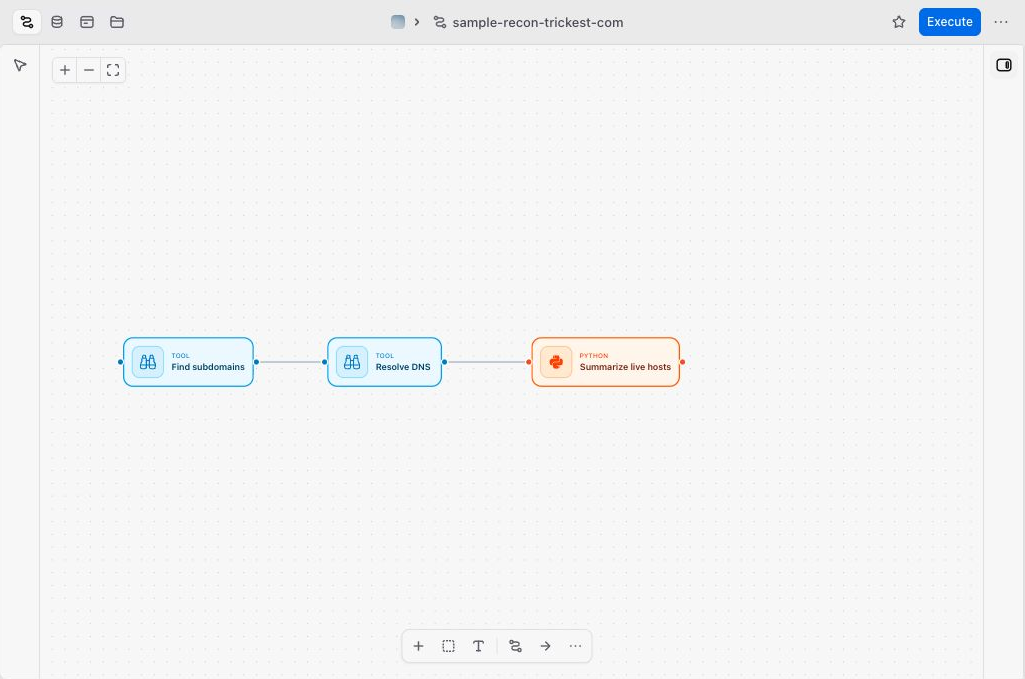
| Area | Use it for |
| --- | --- |
| Workflow header | Switch views of the same workflow, execute it, or open **Workflow actions**. |
| Canvas | Arrange and connect nodes. |
| Bottom canvas toolbar | Add nodes, sections and notes; arrange the graph; open other canvas actions. |
| Upper-left canvas controls | Zoom in, zoom out, or fit the graph into view. |
| Runs sidebar | Choose an execution to inspect. |
| Node inspector | Configure a node or inspect its recorded inputs, console and files. |
 ## Top Bar
The view switch sits at the left of the workflow header. Hover an icon to see its name. Each view keeps the same workflow context; choosing a view does not execute the graph.
| View | What you find there |
| --- | --- |
| **Workflow** | The node graph, its configuration, and recorded runs. |
| **Database** | Live Tables and queries for this workflow's structured data. |
| **App** | An application running in the workflow's sandbox. |
| **Files** | Sandbox files and documents opened from the agent, such as plans or reports. |
| **Computer** | The sandbox desktop, where you can watch the agent or take control. |
## Top Bar
The view switch sits at the left of the workflow header. Hover an icon to see its name. Each view keeps the same workflow context; choosing a view does not execute the graph.
| View | What you find there |
| --- | --- |
| **Workflow** | The node graph, its configuration, and recorded runs. |
| **Database** | Live Tables and queries for this workflow's structured data. |
| **App** | An application running in the workflow's sandbox. |
| **Files** | Sandbox files and documents opened from the agent, such as plans or reports. |
| **Computer** | The sandbox desktop, where you can watch the agent or take control. |
 Access can differ between views. Database requires the relevant data entitlement; App, Files, and Computer require agent access. A locked view opens setup or access information. Your role can also hide views you cannot read.
### Workflow Tab
The workflow canvas shows the graph you are working on. The header keeps its identity and execution controls visible. When a run is open, the run chip identifies that context; select the run chip’s **×** close control (**Edit workflow**) to return to the live graph.
### Database Tab
Open **Database** to browse the workflow's Live Tables and work with queries. If no tables exist yet, [create a Live Table](../database-management/creating-database) from supported node output. You do not need to start an agent conversation to inspect available tables.
Database data can span several runs. A selected run in the workflow header does not turn Database, App, Files, or Computer into a snapshot of that run.
### App Tab
Open **App** to preview an application in the workflow's sandbox. The sandbox may need to start first, and the app's server must be running. If the view opens but no app loads, return to the agent conversation and ask it to check the app and preview route. An empty preview does not mean the workflow has failed.
### Files Tab
Open **Files** to browse the sandbox tree, preview a file, or return to a document opened from chat. The **Open** list holds documents you have kept open; the **Sandbox** tree shows workspace files. Open **Terminal** from the file rail when you need a shell. See [Find and keep files open](../ai-agent/sandboxes#find-and-keep-files-open).
There are three distinct places to find files:
| You need | Open |
| --- | --- |
| A file produced by a workflow task | The recorded run, then the node's output files. |
| An uploaded file used as a workflow input | **Files** under **Vault** in the main sidebar. |
| A script, app, or report created in the agent's sandbox | **Files** in the workflow header. |
A file opened from chat can also appear in the Files view. Its presence there does not mean it was copied into the sandbox.
### Computer Tab
Open **Computer** to watch the sandbox desktop or take over an application. It is the sandbox's screen, not your laptop. **Take control** enables your clicks and keystrokes; it does not pause the agent. Follow [Using the Computer](../ai-agent/using-the-computer) for handoff and recovery steps.
### Execute Button
**Execute** starts the current workflow. **Workflow actions** contains **Advanced execution** and **Schedule** when available. A node's **Run** control is a separate action for testing that node. See [Executing and Scheduling Workflows](./executing-and-scheduling-workflows) before choosing execution settings.
## Working with the Canvas
Drag nodes to arrange them. Connect an output handle to a receiving node's input handle, then choose the input that should receive the data. For a worked example, follow [Building and Debugging a Workflow](./building-and-debugging-a-workflow).
### Panning the Canvas
Drag empty canvas space to pan. Scrolling with a mouse or trackpad also moves the canvas. Moving the view does not change node positions.
### Zooming In and Out
Use **Zoom in**, **Zoom out**, and **Fit view** in the upper-left controls. Trackpad pinch gestures also change zoom. **Fit view** is useful after adding nodes or rearranging a large graph.
### Adding and Deleting Nodes
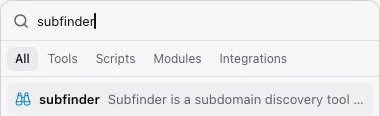
Select **Add node (+)** in the bottom toolbar. Search for a tool, script, or module, then click a result or drag it onto the canvas. Access restrictions can make a result unavailable.
Select a node to reveal its controls. Use **Open node**, or double-click its body, to inspect it. Double-clicking its name renames it. Use the node's delete action when you want to remove it from the graph.
Access can differ between views. Database requires the relevant data entitlement; App, Files, and Computer require agent access. A locked view opens setup or access information. Your role can also hide views you cannot read.
### Workflow Tab
The workflow canvas shows the graph you are working on. The header keeps its identity and execution controls visible. When a run is open, the run chip identifies that context; select the run chip’s **×** close control (**Edit workflow**) to return to the live graph.
### Database Tab
Open **Database** to browse the workflow's Live Tables and work with queries. If no tables exist yet, [create a Live Table](../database-management/creating-database) from supported node output. You do not need to start an agent conversation to inspect available tables.
Database data can span several runs. A selected run in the workflow header does not turn Database, App, Files, or Computer into a snapshot of that run.
### App Tab
Open **App** to preview an application in the workflow's sandbox. The sandbox may need to start first, and the app's server must be running. If the view opens but no app loads, return to the agent conversation and ask it to check the app and preview route. An empty preview does not mean the workflow has failed.
### Files Tab
Open **Files** to browse the sandbox tree, preview a file, or return to a document opened from chat. The **Open** list holds documents you have kept open; the **Sandbox** tree shows workspace files. Open **Terminal** from the file rail when you need a shell. See [Find and keep files open](../ai-agent/sandboxes#find-and-keep-files-open).
There are three distinct places to find files:
| You need | Open |
| --- | --- |
| A file produced by a workflow task | The recorded run, then the node's output files. |
| An uploaded file used as a workflow input | **Files** under **Vault** in the main sidebar. |
| A script, app, or report created in the agent's sandbox | **Files** in the workflow header. |
A file opened from chat can also appear in the Files view. Its presence there does not mean it was copied into the sandbox.
### Computer Tab
Open **Computer** to watch the sandbox desktop or take over an application. It is the sandbox's screen, not your laptop. **Take control** enables your clicks and keystrokes; it does not pause the agent. Follow [Using the Computer](../ai-agent/using-the-computer) for handoff and recovery steps.
### Execute Button
**Execute** starts the current workflow. **Workflow actions** contains **Advanced execution** and **Schedule** when available. A node's **Run** control is a separate action for testing that node. See [Executing and Scheduling Workflows](./executing-and-scheduling-workflows) before choosing execution settings.
## Working with the Canvas
Drag nodes to arrange them. Connect an output handle to a receiving node's input handle, then choose the input that should receive the data. For a worked example, follow [Building and Debugging a Workflow](./building-and-debugging-a-workflow).
### Panning the Canvas
Drag empty canvas space to pan. Scrolling with a mouse or trackpad also moves the canvas. Moving the view does not change node positions.
### Zooming In and Out
Use **Zoom in**, **Zoom out**, and **Fit view** in the upper-left controls. Trackpad pinch gestures also change zoom. **Fit view** is useful after adding nodes or rearranging a large graph.
### Adding and Deleting Nodes
Select **Add node (+)** in the bottom toolbar. Search for a tool, script, or module, then click a result or drag it onto the canvas. Access restrictions can make a result unavailable.
Select a node to reveal its controls. Use **Open node**, or double-click its body, to inspect it. Double-clicking its name renames it. Use the node's delete action when you want to remove it from the graph.
 ### Undo and Redo
Open **More canvas actions** in the bottom toolbar for **Undo** and **Redo**. The same menu contains **Commands** and **Keyboard shortcuts**. Open the shortcut list to see the keys for your platform.
### Working with Multiple Nodes
Use **Shift+click** to select multiple nodes. **Add section** creates a visual area for organizing the graph; **Add note** adds an annotation. **Auto-layout** arranges the nodes, while the adjacent direction control switches between horizontal and vertical layouts.
These controls organize the canvas. They do not replace configuring node inputs or connecting the data each step needs.
### Disable or Enable nodes
Disable a node when you want to keep its configuration without executing it. Use the selected node's controls to disable it; an already disabled node offers **Enable**. Check downstream inputs before running a workflow with a step disabled, since later steps may depend on its output.
## Execution Visibility on the Canvas
Node statuses help you locate running or failed steps. Open a node to inspect the details rather than relying on the status alone. A completed task can still produce empty output or data that does not meet your goal.
### Bottom Execution Panel and Inspecting Node Execution Data
Use the editor's execution details for an overview, then open a node for its inputs and output files. In an ordinary tool inspector, the console tab can use the tool's name. **Show files** reveals the file tree with **Inputs** and **Outputs**.
For a distributed node, select a task from its task list, then inspect **Console** or **Files**. This distinguishes one task's result from the node's combined execution status.
## Runs History
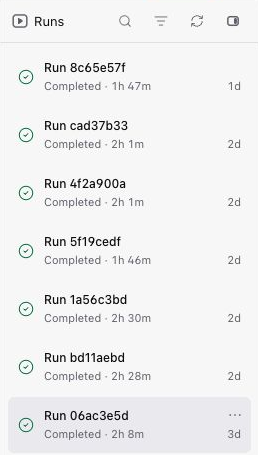
Open **Runs** to see executions of the current workflow in the right sidebar. In a narrow view, **View runs** opens the list in a right-side sheet. The list is separate from the bottom execution details. Select a run to inspect its recorded graph and results; collapse the sidebar when you need more canvas space.
### Switching Between Runs
Select another run in the sidebar to change the execution under inspection. Open a node to compare its recorded configuration and results with what you expected.
All selected runs are read-only snapshots, including a run whose version matches the live workflow. Select **Edit workflow** in the header run chip to make changes to the current workflow.
### Undo and Redo
Open **More canvas actions** in the bottom toolbar for **Undo** and **Redo**. The same menu contains **Commands** and **Keyboard shortcuts**. Open the shortcut list to see the keys for your platform.
### Working with Multiple Nodes
Use **Shift+click** to select multiple nodes. **Add section** creates a visual area for organizing the graph; **Add note** adds an annotation. **Auto-layout** arranges the nodes, while the adjacent direction control switches between horizontal and vertical layouts.
These controls organize the canvas. They do not replace configuring node inputs or connecting the data each step needs.
### Disable or Enable nodes
Disable a node when you want to keep its configuration without executing it. Use the selected node's controls to disable it; an already disabled node offers **Enable**. Check downstream inputs before running a workflow with a step disabled, since later steps may depend on its output.
## Execution Visibility on the Canvas
Node statuses help you locate running or failed steps. Open a node to inspect the details rather than relying on the status alone. A completed task can still produce empty output or data that does not meet your goal.
### Bottom Execution Panel and Inspecting Node Execution Data
Use the editor's execution details for an overview, then open a node for its inputs and output files. In an ordinary tool inspector, the console tab can use the tool's name. **Show files** reveals the file tree with **Inputs** and **Outputs**.
For a distributed node, select a task from its task list, then inspect **Console** or **Files**. This distinguishes one task's result from the node's combined execution status.
## Runs History
Open **Runs** to see executions of the current workflow in the right sidebar. In a narrow view, **View runs** opens the list in a right-side sheet. The list is separate from the bottom execution details. Select a run to inspect its recorded graph and results; collapse the sidebar when you need more canvas space.
### Switching Between Runs
Select another run in the sidebar to change the execution under inspection. Open a node to compare its recorded configuration and results with what you expected.
All selected runs are read-only snapshots, including a run whose version matches the live workflow. Select **Edit workflow** in the header run chip to make changes to the current workflow.
 **Restore**, when available, replaces the current workflow with a historical version. It is different from leaving run view. See [Restore a Past Run's Version](./building-and-debugging-a-workflow#6-restore-a-past-runs-version) before confirming it, or [Working with Runs](./working-with-runs) for run-list actions.
---
_Markdown source of https://trickest.com/docs/using-the-app/workflow-and-executions/navigating-the-editor._
**Restore**, when available, replaces the current workflow with a historical version. It is different from leaving run view. See [Restore a Past Run's Version](./building-and-debugging-a-workflow#6-restore-a-past-runs-version) before confirming it, or [Working with Runs](./working-with-runs) for run-list actions.
---
_Markdown source of https://trickest.com/docs/using-the-app/workflow-and-executions/navigating-the-editor._