---
title: "Managing Variables"
canonical: https://trickest.com/docs/using-the-app/workflow-and-executions/managing-variables
description: "Create reusable configuration values, choose their scope, and distinguish variables from secrets."
---
# Managing Variables
## Overview
Use a variable for configuration that several nodes or workflows should share, such as a target domain. Use **Secrets** for credentials rather than placing a private key in a regular variable or script source.
| Value | Reference |
| --- | --- |
| Variable named `TARGET_DOMAIN` | `${{vars.TARGET_DOMAIN}}` |
| Secret named `API_KEY` | `${{secrets.API_KEY}}` |
These are different namespaces. Creating a variable does not create a secret with the same name.
## Variable Scopes
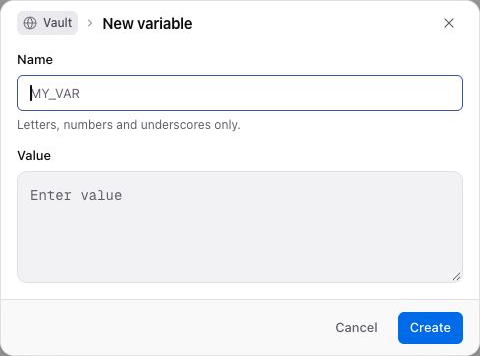
Vault-level variables provide shared configuration across workspaces. Workspace variables apply within one workspace. Choose the Variables page for the intended scope before creating the value; the creation dialog does not have a separate Scope selector.
Your permissions determine whether you can manage values in that scope. A workspace write permission can allow variable management; it is not restricted to workspace owners alone.
### Platform-Provided Variables
The platform also supplies context values such as `${{vars.SPACE_ID}}` and `${{vars.WORKFLOW_NAME}}`. Use context values only where that context exists. Do not publish authentication values or print them into output files while debugging.
## Creating Variables
### Create a global or workspace variable
Open **Variables** under the Vault or the workspace you want to configure. Check the page context before creating a value.
Select **Create variable** to open **New variable**, then enter **Name** and **Value**. For example, use `TARGET_DOMAIN` as the name and your target domain as the value.
Select **Create**, then confirm the variable appears in the intended scope.
 Names are case-sensitive. Updating a variable changes its value; renaming is not supported in the edit dialog. If you need a different name, create it and update references before removing the old one.
## Using Variables
### Use variables in tool/module parameters
Enter `${{vars.TARGET_DOMAIN}}` in an input that accepts the value. Check that the variable exists in the workflow's scope and has the format the tool expects.
### Use variables in scripts
Type the reference into the script where the value belongs. The platform substitutes references before execution; the resulting source must still be valid code for your language. Quotes and special characters in a value can affect that source.
Use regular variables for non-sensitive configuration. Avoid printing credential values when checking whether a reference resolved.
## Use Secrets for Credentials
Open **Settings → Vault → Secrets**. Secrets have **Personal** or **Space** scope. Choose the scope that matches who needs to use the credential, then create its **Name** and **Value** in Secrets. Reference it with `${{secrets.NAME}}`, using the actual name you created.
Do not assume a personal credential follows a workflow when someone else runs it. Verify that the intended runner can resolve the credential in the relevant scope before scheduling or sharing the workflow.
---
_Markdown source of https://trickest.com/docs/using-the-app/workflow-and-executions/managing-variables._
Names are case-sensitive. Updating a variable changes its value; renaming is not supported in the edit dialog. If you need a different name, create it and update references before removing the old one.
## Using Variables
### Use variables in tool/module parameters
Enter `${{vars.TARGET_DOMAIN}}` in an input that accepts the value. Check that the variable exists in the workflow's scope and has the format the tool expects.
### Use variables in scripts
Type the reference into the script where the value belongs. The platform substitutes references before execution; the resulting source must still be valid code for your language. Quotes and special characters in a value can affect that source.
Use regular variables for non-sensitive configuration. Avoid printing credential values when checking whether a reference resolved.
## Use Secrets for Credentials
Open **Settings → Vault → Secrets**. Secrets have **Personal** or **Space** scope. Choose the scope that matches who needs to use the credential, then create its **Name** and **Value** in Secrets. Reference it with `${{secrets.NAME}}`, using the actual name you created.
Do not assume a personal credential follows a workflow when someone else runs it. Verify that the intended runner can resolve the credential in the relevant scope before scheduling or sharing the workflow.
---
_Markdown source of https://trickest.com/docs/using-the-app/workflow-and-executions/managing-variables._