---
title: "Executing and Scheduling Workflows"
canonical: https://trickest.com/docs/using-the-app/workflow-and-executions/executing-and-scheduling-workflows
description: "Start a workflow, choose execution settings, stop a run, or schedule recurring execution."
---
# Executing and Scheduling Workflows
## Overview
Run a workflow once to check its results before scheduling repeated execution. You need permission to execute the workflow and a fleet that can run it. On Community, [connect a self-hosted machine](../private-execution-networking/using-self-hosted-machines) first.
## Executing a Workflow
### Execute (Fresh Run)
Select **Execute** in the workflow header to start a fresh execution using automatic fleet selection and the available parallelism. This requests fresh results rather than reusing a previous run's cache. Disabled nodes remain disabled.
Wait for pending changes to save before starting. The button is unavailable while the workflow is saving, has unsaved changes, is starting another execution, or has an active schedule. Your access and fleet availability can also prevent execution.
If you are inspecting a historical run, **Execute** runs the current workflow version. It does not restore the historical version first. Use the run chip’s **×** close control (**Edit workflow**) and review the current inputs if you are unsure which configuration you want to run.
 ### Smart Execute
The current workflow header does not offer a separate **Smart Execute** action. Use **Execute** for a fresh workflow run. When testing a node, the platform may reuse eligible upstream results; this is different from a workflow-level Smart Execute button. See [Run a Single Node](./building-and-debugging-a-workflow#2-configure-and-run-a-single-node).
### Advanced Execute
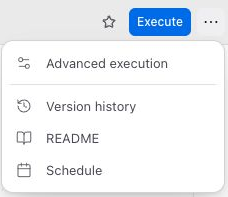
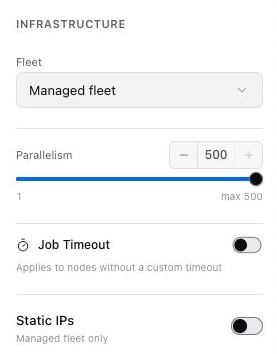
Open **Workflow actions**, then **Advanced execution**, to review execution settings before starting.
| Setting | What to check |
| --- | --- |
| Fleet | Choose the execution fleet available to your account. |
| Parallelism | Set how many jobs can run in parallel within the selected fleet's limits. |
| Job timeout | Set the timeout used by nodes without their own custom timeout. |
| Static IPs | Available for supported Managed fleets and accounts with access. |
| Inputs | Review exposed workflow inputs and provide the values this execution needs. |
Select **Run Workflow** to save changed inputs to the workflow and submit the execution. They are not temporary overrides. **Cancel** discards input edits made in this dialog and closes it without starting a run. Once you submit, do not assume a failed execution rolls those saved changes back.
### Smart Execute
The current workflow header does not offer a separate **Smart Execute** action. Use **Execute** for a fresh workflow run. When testing a node, the platform may reuse eligible upstream results; this is different from a workflow-level Smart Execute button. See [Run a Single Node](./building-and-debugging-a-workflow#2-configure-and-run-a-single-node).
### Advanced Execute
Open **Workflow actions**, then **Advanced execution**, to review execution settings before starting.
| Setting | What to check |
| --- | --- |
| Fleet | Choose the execution fleet available to your account. |
| Parallelism | Set how many jobs can run in parallel within the selected fleet's limits. |
| Job timeout | Set the timeout used by nodes without their own custom timeout. |
| Static IPs | Available for supported Managed fleets and accounts with access. |
| Inputs | Review exposed workflow inputs and provide the values this execution needs. |
Select **Run Workflow** to save changed inputs to the workflow and submit the execution. They are not temporary overrides. **Cancel** discards input edits made in this dialog and closes it without starting a run. Once you submit, do not assume a failed execution rolls those saved changes back.
 ### Stopping an Active Run
Use **Stop current run** beside the execution control while a run is active. A stop request can take time to complete; check the run's status before assuming every task has stopped.
Inspect the run after stopping it if you need to see what finished or produced output before the stop request.
## Scheduling Workflows
A workflow schedule repeats workflow execution. It is separate from an agent automation that starts a conversation with instructions.
In the workflow header, open **Workflow actions** and select **Schedule**. For an existing schedule, select **Edit schedule**.
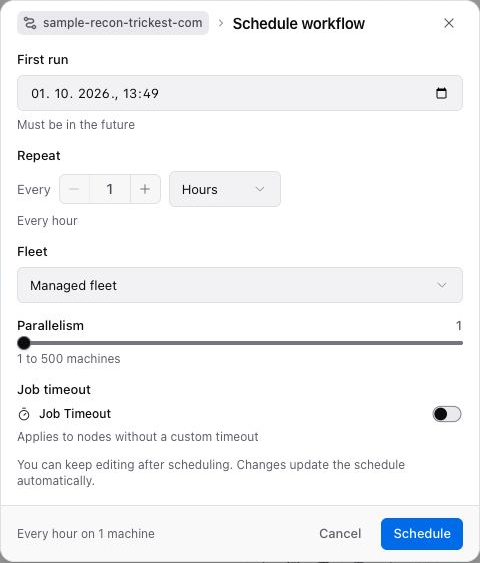
Set the first run time and repeat interval. Choose a fleet, parallelism, and job timeout suitable for the workflow.
Check the schedule summary and select **Schedule**. Confirm that the workflow shows its scheduled state and next run information.
### Stopping an Active Run
Use **Stop current run** beside the execution control while a run is active. A stop request can take time to complete; check the run's status before assuming every task has stopped.
Inspect the run after stopping it if you need to see what finished or produced output before the stop request.
## Scheduling Workflows
A workflow schedule repeats workflow execution. It is separate from an agent automation that starts a conversation with instructions.
In the workflow header, open **Workflow actions** and select **Schedule**. For an existing schedule, select **Edit schedule**.
Set the first run time and repeat interval. Choose a fleet, parallelism, and job timeout suitable for the workflow.
Check the schedule summary and select **Schedule**. Confirm that the workflow shows its scheduled state and next run information.
 ## Scheduling Options
| Setting | Meaning |
| --- | --- |
| First run | The date and time in your browser/device’s local timezone. Check your device timezone and choose a future time; this dialog has no timezone selector. |
| Repeat | An interval in minutes, hours, or days. |
| Fleet | The fleet that will execute the workflow. |
| Parallelism | The requested number of parallel jobs. |
| Job timeout | The timeout for nodes that do not have a custom timeout. |
## Schedule Constraints
You can keep editing after scheduling. Scheduled runs use the workflow's latest configuration, so saved changes affect future scheduled executions. Review edits with that in mind. The manual **Execute** button is unavailable while the schedule is active.
Keep the selected fleet available when runs are due. Setting a schedule does not supply machines or resolve missing inputs. Check [Working with Runs](./working-with-runs) after the first scheduled execution to confirm it started and produced the expected output.
## Unscheduling Workflows
The **Scheduled** pill on the canvas shows the repeat frequency and next run information. Select **Cancel Schedule** there to remove the schedule. This action requires permission to edit the workflow.
Cancellation removes future scheduled execution. Check any execution already in progress separately; use its stop control if you also need to stop that run.
---
_Markdown source of https://trickest.com/docs/using-the-app/workflow-and-executions/executing-and-scheduling-workflows._
## Scheduling Options
| Setting | Meaning |
| --- | --- |
| First run | The date and time in your browser/device’s local timezone. Check your device timezone and choose a future time; this dialog has no timezone selector. |
| Repeat | An interval in minutes, hours, or days. |
| Fleet | The fleet that will execute the workflow. |
| Parallelism | The requested number of parallel jobs. |
| Job timeout | The timeout for nodes that do not have a custom timeout. |
## Schedule Constraints
You can keep editing after scheduling. Scheduled runs use the workflow's latest configuration, so saved changes affect future scheduled executions. Review edits with that in mind. The manual **Execute** button is unavailable while the schedule is active.
Keep the selected fleet available when runs are due. Setting a schedule does not supply machines or resolve missing inputs. Check [Working with Runs](./working-with-runs) after the first scheduled execution to confirm it started and produced the expected output.
## Unscheduling Workflows
The **Scheduled** pill on the canvas shows the repeat frequency and next run information. Select **Cancel Schedule** there to remove the schedule. This action requires permission to edit the workflow.
Cancellation removes future scheduled execution. Check any execution already in progress separately; use its stop control if you also need to stop that run.
---
_Markdown source of https://trickest.com/docs/using-the-app/workflow-and-executions/executing-and-scheduling-workflows._