---
title: "Working with Runs"
canonical: https://trickest.com/docs/using-the-app/workflow-and-executions/working-with-runs
description: "Find an execution, inspect its recorded results, and distinguish rerunning from restoring a workflow."
---
# Working with Runs
## Overview
A **run** records an execution of a workflow. Use it to answer what ran, whether it finished, and what it produced. Opening a run does not change the current workflow or execute it again.
## Run Statuses
| Status | What it tells you |
| --- | --- |
| Pending | The run is waiting to start. Check execution capacity if it stays pending. |
| Running | Execution is in progress. |
| Stopping | A stop request is in progress. |
| Scheduled | Execution is scheduled; this is not evidence that machines are running. |
| Completed | Execution completed. Inspect the output to confirm it meets your goal. |
| Partial success | Some work succeeded; inspect individual nodes and tasks for the remaining results. |
| Failed | Execution failed. Inspect the affected task's console. |
| Error | The run encountered an error. Check its details and diagnostic message. |
| Stopped | Execution stopped before normal completion. |
A **Partial** run type is different from **Partial success**. Partial describes the scope of execution, such as testing part of a workflow; Partial success is an outcome.
## Where to Find Runs
| Location | Scope |
| --- | --- |
| Runs under Vault | Runs across the vault that you can access. |
| A workspace's Runs | Runs for that workspace. |
| Runs in the editor | Runs of the current workflow, shown in the right sidebar. |
On a narrow editor, select **View runs** to open the sidebar as a sheet.
 ## The Run List Page
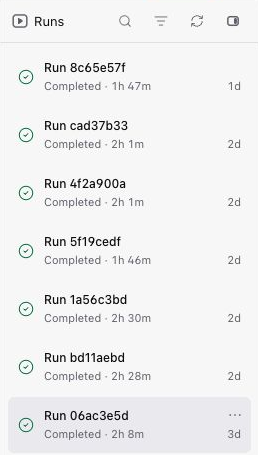
Use the status, workflow name, duration and creation details to locate an execution. Some metadata columns hide at narrower widths; open **View details** for the run's metadata.
The vault and workspace lists provide status filtering and newest/oldest ordering. The vault list can filter by workspace; the workspace list also offers workflow, author and project filters. The compact editor sidebar has its own filters, including **Partial** and **Full** run types.
### Per-Run Actions
Open **Run actions** on a list row. Available actions depend on the run and your access.
| Action | Use it to |
| --- | --- |
| View in editor | Inspect this run's graph and results. |
| View details | Read execution metadata. |
| Run again | Start another execution using the workflow's latest version. This is not an exact replay of the historical version. |
| Rename | Give the run a recognizable name. |
| Export IPs | Export machine IP addresses associated with the run. |
| Create workflow | Create a separate workflow from the run's recorded version. |
| Delete | Remove an inactive run after its processing has finished. Review the confirmation before deleting. |
The compact editor sidebar uses a smaller action menu. Do not expect every list-page action in that menu.
## Opening a Run from the Run List
Select the workflow name on a run row, or choose **View in editor** from its menu. Both open the editor with that run selected. The short run ID identifies the row; it is not a separate link to the live workflow.
Once the run is open, use the header run chip’s **×** close control (**Edit workflow**) if your goal is to change the current workflow rather than inspect the recorded execution.
## Viewing a Run in the Editor
The run chip in the header identifies the selected execution. The canvas and node inspectors show its recorded workflow snapshot and results.
Select a run from the right-hand Runs list. Check its status and date so you inspect the intended execution.
Select a node and use **Open node**, or double-click its body. Read its recorded inputs and console, then open an output file. For a distributed node, choose a task before inspecting its Console or Files.
Select **Edit workflow** in the header run chip. Changes you make next apply to the live workflow, not the recorded run.
## The Run List Page
Use the status, workflow name, duration and creation details to locate an execution. Some metadata columns hide at narrower widths; open **View details** for the run's metadata.
The vault and workspace lists provide status filtering and newest/oldest ordering. The vault list can filter by workspace; the workspace list also offers workflow, author and project filters. The compact editor sidebar has its own filters, including **Partial** and **Full** run types.
### Per-Run Actions
Open **Run actions** on a list row. Available actions depend on the run and your access.
| Action | Use it to |
| --- | --- |
| View in editor | Inspect this run's graph and results. |
| View details | Read execution metadata. |
| Run again | Start another execution using the workflow's latest version. This is not an exact replay of the historical version. |
| Rename | Give the run a recognizable name. |
| Export IPs | Export machine IP addresses associated with the run. |
| Create workflow | Create a separate workflow from the run's recorded version. |
| Delete | Remove an inactive run after its processing has finished. Review the confirmation before deleting. |
The compact editor sidebar uses a smaller action menu. Do not expect every list-page action in that menu.
## Opening a Run from the Run List
Select the workflow name on a run row, or choose **View in editor** from its menu. Both open the editor with that run selected. The short run ID identifies the row; it is not a separate link to the live workflow.
Once the run is open, use the header run chip’s **×** close control (**Edit workflow**) if your goal is to change the current workflow rather than inspect the recorded execution.
## Viewing a Run in the Editor
The run chip in the header identifies the selected execution. The canvas and node inspectors show its recorded workflow snapshot and results.
Select a run from the right-hand Runs list. Check its status and date so you inspect the intended execution.
Select a node and use **Open node**, or double-click its body. Read its recorded inputs and console, then open an output file. For a distributed node, choose a task before inspecting its Console or Files.
Select **Edit workflow** in the header run chip. Changes you make next apply to the live workflow, not the recorded run.
 Every selected run is a read-only snapshot, even if its version matches the current workflow. Returning to editing does not restore a previous version.
**Restore**, when available, replaces the live workflow with an eligible earlier version. It can discard current changes and does not start a run. Follow [Restore a Past Run's Version](./building-and-debugging-a-workflow#6-restore-a-past-runs-version) before using it.
To execute the current workflow, see [Executing and Scheduling Workflows](./executing-and-scheduling-workflows). To investigate an unexpected node result, see [Validate Results and Iterate](./building-and-debugging-a-workflow#3-validate-results-and-iterate).
---
_Markdown source of https://trickest.com/docs/using-the-app/workflow-and-executions/working-with-runs._
Every selected run is a read-only snapshot, even if its version matches the current workflow. Returning to editing does not restore a previous version.
**Restore**, when available, replaces the live workflow with an eligible earlier version. It can discard current changes and does not start a run. Follow [Restore a Past Run's Version](./building-and-debugging-a-workflow#6-restore-a-past-runs-version) before using it.
To execute the current workflow, see [Executing and Scheduling Workflows](./executing-and-scheduling-workflows). To investigate an unexpected node result, see [Validate Results and Iterate](./building-and-debugging-a-workflow#3-validate-results-and-iterate).
---
_Markdown source of https://trickest.com/docs/using-the-app/workflow-and-executions/working-with-runs._