---
title: "Adding Private Tools"
canonical: https://trickest.com/docs/using-the-app/private-execution-networking/adding-private-tools
description: "Import custom Docker-based tools into your Vault and use them in workflows like any public tool."
---
# Adding Private Tools
Private tools are available exclusively for [Enterprise](https://trickest.com/pricing/) users with the private tooling feature enabled on their Vault. [Contact the account team](/demo) if you need access.
## Overview
Private tools let you bring your own Docker-based CLI tools into the platform and use them in workflows alongside public Library tools. They are visible only within your Vault and never exposed publicly.
## Importing a Tool
Navigate to **Library**, click **Create** and choose **Tool**.
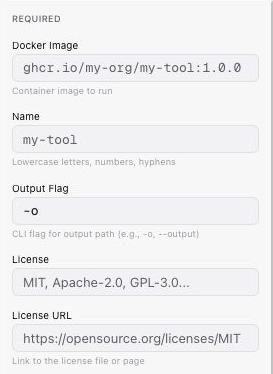
Fill in the tool details in the form that appears. See the field reference below for what each field expects.
Define the input parameters the tool accepts. See [Input Parameters](#input-parameters) below.
Select **Create Tool** to create the tool. When editing an existing tool, use **Save Changes**. It will appear in the Library and can be added to any workflow in your Vault.
 ## Tool Fields
### Required
| Field | Description |
|---|---|
| **Name** | Tool identifier using lowercase letters, digits and hyphens. |
| **Docker Image** | The full Docker image reference, including the version tag (e.g., `quay.io/myorg/mytool:v1.2.0`). Pin a tag to choose the version your workflows run. |
| **Output Flag** | The CLI flag the tool uses to specify its output path (e.g., `-o`). |
| **License** | The license name for the tool. |
| **License URL** | URL pointing to the tool's license file. |
### Optional
| Field | Description |
|---|---|
| **Category** | Library category the tool belongs to (e.g., `Discovery`, `Network`). |
| **Description** | Short description of what the tool does. |
| **Output Type** | Whether the tool outputs a `file` or a `folder`. Defaults to `file`. |
| **Command** | Overrides the Docker image entrypoint. Use this when you need to call a specific binary or subcommand (e.g., `/bin/mytool scan`). Leave blank to use the image's default entrypoint. |
| **Source URL** | URL to the tool's source code or repository. |
| **Docs URL** | URL to the tool's documentation. |
## Input Parameters
Each input parameter corresponds to a CLI flag the tool accepts. Add one entry per parameter.
| Field | Description |
|---|---|
| **Name** | Label shown in the workflow editor for this input. |
| **Flag** | The CLI flag passed to the tool (e.g., `-d`, `--target`). |
| **Type** | Data type for this input: `string`, `file`, `folder`, or `bool`. |
| **Description** | Short explanation of what this input controls. |
| **Required** | When enabled, the tool cannot be executed in a workflow unless this input is connected or given a value. |
Parameters marked as required will block workflow execution if left unset. Use this to enforce mandatory inputs such as a target domain or an input file.
## Finding Private Tools in the Library
In **Library > Tools**, use the **Visibility** dropdown to filter by:
- **Public**: tools from the Trickest public Library.
- **Private**: tools imported into your Vault.
Private tools can be added to workflows the same way as any public tool.
---
_Markdown source of https://trickest.com/docs/using-the-app/private-execution-networking/adding-private-tools._
## Tool Fields
### Required
| Field | Description |
|---|---|
| **Name** | Tool identifier using lowercase letters, digits and hyphens. |
| **Docker Image** | The full Docker image reference, including the version tag (e.g., `quay.io/myorg/mytool:v1.2.0`). Pin a tag to choose the version your workflows run. |
| **Output Flag** | The CLI flag the tool uses to specify its output path (e.g., `-o`). |
| **License** | The license name for the tool. |
| **License URL** | URL pointing to the tool's license file. |
### Optional
| Field | Description |
|---|---|
| **Category** | Library category the tool belongs to (e.g., `Discovery`, `Network`). |
| **Description** | Short description of what the tool does. |
| **Output Type** | Whether the tool outputs a `file` or a `folder`. Defaults to `file`. |
| **Command** | Overrides the Docker image entrypoint. Use this when you need to call a specific binary or subcommand (e.g., `/bin/mytool scan`). Leave blank to use the image's default entrypoint. |
| **Source URL** | URL to the tool's source code or repository. |
| **Docs URL** | URL to the tool's documentation. |
## Input Parameters
Each input parameter corresponds to a CLI flag the tool accepts. Add one entry per parameter.
| Field | Description |
|---|---|
| **Name** | Label shown in the workflow editor for this input. |
| **Flag** | The CLI flag passed to the tool (e.g., `-d`, `--target`). |
| **Type** | Data type for this input: `string`, `file`, `folder`, or `bool`. |
| **Description** | Short explanation of what this input controls. |
| **Required** | When enabled, the tool cannot be executed in a workflow unless this input is connected or given a value. |
Parameters marked as required will block workflow execution if left unset. Use this to enforce mandatory inputs such as a target domain or an input file.
## Finding Private Tools in the Library
In **Library > Tools**, use the **Visibility** dropdown to filter by:
- **Public**: tools from the Trickest public Library.
- **Private**: tools imported into your Vault.
Private tools can be added to workflows the same way as any public tool.
---
_Markdown source of https://trickest.com/docs/using-the-app/private-execution-networking/adding-private-tools._