---
title: "Using Self-Hosted Machines"
canonical: https://trickest.com/docs/using-the-app/private-execution-networking/using-self-hosted-machines
description: "Attach your own Docker hosts as self-hosted workers and run workflows on your infrastructure."
---
# Using Self-Hosted Machines
## Overview
This guide walks through connecting your own machines to Trickest: creating a self-hosted fleet, attaching a machine to it, and confirming it is ready to execute workflows. For what a self-hosted machine is and what the execution service can access on your machine, see [Self-Hosted Machines](/docs/key-concepts/self-hosted-machines).
On the [Community plan](/docs/key-concepts/community-plan), self-hosted machines are the execution target: the platform creates your self-hosted fleet at signup, and a run starts once at least one machine in it is **Online**.
Trickest supports the following machine types:
- Virtual machines
- Cloud instances
- Bare-metal machines
- macOS devices
## Requirements
Check the host before you attach it:
- **OS:** Linux on amd64 (arm64 works without official support yet) or macOS. Windows is not supported.
- **Docker:** a running Docker daemon. Use Docker Desktop on macOS. The Linux installer offers to install Docker when it is missing.
- **Network:** outbound HTTPS (port 443) to `trickest.io`, `api.trickest.io`, `quay.io` (tool images), and the agent binary host named in the install script. The agent only dials out; it needs no inbound ports.
- **Local port:** keep port `2201` free. The agent's Docker log driver listens there.
- **Data directory:** `/data` on Linux, `~/trickest` on macOS. Override with `TRICKEST_DATA_DIR`.
On Linux with systemd, the installer registers and enables a `trickest-agent` service. Without systemd, follow the installer's manual-start guidance. On macOS, the installer configures a launchd service.
## Fast Path: Attach the Machine You Are On
With a shell on the machine, the CLI does the whole flow:
```bash
curl -fsSL https://trickest.io/install.sh | sh
trickest auth login
trickest attach
```
`trickest attach` provisions a machine slot in your self-hosted fleet (and creates the fleet when you have none), installs the Trickest Agent on the current host, and waits until the machine reports active status (shown as **Online** in Fleet) (default timeout `2m`). See the [CLI Fleet reference](/docs/developer-tools/cli/fleet#trickest-attach) for flags such as `--name` and `--timeout`.
## Connect a Machine in the App
Open **Settings > Infrastructure > Fleet** and choose **Connect machine** in the **Self-hosted machines** section. The panel walks the same CLI attach flow and listens for the new worker:
1. **Run setup on your machine.** Docker required; run the commands on the host you want to attach.
2. **Machine registers with Trickest.** The platform detects the new slot.
3. **Agent connects (Docker running).** Keep Docker up while `attach` finishes.
4. **New machine online.** The machine is **Online** and ready for runs.
Copy the bash block from the panel and run it on the host. On production it is equivalent to:
```bash
curl -fsSL https://trickest.io/install.sh | sh
trickest auth login
trickest attach --wait --yes --api-base https://api.trickest.io
```
`--wait` is already the default for `trickest attach`. `--yes` skips installer prompts. `--api-base` points the agent at Hive (`https://api.trickest.io` in production). Bare `trickest attach` after login is enough when the CLI already targets production.
The panel polls every 5 seconds and shows **Listening for your machine…** until the agent is **Online**. Use **Refresh now** if the status looks stale.
### Having trouble?
- Docker Desktop (or the Docker daemon) must be running on the host.
- Finish `trickest auth login`, then re-run attach (include `--api-base` if the panel showed it).
- If local port `2201` is busy, identify the process using it before changing anything. Resolve the conflict, then retry attach.
- Machine limit reached? Remove an unused machine in Fleet settings, then attach again.
- Confirm a self-hosted fleet exists under Fleet settings.
## Creating a Self-Hosted Fleet
Open **Settings > Infrastructure > Fleet**. If no self-hosted fleet exists, use **Create fleet**. Community accounts skip this: the self-hosted fleet already exists from signup, and the connect panel creates one when none is present.
## Provision Without Installing on This Host
To get the one-time install script for a different host, run:
```bash
trickest attach --no-install
```
That provisions the machine slot and prints the credential exports plus the agent `init` installer for you to run on the target. Prefer plain `trickest attach` when you already have a shell on the worker.
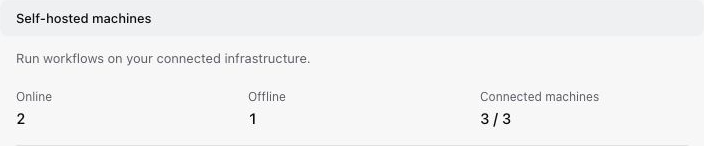 ## Machine Lifecycle and Limits
- A new machine starts **Offline** and becomes **Online** once its agent connects.
- Check the machine limit displayed for your fleet. Available capacity bounds the parallelism you can use.
- The Fleet page states that disconnected machines are removed after 30 days. Do not use job inactivity alone to infer when a connected machine will be removed.
- Use **Remove** in Fleet settings and review **Remove machine?** before freeing a slot.
## Related
The execution service on the host, what it can access, and machine lifecycle.
Inspect fleets and machines from the trickest CLI.
---
_Markdown source of https://trickest.com/docs/using-the-app/private-execution-networking/using-self-hosted-machines._
## Machine Lifecycle and Limits
- A new machine starts **Offline** and becomes **Online** once its agent connects.
- Check the machine limit displayed for your fleet. Available capacity bounds the parallelism you can use.
- The Fleet page states that disconnected machines are removed after 30 days. Do not use job inactivity alone to infer when a connected machine will be removed.
- Use **Remove** in Fleet settings and review **Remove machine?** before freeing a slot.
## Related
The execution service on the host, what it can access, and machine lifecycle.
Inspect fleets and machines from the trickest CLI.
---
_Markdown source of https://trickest.com/docs/using-the-app/private-execution-networking/using-self-hosted-machines._