---
title: "Creating a Database"
canonical: https://trickest.com/docs/using-the-app/database-management/creating-database
description: "Create a Live Table from workflow output, or declare its schema before the first run."
---
# Creating a Database
## Overview
A **Live Table** connects structured workflow output to a table you can query. Choose the source node and output file, review the columns, and define a primary key that identifies each logical record.
The source file must contain [JSON Lines](https://jsonlines.org/): one complete JSON object per line. A `.jsonl` filename alone does not make a file valid, and a `.json` or `.txt` file can qualify if its contents use that format.
## How Detection Works
Open the workflow's **Database** surface to review detected output. Detection uses a matching completed execution for each node, which can be older than the latest workflow run. Check the source and sample instead of assuming every candidate comes from one run.
Detection previews sample data, not every record. A field absent from the preview may exist elsewhere in a large output file. Inspect the actual output when the sample does not explain your data.
## Creating a Live Table
In **Database**, select the detected output you want to turn into a table and choose **Make live**. Review its node, file and sample records.
Enter a table name and review the fields and types. Include the columns you need to query. Choose types that match the values produced by the source.
Select a stable field, or combination of fields, that identifies one logical record. For example, a service may need both host and port; host alone can combine distinct services.
Select **Create live table**. Open the resulting table and check its data and import state before relying on it.
### Declare a table before the first run
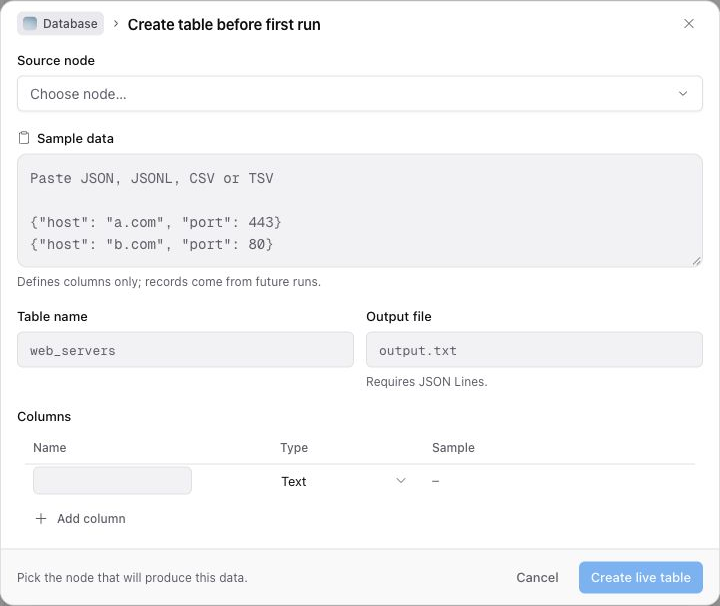
If no output is available yet, use **Declare a table**. In **Create table before first run**, choose **Source node**, enter **Sample data**, set **Table name** and **Output file**, and review **Columns** and the key selection. Use **Add column** if needed, then **Create live table**.
Sample data can be JSON, JSONL, CSV or TSV and defines the columns only. It does not populate the table with those sample records. The workflow's actual output file must use JSON Lines; future execution supplies the records.
 ## How Live Tables Are Updated
The source connection determines which workflow output feeds the table. After a run, inspect the table's import status and records. A completed workflow does not by itself prove the table import completed or every value matched its declared type.
Choose primary keys deliberately. Records sharing a key represent the same logical record; a changing timestamp is usually unsuitable if you intend to follow one asset over time.
## Schema and Data Changes
Review the table when you change its source output. New fields or changed types can require schema changes; removing a field from a script does not necessarily remove stored data from the table.
### New field detected
Inspect the source output and review the table's columns before querying a new field. Confirm its type using real values, not only a name or one sample row.
### Field no longer present
Check whether the field disappeared from all source records or only the sampled data. Before deleting a column, consider the stored values and saved queries that depend on it.
## Troubleshooting
| Problem | What to check |
| --- | --- |
| No output is detected | Confirm the node has a matching completed run and that its output is valid JSON Lines. Otherwise, declare the table before running. |
| The sample is incomplete | Inspect the full source file. Detection uses a bounded sample. |
| Records combine unexpectedly | Review whether the primary key distinguishes the logical records. |
| Expected records are missing | Check the source run, output file, table import state and column types. |
## Next Steps
[Query the table](./querying), [save a query](./creating-views), or [export results](./exporting) after checking that the imported data matches your intended source.
For ongoing operation, use [Maintaining Live Tables](/docs/using-the-app/database-management/maintaining-live-tables) to inspect indexing and schema changes, then [Inspecting Row History](/docs/using-the-app/database-management/inspecting-row-history) to compare one key across runs.
---
_Markdown source of https://trickest.com/docs/using-the-app/database-management/creating-database._
## How Live Tables Are Updated
The source connection determines which workflow output feeds the table. After a run, inspect the table's import status and records. A completed workflow does not by itself prove the table import completed or every value matched its declared type.
Choose primary keys deliberately. Records sharing a key represent the same logical record; a changing timestamp is usually unsuitable if you intend to follow one asset over time.
## Schema and Data Changes
Review the table when you change its source output. New fields or changed types can require schema changes; removing a field from a script does not necessarily remove stored data from the table.
### New field detected
Inspect the source output and review the table's columns before querying a new field. Confirm its type using real values, not only a name or one sample row.
### Field no longer present
Check whether the field disappeared from all source records or only the sampled data. Before deleting a column, consider the stored values and saved queries that depend on it.
## Troubleshooting
| Problem | What to check |
| --- | --- |
| No output is detected | Confirm the node has a matching completed run and that its output is valid JSON Lines. Otherwise, declare the table before running. |
| The sample is incomplete | Inspect the full source file. Detection uses a bounded sample. |
| Records combine unexpectedly | Review whether the primary key distinguishes the logical records. |
| Expected records are missing | Check the source run, output file, table import state and column types. |
## Next Steps
[Query the table](./querying), [save a query](./creating-views), or [export results](./exporting) after checking that the imported data matches your intended source.
For ongoing operation, use [Maintaining Live Tables](/docs/using-the-app/database-management/maintaining-live-tables) to inspect indexing and schema changes, then [Inspecting Row History](/docs/using-the-app/database-management/inspecting-row-history) to compare one key across runs.
---
_Markdown source of https://trickest.com/docs/using-the-app/database-management/creating-database._