
Overview
Datasets are the structured storage layer for your Solution results. They define the schema that determines how data is organized, queried, and displayed in Insights. A well-designed dataset schema is critical for effective data analysis and change tracking.Building a Complete Solution? If you’re creating a custom solution from scratch, see the Custom Solutions guide for an end-to-end tutorial that covers solution creation, datasets, and workflow building.
Understanding Dataset Fields
Each dataset field (key) consists of several components:| Component | Purpose | Options |
|---|---|---|
| Default | Marks primary/key fields that identify unique records | Toggle on/off |
| Icon | Visual identifier for the field type | Flag, text, database, chart, etc. |
| Key Name | Field identifier used in queries and exports | Lowercase with underscores (e.g., hostname, vulnerability_id) |
| Type | Data type for validation and formatting | text, int, data, bool, uuid, datetime |
| Description | Human-readable explanation of the field | Helps users understand field purpose |
Field Types
Default fields serve as the primary key for your dataset. Mark fields that uniquely identify records (e.g.,
endpoint_url + http_method for APIs, or hostname for assets). At least one field must be marked as default.Creating a Dataset
Click 'Create Dataset'
If this is your first dataset, you’ll see an empty state with a Create Dataset button.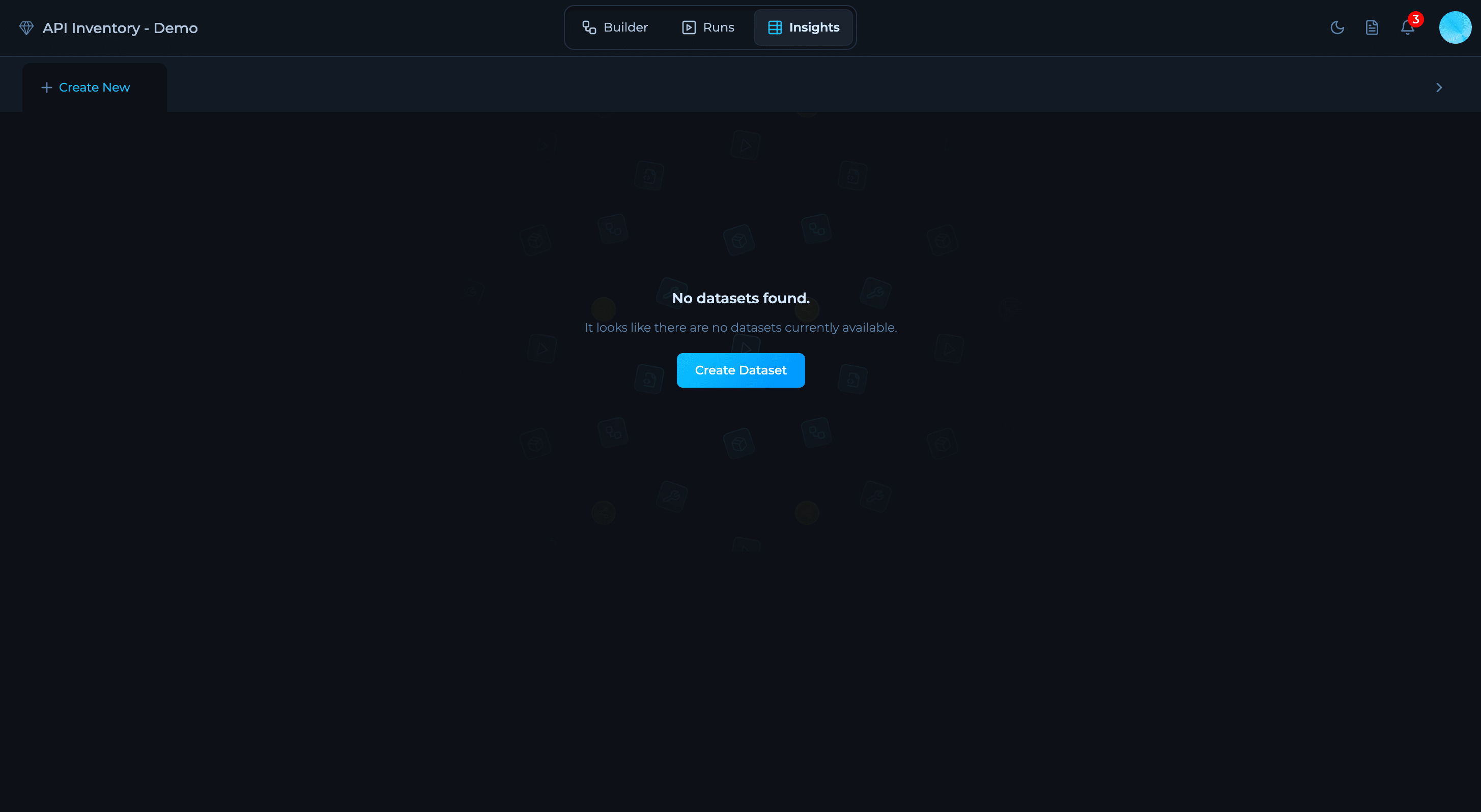
Name the Dataset
Choose a descriptive name that reflects the data being stored (e.g., “API Endpoints”, “Discovered Assets”, “Vulnerabilities”).
Define Fields
Click Add key to add fields one by one. Configure each field’s icon, name, type, and description.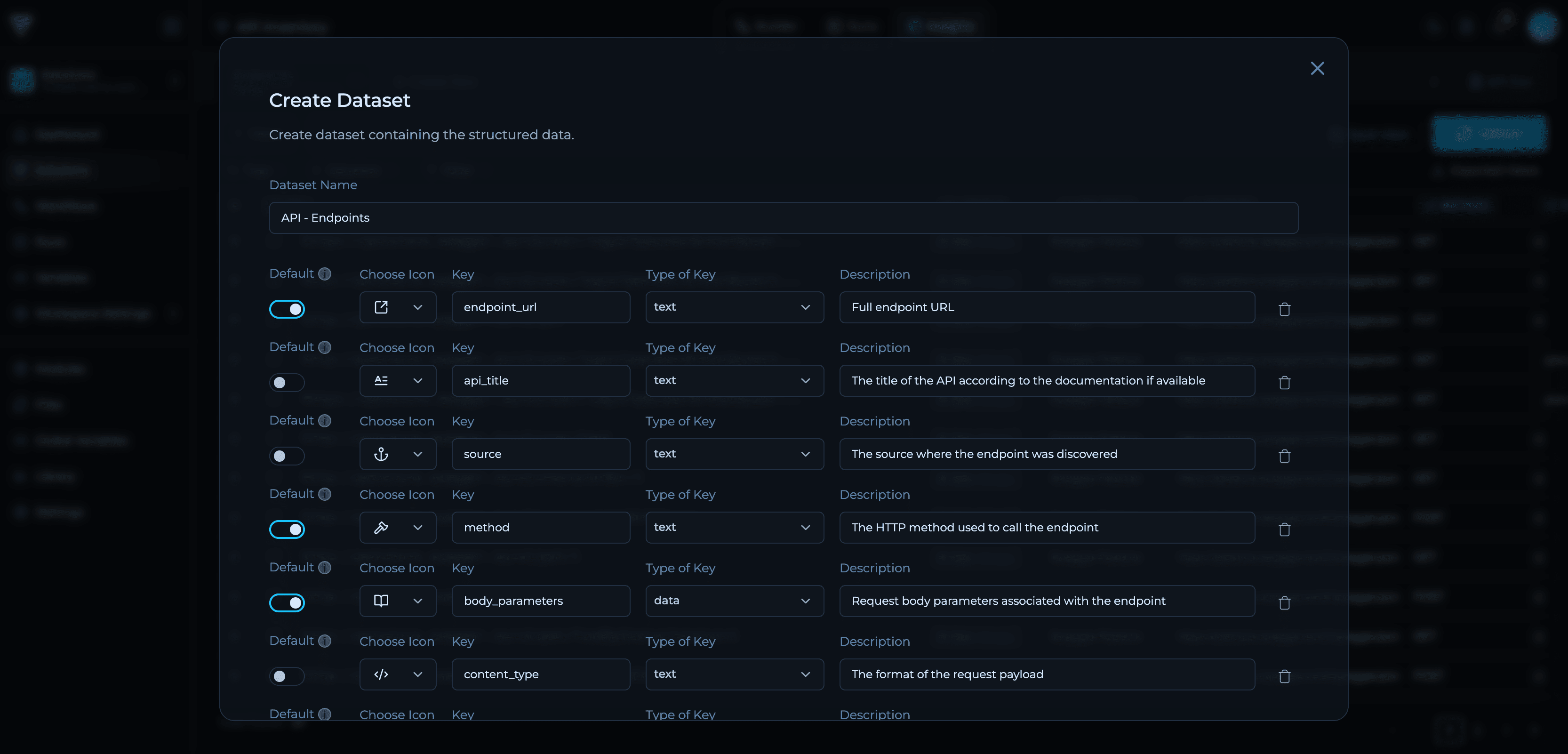
Mark Default Fields
Toggle Default on for fields that form the primary key. At least one field should be marked as default.
Example: API Endpoints Dataset
Here’s a complete example of a dataset schema for tracking API endpoints:- Primary Key:
url + method + body_parametersuniquely identify each endpoint variant - Metadata Fields:
api_title,source,content_typeprovide context - Hierarchical Data:
hostnameanddomain_nameenable domain-level filtering - Data Type:
body_parametersusesdatatype to store complex structures
Creating Datasets via API
You can create datasets programmatically using the Trickest API.Getting Your Vault UUID
First, retrieve your vault UUID by calling the user info endpoint:vault_info.id which is your {vault_uuid}:
API Endpoint
{vault_uuid} with your vault UUID from the /users/me/ endpoint and {solution_id} with your Solution ID (found in the URL when viewing your solution).
Request Example
Field Properties
| Property | Required | Description |
|---|---|---|
name | Yes | Field identifier (lowercase with underscores) |
description | Yes | Human-readable explanation |
is_key | Yes | true for primary key fields, false otherwise |
icon | Yes | Icon identifier for visual representation |
type | Yes | Data type: text, int, data, bool, uuid, or datetime |
At least one field must have
is_key: true to serve as the primary key. Primary key fields uniquely identify records and enable change tracking.Common Schema Patterns
Web Assets:Connecting Workflow Outputs to Datasets
After creating your dataset, you need to connect your workflow outputs to populate it with data.Select Output Node
In the workflow Builder, identify which node produces the final results you want in your dataset.
Map Fields
Ensure output field names match dataset key names exactly. If they don’t match, use transformation scripts or the Transform Data module.
Troubleshooting
Schema Validation Errors
Schema Validation Errors
Common Errors:
Invalid field name: Use lowercase, numbers, underscores onlyDuplicate key: Each field name must be uniqueNo default field: At least one field must be marked as default (oris_key: truein API)Missing required fields: All fields need icon, type, and description
- Rename fields to follow naming conventions:
api_endpointnotAPI-Endpoint - Remove or rename duplicate keys
- Toggle Default on for primary key fields
- Fill in all field properties before creating
Data Not Appearing in Dataset
Data Not Appearing in Dataset
Possible Causes:
- Workflow run incomplete
- Output nodes not connected to dataset
- Field mapping mismatch between node output and dataset schema
- Data filtered out by queries
- Verify run completed successfully in Run tab
- Check node-to-dataset connections in Builder
- Review field names match exactly (case-sensitive)
- Remove filters to see all data
Data Type Mismatches
Data Type Mismatches
Issue: Data doesn’t display correctly in Insights.Cause: Output data type doesn’t match dataset field type.Solutions:
- Use transformation scripts to convert types (string to int, date parsing)
- Update dataset schema to match actual data types
- Add validation nodes to catch type errors before dataset insertion
Next Steps
Query Language
Learn how to filter and query your dataset data effectively.
Insights Overview
Explore all Insights features for data visualization and analysis.
Custom Solutions
Build complete custom solutions with workflows and datasets.
Transform Data
Learn how to transform data to match your dataset schema.