---
title: "Using Database Read Nodes"
canonical: https://trickest.com/docs/using-the-app/workflow-and-executions/using-database-read-nodes
description: "Read a table into a workflow using all rows, one TQL filter, or a file of filters."
---
# Using Database Read Nodes
## Before you start
Use a **Database Read** node to bring table rows into a workflow. You need access to the source table and permission to edit and execute the workflow. Inspect the table's columns before writing a filter; TQL filters use those column names and are not SQL statements.
## Choose a query source
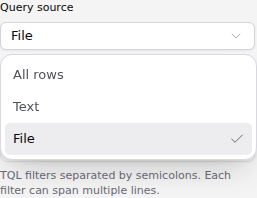
Add or select the Database Read node, open **Setup**, and choose the table. Set **Query source** to one of these options:
 | Source | Configuration |
| --- | --- |
| **All rows** | Read every row in the selected table. No filter is required. |
| **Text** | Enter one filter in **TQL filter**, such as `status = "open"` when the table has that column. |
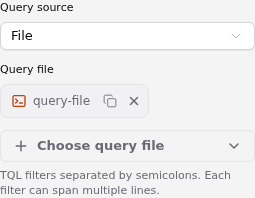
| **File** | Use **Choose query file** to select a stored file or connect an upstream **FILE** output. |
A query file contains TQL filters separated by semicolons. Each filter can span multiple lines. For a table with `status` and `severity` columns, a file could contain:
```text
status = "open" AND severity = "high";
status = "open" AND severity = "critical";
```
| Source | Configuration |
| --- | --- |
| **All rows** | Read every row in the selected table. No filter is required. |
| **Text** | Enter one filter in **TQL filter**, such as `status = "open"` when the table has that column. |
| **File** | Use **Choose query file** to select a stored file or connect an upstream **FILE** output. |
A query file contains TQL filters separated by semicolons. Each filter can span multiple lines. For a table with `status` and `severity` columns, a file could contain:
```text
status = "open" AND severity = "high";
status = "open" AND severity = "critical";
```
 Use the [table query view](/docs/using-the-app/database-management/querying) to check a filter against the actual data before using it in a workflow.
## Change the source safely
Choosing a different query source clears the inactive query value or connection. Review the graph after switching, and use undo if you changed the wrong node. Shared upstream nodes are retained.
**Text** with an empty filter and **File** without a selected file are incomplete configurations; they do not silently fall back to reading all rows. If a migrated node reports that both sources are configured, choose **All rows**, then select **Text** or **File** and supply the intended source again.
## Execute and read the result
Choose the output configuration, save, and execute the workflow. Select the node in the recorded run to inspect **Result**, **Log**, and **Files**. The JSONL result preview is bounded; use the output files for the complete data, including CSV output where configured.
Check the selected table, filter, and recorded output before connecting the result to downstream work. An empty result can be a valid filter outcome. A run snapshot is read-only; return to the editable workflow to change the query and run it again.
---
_Markdown source of https://trickest.com/docs/using-the-app/workflow-and-executions/using-database-read-nodes._
Use the [table query view](/docs/using-the-app/database-management/querying) to check a filter against the actual data before using it in a workflow.
## Change the source safely
Choosing a different query source clears the inactive query value or connection. Review the graph after switching, and use undo if you changed the wrong node. Shared upstream nodes are retained.
**Text** with an empty filter and **File** without a selected file are incomplete configurations; they do not silently fall back to reading all rows. If a migrated node reports that both sources are configured, choose **All rows**, then select **Text** or **File** and supply the intended source again.
## Execute and read the result
Choose the output configuration, save, and execute the workflow. Select the node in the recorded run to inspect **Result**, **Log**, and **Files**. The JSONL result preview is bounded; use the output files for the complete data, including CSV output where configured.
Check the selected table, filter, and recorded output before connecting the result to downstream work. An empty result can be a valid filter outcome. A run snapshot is read-only; return to the editable workflow to change the query and run it again.
---
_Markdown source of https://trickest.com/docs/using-the-app/workflow-and-executions/using-database-read-nodes._