---
title: "Using Connectors in Workflows"
canonical: https://trickest.com/docs/using-the-app/workflow-and-executions/using-connectors-in-workflows
description: "Connect a service, run its tools as workflow nodes, and pass results between GitHub, Linear, Notion, Jira, Slack, HackerOne, and Trickest."
---
# Using Connectors in Workflows
Use connectors to search a service, collect records, or pass data to the next workflow step. Each connector exposes tools through the Model Context Protocol (MCP). Choose a connector below, follow the shared setup, then use its example on this page.
## Choose a connector
Search repositories and use Jira issue keys to find related code changes.Collect team issues, then merge assigned and created issue lists.Search for pages and fetch each selected page in the next node.Search with JQL and pass issue keys to another service.Find a channel and read recent messages, or send one reviewed summary.List programs and collect a bounded sample of their reports.Read workflow definitions with the run initiator’s own access.Add another service that exposes compatible remote MCP tools.
## Before you start
You need an Enterprise vault, workflow editing access, and execution capacity. A vault administrator adds and manages connections under **Settings > Infrastructure > Connectors**. Connector settings and tool discovery also require [Managed AI](/docs/key-concepts/agent/managed-ai) or [BYOK access with a verified provider key](/docs/using-the-app/agent/bring-your-own-key).
Add the service, complete its sign-in or token test, and wait for tool discovery. Confirm that the connection is enabled and that the tools you need appear. Members can then use those tools in workflows. A saved connection can still need **Reconnect**; resolve sign-in or discovery errors before running the workflow.
External connectors use the account or token saved for the vault, including when another member calls the tools. Choose access appropriate for everyone who can use the connection. The built-in Trickest connector instead uses the run initiator’s own permissions.
The screenshots below show saved examples and historical run states. They do not verify your current provider access or show new executions performed for this guide. Keep the first test small and inspect the actual results.
## Build and check a connector node
1. Open a workflow and select **Add node**. Find the connector and choose a tool from its discovered catalog.
2. Select the node, choose **Open node**, and check **Connection** in **Setup**. **Manage** opens its connector settings.
3. Fill the required fields. Use **Add option** for optional fields such as a result limit.
4. Start with **Save as > JSON**. Run a small input and inspect **Result** before connecting the output to another node.
### Fixed inputs or one call per line
| Run setting | Input | Example |
| --- | --- | --- |
| **Once** | Fixed fields or a whole connected file | One search or one prepared Slack summary |
| **For each line of …** | An upstream output selected under **Data** and **Run** | One page fetch per Notion page ID |
To repeat calls, use **Connect a node** under **Data**, select its output, and choose that source in **Run**. A connection alone does not select the repeat source. Put `{{item}}` in a tool field for the current text line, or `{{item.channel_id}}` for that field of a JSON object line.
Under **Limits and failures**, choose a small **Call limit** and **Node fails > When any call fails** for the first test. Inputs beyond the call limit are skipped. The default failure rule can leave a node successful even when individual calls failed; inspect each result and skipped input.
### Save a result for the next node
Use **JSON** to retain the full result. Choose **Lines** and a **Field path** when the next node needs one value per line. These paths apply only when the actual response has the listed shape:
| Actual result | Field path |
| --- | --- |
| Repository objects in `items` | `items[].full_name` |
| Page objects in `results` | `results[].id` |
| Jira issues in `data.issues` | `data.issues[].key` |
| A top-level array of workflows | `[].id` |
Inspect **Result** before copying a field path. The selected output is written to `out/output.txt`. A script receiving the node’s folder reads it from `in//output.txt`; see [Using scripts](/docs/using-the-app/workflow-and-executions/using-scripts#input-and-output-paths).
To pass an entire file into one tool call, keep **Run > Once**. Use the field’s **Insert into … > Connected nodes** control and choose **Whole file** for text. List and object fields can offer **One item per line** or **Parsed JSON**; match the tool’s expected type.
## GitHub
**Connect:** choose **Add connector > GitHub**, then **Connect to Trickest** and authorize the intended account. You can instead use **Use a token** with a fine-grained **Personal access token** scoped to the repositories you need. Existing connections offer **Reconnect** or **Use a token instead**; token replacement uses **Replace and test**.
Build a small repository search:
1. Add a Python node named `queries` with the script below and run it to create two query lines.
2. Add GitHub’s `search_repositories` tool. Under **Data**, connect `queries`; set **Run > For each line of queries** and **Query** (`query`) to `{{item}}`.
3. Set **Per page** (`perPage`) to `5`, **Call limit** to `2`, and **Node fails > When any call fails**. Start with **Save as > JSON**.
4. Run the search, inspect each call, then choose **Lines** with `items[].full_name` if that matches the result. The output contains repository names for the next step.
```python
from pathlib import Path
Path("out").mkdir(exist_ok=True)
Path("out/output.txt").write_text(
"org:trickest wordlist\norg:trickest topic:security\n"
)
```
Use queries for repositories the connected account may read. Five results per query is a sample, not a complete inventory; check pagination and deduplicate repositories that match both queries.
The saved GitHub example retains historical results. At the original capture, the account needed reconnection and the saved node reported **Tool unavailable**. Reconnect and check discovery before trying a fresh search. [Download the Agent recipe](/docs/examples/release-1.2.1/github.agent.json).
## Linear
**Connect:** choose **Add connector > Linear** and authorize the intended Linear account. **Use a token** also accepts a personal **API key**; prefer a read-only key for this example. A new or replacement key must pass its connection test.
1. Add `list_issues`, name it `assigned-issues`, and keep **Run > Once**.
2. Select **Team** (`team`) and **Assignee** (`assignee`). Use **Add option** if needed, set **Limit** (`limit`) to `10`, and turn **Include sub teams** (`includeSubTeams`) off for the first test.
3. Run with **Save as > JSON**. Check the returned team, identifier, title, state, and assignee for each issue.
4. To include issues created by the same person, add another `list_issues` node named `created-issues`. Set **Creator** (`creator`), leave **Assignee** unset, and use the same team and limit.
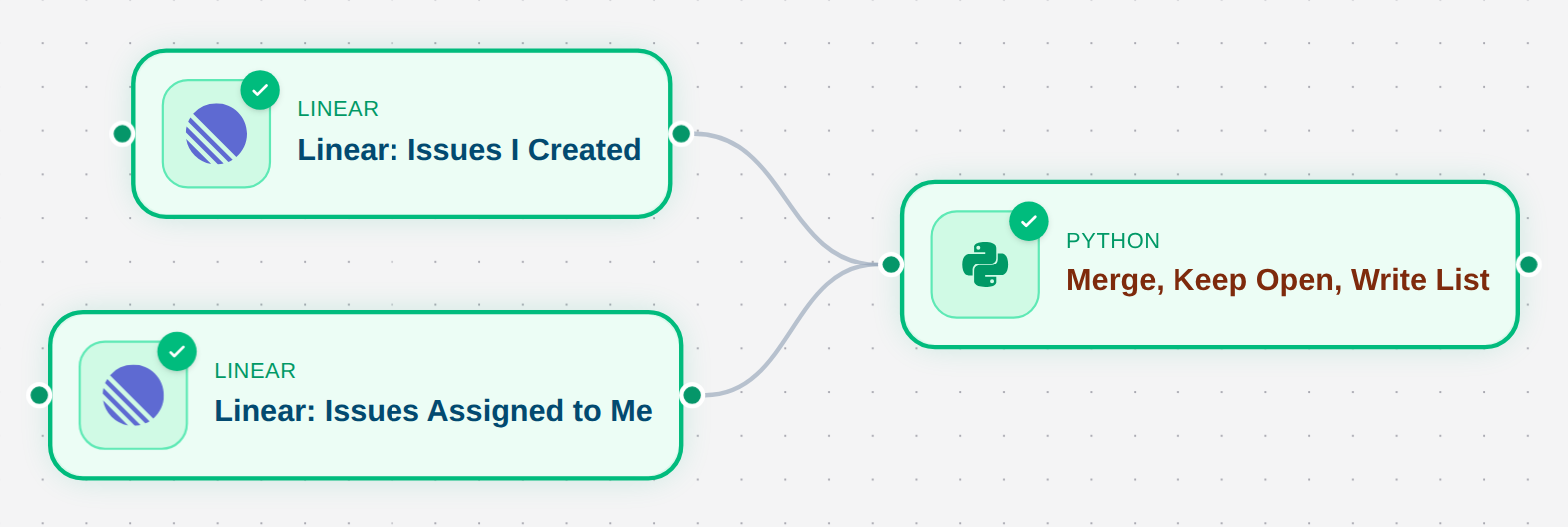
5. Connect both outputs to a Python node. Deduplicate by stable issue ID and preserve the identifier and URL. The [merge helper](/docs/examples/release-1.2.1/linear_merge.py) and [native fixture](/docs/examples/release-1.2.1/linear-merge-fixture.workflow.json) retain all issue states; add your own reviewed active-state filter.
The server notes that team-ID filters can include descendant teams even when **Include sub teams** is off. Check the team on each returned issue. Assigned issues can include closed issues, and the first ten results do not establish complete coverage. [Download the Agent recipe](/docs/examples/release-1.2.1/linear.agent.json).
## Notion
**Connect:** choose **Add connector > Notion**, then **Connect to Trickest** and authorize the intended workspace and account. This preset uses OAuth and does not offer the token form shown by some other connectors.
| Node | Tool | Inputs and run mode | Output |
| --- | --- | --- | --- |
| `page-search` | `notion-search` | **Once**; **Query** (`query`) `workflow`; **Page size** (`page_size`) `5` | Inspect JSON, then **Lines** with `results[].id` if present |
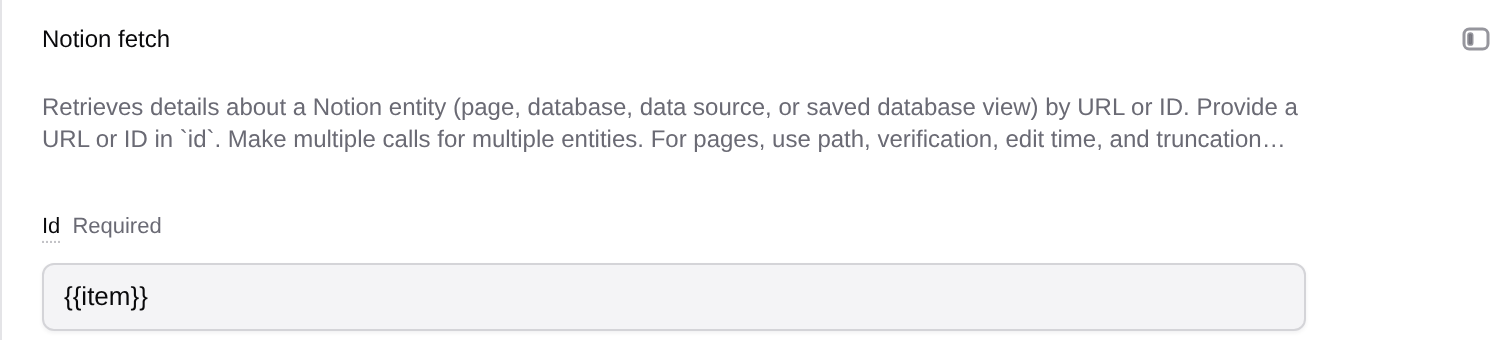
| `fetch-pages` | `notion-fetch` | Connect `page-search`; **For each line of page-search**; **Id** (`id`) `{{item}}`; **Call limit** `5` | **JSON**, with **When any call fails** |
Run the search first and check its page IDs. Then run the fetch node and inspect each result or error before passing page content to a script or AI Agent node. Keep IDs and source links with the contents.
Use a known accessible page to separate a search mismatch from missing account permissions. Search and fetch schemas can change, so inspect the discovered tools and actual response before using the field path above. Five pages is a sample; check pagination for wider collection. [Download the Agent recipe](/docs/examples/release-1.2.1/notion.agent.json).
## Jira
**Connect:** choose **Add connector > Jira** and authorize an Atlassian account with access to the intended site and project. If several sites are available, choose the intended **Cloud id** (`cloudId`).
Token authentication requires an Atlassian organization policy that allows API tokens for its MCP server. **Use a token** offers **Service account key** or **Personal API token**; the personal option also requires its creator’s **Account email**. Use **Connect** or **Replace and test** to test the credential.
1. Add `searchJiraIssuesUsingJql`, name it `issue-keys`, and keep **Run > Once**.
2. Choose **Cloud id** (`cloudId`), set **Max results** (`maxResults`) to `10`, and use the JQL below with your project key.
3. Run with **Save as > JSON** and compare the site and issue keys with Jira.
4. If the result contains `data.issues`, choose **Lines** with `data.issues[].key` and run again. Pass those keys to the next node.
```text
project = YOUR_PROJECT AND created >= startOfWeek() ORDER BY created DESC
```
This query selects issues created this week, not every issue updated this week. Limits and account access affect coverage. The saved Jira connection needed reconnection at capture; no fresh Jira execution is claimed here. [Download the Agent recipe](/docs/examples/release-1.2.1/jira.agent.json), or continue with [Jira to GitHub](#jira-to-github).
## Slack
**Connect:** choose **Add connector > Slack** and authorize the intended Slack account and workspace. This preset uses OAuth and does not offer a personal token form. Reads and sends use that saved account’s access.
1. Add `slack_search_channels`, name it `find-channel`, and keep **Run > Once**. Set **Natural language query** (`natural_language_query`) to `Find the docs review channel`, set **Keywords** (`keywords`) to your channel name using the field’s shown type, and choose **Limit** (`limit`) `5` and **Save as > JSON**. Use **Add option** if a field is hidden.
2. Inspect the channel’s name, workspace, and ID. Confirm the exact destination instead of relying on a similar name.
3. Add `slack_read_channel`, name it `read-messages`, and set **Run > Once**, **Channel id** (`channel_id`) to the confirmed ID, **Limit** (`limit`) to `10`, and **Save as > JSON**.
4. Run the reader and inspect messages, timestamps, and any error. This first test uses a fixed channel ID.
For automatic selection, use the [exact-name parser](/docs/examples/release-1.2.1/slack_channel.py). It writes a JSON line with `channel_id`. Connect that output to the reader, select **For each line of** that source, set **Channel id** to `{{item.channel_id}}`, and use a **Call limit** of `1` for the first test.
The saved example’s later JSONL formatter failed; inspect it separately from the raw Slack read. Ten recent messages is a sample, and a channel read need not include every thread reply. Private channels require access for the connected account. [Download the Agent recipe](/docs/examples/release-1.2.1/slack.agent.json). To send one reviewed message, follow [Reports to Slack](#reports-to-slack).
## HackerOne
Trickest provides this HackerOne adapter; it is not an official HackerOne-hosted MCP server.
**Connect:** choose **Add connector > HackerOne > Use a token**. Enter the organization API token’s **Token identifier** and **API token** secret, then select **Connect**. The identifier is not your username or email. The token needs Report Management rights. Existing connections use **Replace token > Replace and test**.
| Node | Tool | Inputs and run mode | Output |
| --- | --- | --- | --- |
| `programs` | `list_programs` | **Once**; **Limit** (`limit`) `2` | Inspect JSON, then **Lines** with `items[].handle` if present |
| `reports` | `list_reports` | Connect `programs`; **For each line of programs**; **Program** (`program`) `{{item}}`; **Limit** (`limit`) `5`; **Call limit** `2` | **JSON**, with **When any call fails** |
Run the program list and verify its handles before running report collection. Inspect each program’s result and errors. Preserve the program handle and stable report ID when normalizing records for later steps.
Two programs with five reports each is a bounded sample. Check pagination and reconcile per-program counts before using it as an inventory. Have an administrator replace and test rejected credentials; a single program can also fail because the token lacks access to it. [Download the Agent recipe](/docs/examples/release-1.2.1/hackerone.agent.json).
## Trickest
The built-in Trickest connector uses the run initiator’s own permissions. No external sign-in or token is required for this connection. An Enterprise administrator can enable it under **Settings > Infrastructure > Connectors**. If it is absent, ask the deployment administrator whether its MCP endpoint is configured.
Leave **Start and stop runs** off for this read-only example:
1. Add `trickest_workflow_list`, name it `workflow-list`, and keep **Run > Once**. Select **Space** (`space`) and a distinctive **Filter** (`filter`). Start with **Save as > JSON**.
2. Run the list and check the workflows. If the result is an array with `id` fields, choose **Lines** with `[].id` and run again.
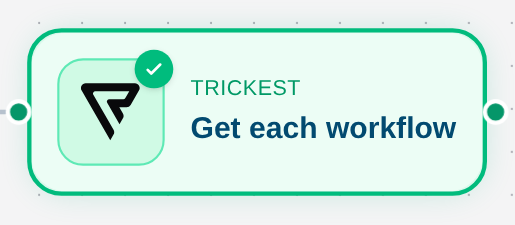
3. Add `trickest_workflow_get`, name it `workflow-details`, and connect `workflow-list`. Select **For each line of workflow-list**, set **Workflow id** (`workflowId`) to `{{item}}`, **Call limit** to `2`, and **Node fails > When any call fails**.
4. Run with **Save as > JSON**. Compare each returned ID and node list with a workflow you can open in the editor.
A definition describes the graph; it does not prove that workflow ran. The call limit intentionally fetches only two definitions. Reconcile the list count and fetched count when widening the task. The original capture environment did not offer fresh built-in tool discovery, so the saved graph is historical. [Download the Agent recipe](/docs/examples/release-1.2.1/trickest.agent.json).
An administrator can enable **Start and stop runs** for workflow nodes. Agent chat keeps read tools. A node cannot start its own workflow; one run can start at most five other runs, and chains stop at two levels. Inspect status and outputs separately from starting a run.
## Custom MCP server
For another service, follow [Connecting a custom MCP server](/docs/using-the-app/agent/connecting-a-custom-mcp-server) to configure its endpoint, authentication, and tool discovery. Then add one of its discovered tools using the [shared node controls](#build-and-check-a-connector-node). Use its actual schema for arguments and output paths; another provider’s example is not its contract.
To use a connection conversationally, follow [Use MCP connectors with the Agent](/docs/using-the-app/agent/using-mcp-connectors).
## Jira to GitHub
After the [Jira](#jira) and [GitHub](#github) tests work, use Jira issue-key lines to search for related changes:
| GitHub tool | Node name | **Query** (`query`) |
| --- | --- | --- |
| `search_pull_requests` | `find-pull-requests` | `"{{item}}" org:YOUR_ORG` |
| `search_code` | `find-code` | `"{{item}}" org:YOUR_ORG` |
| `search_commits` | `find-commits` | `"{{item}}" org:YOUR_ORG` |
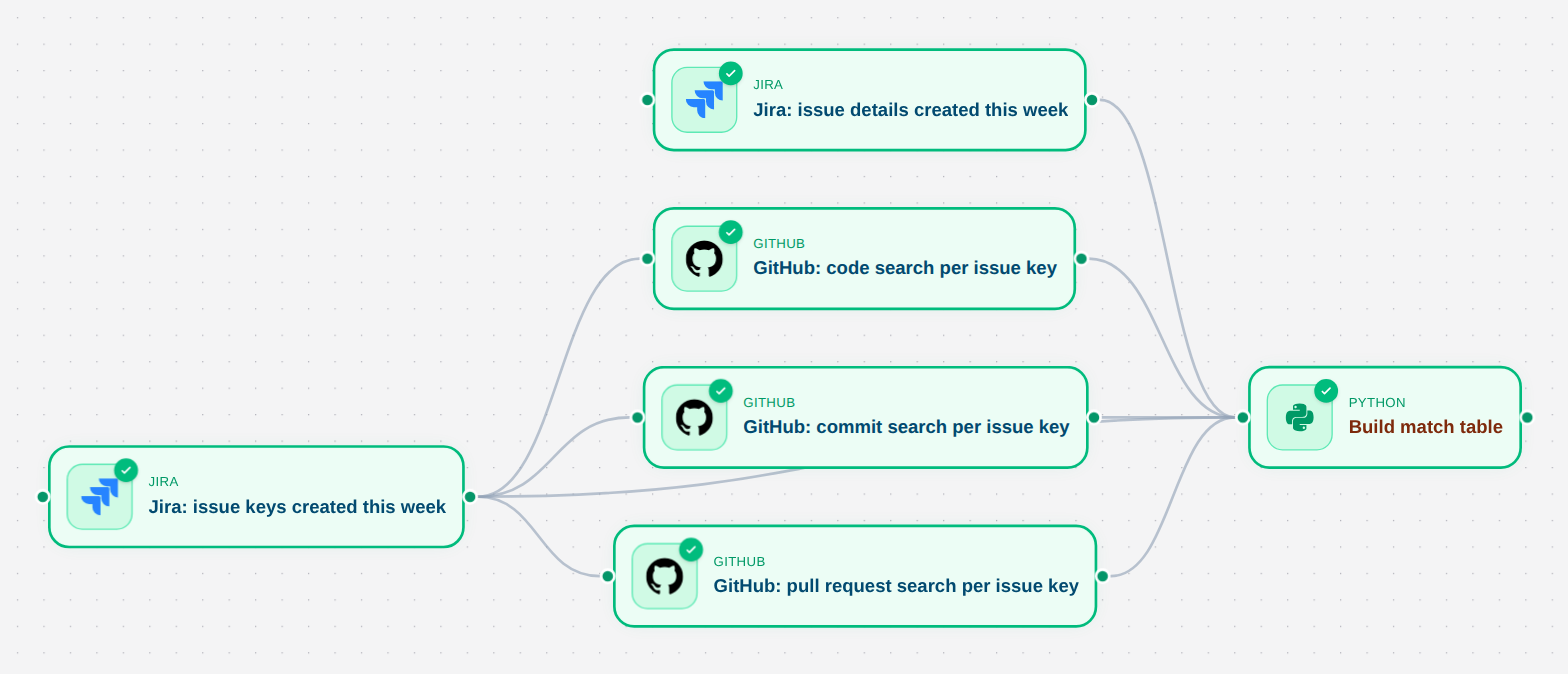
Connect `issue-keys` under **Data** on all branches. Choose **For each line of issue-keys**, set **Call limit** to `2`, select **When any call fails**, and keep **Save as > JSON**. Replace `YOUR_ORG`, or restrict searches to a known `repo:OWNER/REPO`. Two issue keys across three branches make up to six calls; page limits still apply within each call.
Keep a second Jira node named `issue-details` with the same site, JQL, and limit, saving JSON instead of Lines. Connect it and the three searches to the [report helper](/docs/examples/release-1.2.1/jira_github_report.py). Keep the search key, match type, URL, and explicit unmatched rows. A literal issue-key mention is a candidate relationship, not proof of a fix. Failed branches must remain errors rather than becoming zero matches.
[Download the Jira/GitHub Agent recipe](/docs/examples/release-1.2.1/jira-to-github.agent.json) and [native report fixture](/docs/examples/release-1.2.1/jira-report-fixture.workflow.json). The saved example needed renewed provider sign-in before fresh execution.
## Reports to Slack
Start from the [HackerOne report sample](#hackerone). Review the destination audience before moving report content into another service. The steps below normalize report identity and state, then prepare one message file before adding a sender.
### Normalize the records
Add a Python node named `report-rows` and connect the **folder** output from `reports`. This script expects the per-line JSON call records produced by **For each line** with **Save as > JSON**. Each record carries the program in `item`, success in `ok`, and the tool response in `result`. It reads the mounted file at `in/reports/output.txt`, handles the versioned MCP response wrapper, and writes one normalized record per report.
```python
import json
from pathlib import Path
def payload(value):
if isinstance(value, dict) and value.get("version") == 1:
if set(value) == {"version", "result"}:
return value["result"]
if value.get("structuredContent") is not None:
return value["structuredContent"]
parts = [json.loads(part["text"]) for part in value.get("content", [])
if part.get("type") == "text"]
if len(parts) == 1:
return parts[0]
return value
source = Path("in/reports/output.txt")
rows = []
for line in source.read_text().splitlines():
if not line.strip():
continue
call = json.loads(line)
if call.get("ok") is not True or not isinstance(call.get("item"), str):
raise ValueError("A report call failed or lacks its program handle")
result = payload(call["result"])
if not isinstance(result, dict) or not isinstance(result.get("items"), list):
raise ValueError("Expected a report result with an items list")
for report in result["items"]:
if not isinstance(report, dict) or report.get("id") is None:
raise ValueError("A report lacks its ID")
rows.append({"program": call["item"], "report_id": str(report["id"]),
"state": report.get("state", "unknown")})
Path("out").mkdir(exist_ok=True)
Path("out/reports.jsonl").write_text(
"".join(json.dumps(row) + "\n" for row in rows)
)
```
Run `report-rows` and inspect `out/reports.jsonl`. Each row keeps the program handle, stable report ID and state. A failed call or unexpected shape stops the script instead of silently reducing the report count. Empty `items` lists produce an empty report file. This mapping matches the Trickest HackerOne adapter; recheck the contract if you use another custom server.
The normalized file omits report titles and descriptions. Add those fields only if the destination audience may see them. The next script uses program/report identities to remove duplicate records.
For a recurring “new reports” digest, first add a persisted sent-report ledger and compare stable IDs with it. Update that ledger only after confirmed delivery. Until then, describe this as a report sample; rerunning it can repeat reports.
### Build a text file for review
Add a Python node named `summary`, connect the `report-rows` output folder, and use this standard-library script. It reads the normalized contract above and writes one summary file. Its input path assumes the upstream node is named `report-rows`.
```python
import json
from collections import Counter
from pathlib import Path
files = sorted(Path("in/report-rows").rglob("reports.jsonl"))
if not files:
raise ValueError("No normalized report file found")
rows = [json.loads(line) for file in files
for line in file.read_text().splitlines() if line.strip()]
unique = {(row["program"], str(row["report_id"])): row for row in rows}
counts = Counter(row["program"] for row in unique.values())
lines = [f"HackerOne report sample: {len(unique)} reports"]
lines.extend(f"{program}: {count}" for program, count in sorted(counts.items()))
lines.append("Bounded sample; check collection limits and failures before use.")
Path("out").mkdir(exist_ok=True)
Path("out/output.txt").write_text("\n".join(lines) + "\n")
```
Run `summary` and open `out/output.txt` in **Files**. Check the count against the normalized records. This summary sends counts only; it does not include report descriptions or confidential attachments. Stop here until the text and destination are ready.
### Add one Slack post after review
1. Use Slack channel search to confirm the intended channel ID, workspace and audience. Do not rely on a channel name alone.
2. Add `slack_send_message` and name it `post-summary`.
3. Connect the `summary` output under **Data** and keep **Run** set to **Once**.
4. Set **Channel id** (`channel_id`) to the confirmed destination.
5. In **Message** (`message`), use **Insert into Message > Connected nodes** to choose `summary` as **Whole file**. Keep **Save as** set to **JSON**.
6. Run the post node only when you intend to send the reviewed message. Inspect its result for an error or returned message reference, then verify the message in the destination channel.
The current tool schema calls the required body field **Message** (`message`). An older saved node may show **Text** (`text`); review and update that binding against the discovered schema before execution.
Use **Once** for the sender. **For each line** would turn a multi-line summary into multiple calls. Retrying or rerunning a send can create duplicate messages; check the channel after an uncertain outcome before retrying.
Test collection errors, empty results, and delivery failure before scheduling. Retain a separate outbox and sent-message ledger for recurring notifications. A collection cursor is not a Slack receipt, and retrying a send can duplicate messages. No fresh provider call or Slack message is claimed by these screenshots.
## Collect into a live table
Use the normalized `out/reports.jsonl` file from [Normalize the records](#normalize-the-records). Its synthetic record shape is:
```jsonl
{"program":"example-program","report_id":"101","state":"new"}
{"program":"example-program","report_id":"102","state":"triaged"}
```
1. After the producing node completes, open **Database**, select its detected `reports.jsonl`, and choose **Make live**.
2. Name the table `report-inventory` and include `program`, `report_id`, and `state`. Select **both `program` and `report_id` as the primary key**.
3. Review the node and file, choose **Create live table**, then inspect **Indexing history** and actual records. Compare indexed records with distinct `(program, report_id)` pairs in the source.
4. Deliberately collect a known report again after its state changes. Inspect that same key and its **History**. A creation-time feed alone can omit changes to older reports, so use a query that includes the changed record.
Follow [Creating a Database](/docs/using-the-app/database-management/creating-database), [Inspecting Row History](/docs/using-the-app/database-management/inspecting-row-history), and [Creating Views](/docs/using-the-app/database-management/creating-views) for those controls. Keep collection checkpoints separate from indexing status. Missing rows require checks of pagination, key collisions, and ingestion; source deletion does not by itself establish table deletion. Filtered reads of locally inserted overlay rows have the release limitation described in [Querying](/docs/using-the-app/database-management/querying).
## Recurring collection
The [recurring HackerOne recipe](/docs/examples/release-1.2.1/recurring-hackerone.agent.json) uses the [checkpoint helper](/docs/examples/release-1.2.1/recurring_sync.py). It collects new reports for one program and updates a persistent workspace variable after the producing node completes.
Create a dedicated variable named `DOCS_H1_SYNC_STATE`, replacing the program and start time:
```json
{"version":1,"program":"YOUR_PROGRAM","since":"2026-10-01T00:00:00Z","seen":[]}
```
List variables in the intended workspace with `GET /api/workspaces/{workspaceId}/variables` and identify that variable’s UUID. Configure the collector:
| Setting | Kind | Value |
| --- | --- | --- |
| `SYNC_API_ORIGIN` | Variable | Your HTTPS Trickest origin, without a path, query, or embedded credentials |
| `SYNC_STATE_ID` | Variable | The checkpoint variable’s UUID |
| `SYNC_PLATFORM_TOKEN` | Workspace secret | A Trickest token allowed to read and update the checkpoint |
This platform credential is separate from the HackerOne connector. Use [Managing Secrets](/docs/using-the-app/workflow-and-executions/managing-secrets) for it.
| Node | Contract |
| --- | --- |
| `load-state` | Read state and write `out/output.txt` plus `out/checkpoint.json` |
| `reports` | Run `list_reports` once per load-state line, with `program={{item.program}}`, `created_since={{item.since}}`, `limit=1000`, JSON output, and failure on any call error |
| `prepare` | Read both upstream folders, reject incomplete or malformed results, deduplicate IDs, and write `out/reports.jsonl` plus `out/commit.json` |
| `commit-state` | Run after prepare completes; check for state drift, update the checkpoint, and read it back |
Keep this workflow as the state’s **only writer** and prevent overlapping manual or scheduled runs. Drift detection is not a lock: the Variables API has no atomic compare-and-swap for this example. Keep prepare and commit in separate nodes so the output finishes before the cursor advances.
Run a small collection twice to check replay and stable IDs. A failed or truncated batch must not advance the cursor. If a commit times out, read the actual checkpoint before retrying; the helper retries bounded reads but does not automatically retry writes. Backfill overly large windows in reviewed smaller intervals rather than skipping them.
Only after manual checks pass, open **Workflow actions > Schedule**, choose an interval longer than the observed run time, review the fleet and first-run time, and confirm. The interval is not a concurrency lock. [Executing and scheduling workflows](/docs/using-the-app/workflow-and-executions/executing-and-scheduling-workflows) explains timezone and cancellation controls. This creation-time collector does not establish complete update reconciliation or exactly-once Slack delivery.
## Downloads and fixtures
Use these companion files to build the tutorial workflows without carrying another vault's connector IDs or credentials. There are two formats: portable Agent recipes for live connector authoring, and native editor imports that process synthetic data locally in script nodes.
### Choose a downloadable example
For live connector recipes, you need Agent access, Enterprise connector access, enabled provider accounts, and permission to create workflows. Confirm provider permissions and replace the documented placeholders before running.
Native fixture workflows need workflow editing access and a fleet for platform execution. Their scripts can also be tested locally with Python. They use synthetic records and make no provider calls.
### Use an Agent recipe
1. Download a `.agent.json` file from the table below and inspect it. All recipes start with `mode: preview` and a new workflow name.
2. Give it to the Agent and ask it to inspect the current connection and tool schemas, then preview the graph. Replace `YOUR_…` inputs and connection names with your intended values.
3. Review the nodes, arguments, result paths and call limits. The preview can discover tools but does not save or execute the graph.
4. Ask the Agent to apply the reviewed recipe when ready to save. Keep execution as a separate request, then test a small input using the linked guide.
These are inputs to the Agent's **WorkflowApply** tool. They are not native editor snapshot JSON, and the CLI's generic workflow-apply command is not a substitute for the Agent's connector expansion.
| Recipe | What it prepares |
| --- | --- |
| [GitHub](/docs/examples/release-1.2.1/github.agent.json) | Query lines → repository search → repository-name lines |
| [Linear](/docs/examples/release-1.2.1/linear.agent.json) | Assigned and created issue lists → deduplicated Python merge |
| [Notion](/docs/examples/release-1.2.1/notion.agent.json) | Page search → one fetch per page ID |
| [Jira](/docs/examples/release-1.2.1/jira.agent.json) | Project-scoped JQL search → issue-key lines |
| [Slack](/docs/examples/release-1.2.1/slack.agent.json) | Channel search → exact-name parser → channel read |
| [HackerOne](/docs/examples/release-1.2.1/hackerone.agent.json) | Program handles → reports per program |
| [Trickest](/docs/examples/release-1.2.1/trickest.agent.json) | Workflow list → definitions by ID |
| [Jira to GitHub](/docs/examples/release-1.2.1/jira-to-github.agent.json) | Issue keys → three search branches → candidate-match report |
| [Recurring HackerOne collector](/docs/examples/release-1.2.1/recurring-hackerone.agent.json) | Load persistent state → collect → validate and save records → commit checkpoint |
The first eight recipes have no provider-write tool or Slack sender. The recurring collector updates its dedicated platform checkpoint when **executed**; review its account permissions and [single-writer requirements](/docs/using-the-app/workflow-and-executions/using-connectors-in-workflows#recurring-collection) first.
### Import a native fixture workflow
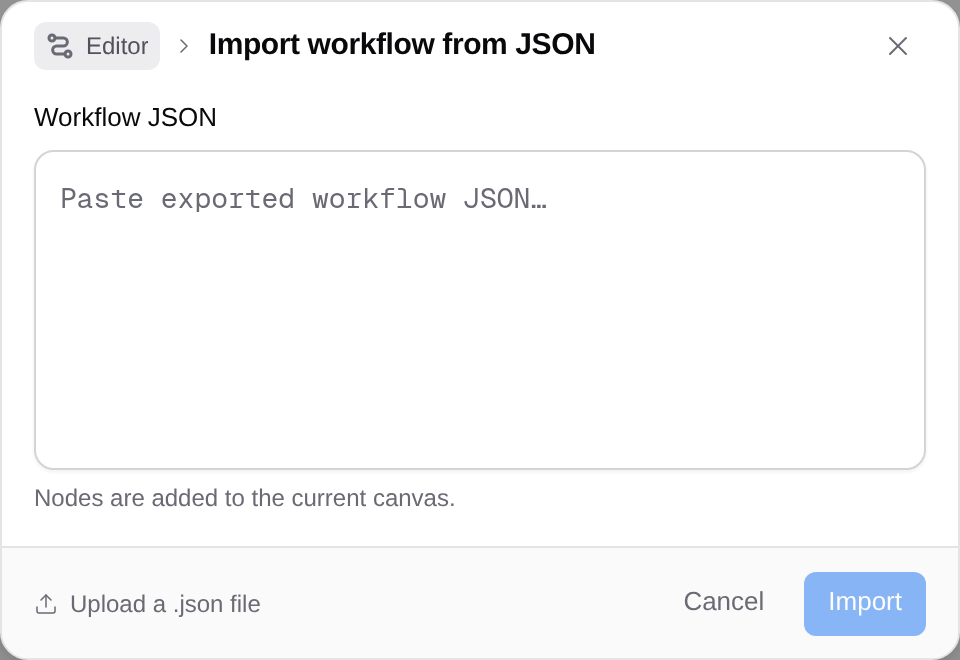
Download a `.workflow.json` file below. Open a new empty workflow, focus the canvas, and press **Ctrl+I** on Linux/Windows or **⌘I** on macOS. The canvas context menu also offers **Import workflow…**.
In **Import workflow from JSON**, use **Upload a .json file**, or paste the contents in **Workflow JSON** and select **Import**. Uploading the file imports it immediately. Nodes are added to the current canvas; it does not replace the whole workflow. Name collisions can rename nodes, so start with an empty workflow to preserve the example's mounted paths.
| Native JSON | Fixture contract and result |
| --- | --- |
| [Linear merge](/docs/examples/release-1.2.1/linear-merge-fixture.workflow.json) | Two issue lists with a duplicate → two unique issue rows, retaining their original states |
| [Jira/GitHub report](/docs/examples/release-1.2.1/jira-report-fixture.workflow.json) | Three searches for one issue key → match rows plus an explicit no-match row |
| [Slack channel parser](/docs/examples/release-1.2.1/slack-channel-fixture.workflow.json) | Two named channels → one exact `docs-review` channel ID |
Run each imported fixture and inspect its output. These are synthetic expected results, not observed provider responses. The scripts were executed against these same fixture contracts in local checks; no platform run is claimed.
### Replace fixtures with your connector nodes
The fixture sources write the same per-node filenames used by the processors: `in//output.txt`. Remove the synthetic sources, add the real connector nodes, and preserve the source names and folder connections. Use **Save as > JSON** on those live nodes.
Before executing, inspect the actual JSON. The [shared result helper](/docs/examples/release-1.2.1/mcp_records.py) handles the versioned MCP wrapper and repeated-call records; it does not guess every provider's response schema.
- **Linear:** the processor expects an `issues` list with stable IDs. It merges duplicates and retains all states, including completed issues. Add a reviewed filter for your workspace's active states if needed.
- **Jira/GitHub:** each search must repeat over issue-key lines, so the call record's `item` preserves the key. Each result needs an `items` list with `html_url` fields. A failed call stops processing rather than appearing as no matches.
- **Slack:** the parser expects the concise `results` text shape and one exact channel name. Change `wanted` in the script and reject zero or multiple matches. Keep reading as the first test; the fixture contains no message sender.
Standalone script downloads are [Linear merge](/docs/examples/release-1.2.1/linear_merge.py), [Jira/GitHub report](/docs/examples/release-1.2.1/jira_github_report.py) and [Slack parser](/docs/examples/release-1.2.1/slack_channel.py). Download `mcp_records.py` beside them for local use. The native imports and Agent recipes embed that helper, so those script nodes need no extra package installation.
### Validation and limits
The recipes pass the parameter schema from released v2 1.2.1. The native imports pass that release's JSON parser and edge checks, and their Python nodes run against local fixtures. Browser and Computer recipe files pass the released recipe validator.
These checks do not verify your provider account, current tool schema, fleet execution or end-to-end delivery. If a connector needs reconnection or is unavailable, resolve it before applying or running the graph. Stop on a discovery or schema error.
The [download manifest](/docs/examples/release-1.2.1/manifest.json) records the source release and validation status. It separates offline checks from provider and platform execution.
## Troubleshooting
| Symptom | Check |
| --- | --- |
| **Reconnect**, disabled connection, or missing tools | Have an administrator restore sign-in, test, enable, and inspect the current catalog |
| Upgrade or access message | Enterprise, AI access, provider-key verification, and your role |
| Empty results | A known accessible record, filters, provider account scope, pagination, and limits |
| A successful node has missing records | Individual call errors, skipped inputs, field paths, and the selected failure rule |
| Repeated or uncertain notifications | Inspect the actual destination before retrying and preserve the delivery ledger |
| A saved field or tool no longer exists | Review current discovery and schema before changing or running the node |
Provider account checks, fresh fleet runs, and external delivery were not performed for this guide. Existing screenshots and offline fixture checks are evidence of their stated scopes.
---
_Markdown source of https://trickest.com/docs/using-the-app/workflow-and-executions/using-connectors-in-workflows._
 ## GitHub
**Connect:** choose **Add connector > GitHub**, then **Connect to Trickest** and authorize the intended account. You can instead use **Use a token** with a fine-grained **Personal access token** scoped to the repositories you need. Existing connections offer **Reconnect** or **Use a token instead**; token replacement uses **Replace and test**.
Build a small repository search:
1. Add a Python node named `queries` with the script below and run it to create two query lines.
2. Add GitHub’s `search_repositories` tool. Under **Data**, connect `queries`; set **Run > For each line of queries** and **Query** (`query`) to `{{item}}`.
3. Set **Per page** (`perPage`) to `5`, **Call limit** to `2`, and **Node fails > When any call fails**. Start with **Save as > JSON**.
4. Run the search, inspect each call, then choose **Lines** with `items[].full_name` if that matches the result. The output contains repository names for the next step.
```python
from pathlib import Path
Path("out").mkdir(exist_ok=True)
Path("out/output.txt").write_text(
"org:trickest wordlist\norg:trickest topic:security\n"
)
```
Use queries for repositories the connected account may read. Five results per query is a sample, not a complete inventory; check pagination and deduplicate repositories that match both queries.
 The saved GitHub example retains historical results. At the original capture, the account needed reconnection and the saved node reported **Tool unavailable**. Reconnect and check discovery before trying a fresh search. [Download the Agent recipe](/docs/examples/release-1.2.1/github.agent.json).
## Linear
**Connect:** choose **Add connector > Linear** and authorize the intended Linear account. **Use a token** also accepts a personal **API key**; prefer a read-only key for this example. A new or replacement key must pass its connection test.
1. Add `list_issues`, name it `assigned-issues`, and keep **Run > Once**.
2. Select **Team** (`team`) and **Assignee** (`assignee`). Use **Add option** if needed, set **Limit** (`limit`) to `10`, and turn **Include sub teams** (`includeSubTeams`) off for the first test.
3. Run with **Save as > JSON**. Check the returned team, identifier, title, state, and assignee for each issue.
4. To include issues created by the same person, add another `list_issues` node named `created-issues`. Set **Creator** (`creator`), leave **Assignee** unset, and use the same team and limit.
5. Connect both outputs to a Python node. Deduplicate by stable issue ID and preserve the identifier and URL. The [merge helper](/docs/examples/release-1.2.1/linear_merge.py) and [native fixture](/docs/examples/release-1.2.1/linear-merge-fixture.workflow.json) retain all issue states; add your own reviewed active-state filter.
 The server notes that team-ID filters can include descendant teams even when **Include sub teams** is off. Check the team on each returned issue. Assigned issues can include closed issues, and the first ten results do not establish complete coverage. [Download the Agent recipe](/docs/examples/release-1.2.1/linear.agent.json).
## Notion
**Connect:** choose **Add connector > Notion**, then **Connect to Trickest** and authorize the intended workspace and account. This preset uses OAuth and does not offer the token form shown by some other connectors.
| Node | Tool | Inputs and run mode | Output |
| --- | --- | --- | --- |
| `page-search` | `notion-search` | **Once**; **Query** (`query`) `workflow`; **Page size** (`page_size`) `5` | Inspect JSON, then **Lines** with `results[].id` if present |
| `fetch-pages` | `notion-fetch` | Connect `page-search`; **For each line of page-search**; **Id** (`id`) `{{item}}`; **Call limit** `5` | **JSON**, with **When any call fails** |
Run the search first and check its page IDs. Then run the fetch node and inspect each result or error before passing page content to a script or AI Agent node. Keep IDs and source links with the contents.
 Use a known accessible page to separate a search mismatch from missing account permissions. Search and fetch schemas can change, so inspect the discovered tools and actual response before using the field path above. Five pages is a sample; check pagination for wider collection. [Download the Agent recipe](/docs/examples/release-1.2.1/notion.agent.json).
## Jira
**Connect:** choose **Add connector > Jira** and authorize an Atlassian account with access to the intended site and project. If several sites are available, choose the intended **Cloud id** (`cloudId`).
Token authentication requires an Atlassian organization policy that allows API tokens for its MCP server. **Use a token** offers **Service account key** or **Personal API token**; the personal option also requires its creator’s **Account email**. Use **Connect** or **Replace and test** to test the credential.
1. Add `searchJiraIssuesUsingJql`, name it `issue-keys`, and keep **Run > Once**.
2. Choose **Cloud id** (`cloudId`), set **Max results** (`maxResults`) to `10`, and use the JQL below with your project key.
3. Run with **Save as > JSON** and compare the site and issue keys with Jira.
4. If the result contains `data.issues`, choose **Lines** with `data.issues[].key` and run again. Pass those keys to the next node.
```text
project = YOUR_PROJECT AND created >= startOfWeek() ORDER BY created DESC
```
This query selects issues created this week, not every issue updated this week. Limits and account access affect coverage. The saved Jira connection needed reconnection at capture; no fresh Jira execution is claimed here. [Download the Agent recipe](/docs/examples/release-1.2.1/jira.agent.json), or continue with [Jira to GitHub](#jira-to-github).
## Slack
**Connect:** choose **Add connector > Slack** and authorize the intended Slack account and workspace. This preset uses OAuth and does not offer a personal token form. Reads and sends use that saved account’s access.
1. Add `slack_search_channels`, name it `find-channel`, and keep **Run > Once**. Set **Natural language query** (`natural_language_query`) to `Find the docs review channel`, set **Keywords** (`keywords`) to your channel name using the field’s shown type, and choose **Limit** (`limit`) `5` and **Save as > JSON**. Use **Add option** if a field is hidden.
2. Inspect the channel’s name, workspace, and ID. Confirm the exact destination instead of relying on a similar name.
3. Add `slack_read_channel`, name it `read-messages`, and set **Run > Once**, **Channel id** (`channel_id`) to the confirmed ID, **Limit** (`limit`) to `10`, and **Save as > JSON**.
4. Run the reader and inspect messages, timestamps, and any error. This first test uses a fixed channel ID.
For automatic selection, use the [exact-name parser](/docs/examples/release-1.2.1/slack_channel.py). It writes a JSON line with `channel_id`. Connect that output to the reader, select **For each line of** that source, set **Channel id** to `{{item.channel_id}}`, and use a **Call limit** of `1` for the first test.
 The saved example’s later JSONL formatter failed; inspect it separately from the raw Slack read. Ten recent messages is a sample, and a channel read need not include every thread reply. Private channels require access for the connected account. [Download the Agent recipe](/docs/examples/release-1.2.1/slack.agent.json). To send one reviewed message, follow [Reports to Slack](#reports-to-slack).
## HackerOne
Trickest provides this HackerOne adapter; it is not an official HackerOne-hosted MCP server.
**Connect:** choose **Add connector > HackerOne > Use a token**. Enter the organization API token’s **Token identifier** and **API token** secret, then select **Connect**. The identifier is not your username or email. The token needs Report Management rights. Existing connections use **Replace token > Replace and test**.
| Node | Tool | Inputs and run mode | Output |
| --- | --- | --- | --- |
| `programs` | `list_programs` | **Once**; **Limit** (`limit`) `2` | Inspect JSON, then **Lines** with `items[].handle` if present |
| `reports` | `list_reports` | Connect `programs`; **For each line of programs**; **Program** (`program`) `{{item}}`; **Limit** (`limit`) `5`; **Call limit** `2` | **JSON**, with **When any call fails** |
Run the program list and verify its handles before running report collection. Inspect each program’s result and errors. Preserve the program handle and stable report ID when normalizing records for later steps.
 Two programs with five reports each is a bounded sample. Check pagination and reconcile per-program counts before using it as an inventory. Have an administrator replace and test rejected credentials; a single program can also fail because the token lacks access to it. [Download the Agent recipe](/docs/examples/release-1.2.1/hackerone.agent.json).
## Trickest
The built-in Trickest connector uses the run initiator’s own permissions. No external sign-in or token is required for this connection. An Enterprise administrator can enable it under **Settings > Infrastructure > Connectors**. If it is absent, ask the deployment administrator whether its MCP endpoint is configured.
Leave **Start and stop runs** off for this read-only example:
1. Add `trickest_workflow_list`, name it `workflow-list`, and keep **Run > Once**. Select **Space** (`space`) and a distinctive **Filter** (`filter`). Start with **Save as > JSON**.
2. Run the list and check the workflows. If the result is an array with `id` fields, choose **Lines** with `[].id` and run again.
3. Add `trickest_workflow_get`, name it `workflow-details`, and connect `workflow-list`. Select **For each line of workflow-list**, set **Workflow id** (`workflowId`) to `{{item}}`, **Call limit** to `2`, and **Node fails > When any call fails**.
4. Run with **Save as > JSON**. Compare each returned ID and node list with a workflow you can open in the editor.
 A definition describes the graph; it does not prove that workflow ran. The call limit intentionally fetches only two definitions. Reconcile the list count and fetched count when widening the task. The original capture environment did not offer fresh built-in tool discovery, so the saved graph is historical. [Download the Agent recipe](/docs/examples/release-1.2.1/trickest.agent.json).
An administrator can enable **Start and stop runs** for workflow nodes. Agent chat keeps read tools. A node cannot start its own workflow; one run can start at most five other runs, and chains stop at two levels. Inspect status and outputs separately from starting a run.
## Custom MCP server
For another service, follow [Connecting a custom MCP server](/docs/using-the-app/agent/connecting-a-custom-mcp-server) to configure its endpoint, authentication, and tool discovery. Then add one of its discovered tools using the [shared node controls](#build-and-check-a-connector-node). Use its actual schema for arguments and output paths; another provider’s example is not its contract.
To use a connection conversationally, follow [Use MCP connectors with the Agent](/docs/using-the-app/agent/using-mcp-connectors).
## Jira to GitHub
After the [Jira](#jira) and [GitHub](#github) tests work, use Jira issue-key lines to search for related changes:
| GitHub tool | Node name | **Query** (`query`) |
| --- | --- | --- |
| `search_pull_requests` | `find-pull-requests` | `"{{item}}" org:YOUR_ORG` |
| `search_code` | `find-code` | `"{{item}}" org:YOUR_ORG` |
| `search_commits` | `find-commits` | `"{{item}}" org:YOUR_ORG` |
Connect `issue-keys` under **Data** on all branches. Choose **For each line of issue-keys**, set **Call limit** to `2`, select **When any call fails**, and keep **Save as > JSON**. Replace `YOUR_ORG`, or restrict searches to a known `repo:OWNER/REPO`. Two issue keys across three branches make up to six calls; page limits still apply within each call.
Keep a second Jira node named `issue-details` with the same site, JQL, and limit, saving JSON instead of Lines. Connect it and the three searches to the [report helper](/docs/examples/release-1.2.1/jira_github_report.py). Keep the search key, match type, URL, and explicit unmatched rows. A literal issue-key mention is a candidate relationship, not proof of a fix. Failed branches must remain errors rather than becoming zero matches.
 [Download the Jira/GitHub Agent recipe](/docs/examples/release-1.2.1/jira-to-github.agent.json) and [native report fixture](/docs/examples/release-1.2.1/jira-report-fixture.workflow.json). The saved example needed renewed provider sign-in before fresh execution.
## Reports to Slack
Start from the [HackerOne report sample](#hackerone). Review the destination audience before moving report content into another service. The steps below normalize report identity and state, then prepare one message file before adding a sender.
### Normalize the records
Add a Python node named `report-rows` and connect the **folder** output from `reports`. This script expects the per-line JSON call records produced by **For each line** with **Save as > JSON**. Each record carries the program in `item`, success in `ok`, and the tool response in `result`. It reads the mounted file at `in/reports/output.txt`, handles the versioned MCP response wrapper, and writes one normalized record per report.
```python
import json
from pathlib import Path
def payload(value):
if isinstance(value, dict) and value.get("version") == 1:
if set(value) == {"version", "result"}:
return value["result"]
if value.get("structuredContent") is not None:
return value["structuredContent"]
parts = [json.loads(part["text"]) for part in value.get("content", [])
if part.get("type") == "text"]
if len(parts) == 1:
return parts[0]
return value
source = Path("in/reports/output.txt")
rows = []
for line in source.read_text().splitlines():
if not line.strip():
continue
call = json.loads(line)
if call.get("ok") is not True or not isinstance(call.get("item"), str):
raise ValueError("A report call failed or lacks its program handle")
result = payload(call["result"])
if not isinstance(result, dict) or not isinstance(result.get("items"), list):
raise ValueError("Expected a report result with an items list")
for report in result["items"]:
if not isinstance(report, dict) or report.get("id") is None:
raise ValueError("A report lacks its ID")
rows.append({"program": call["item"], "report_id": str(report["id"]),
"state": report.get("state", "unknown")})
Path("out").mkdir(exist_ok=True)
Path("out/reports.jsonl").write_text(
"".join(json.dumps(row) + "\n" for row in rows)
)
```
Run `report-rows` and inspect `out/reports.jsonl`. Each row keeps the program handle, stable report ID and state. A failed call or unexpected shape stops the script instead of silently reducing the report count. Empty `items` lists produce an empty report file. This mapping matches the Trickest HackerOne adapter; recheck the contract if you use another custom server.
The normalized file omits report titles and descriptions. Add those fields only if the destination audience may see them. The next script uses program/report identities to remove duplicate records.
For a recurring “new reports” digest, first add a persisted sent-report ledger and compare stable IDs with it. Update that ledger only after confirmed delivery. Until then, describe this as a report sample; rerunning it can repeat reports.
### Build a text file for review
Add a Python node named `summary`, connect the `report-rows` output folder, and use this standard-library script. It reads the normalized contract above and writes one summary file. Its input path assumes the upstream node is named `report-rows`.
```python
import json
from collections import Counter
from pathlib import Path
files = sorted(Path("in/report-rows").rglob("reports.jsonl"))
if not files:
raise ValueError("No normalized report file found")
rows = [json.loads(line) for file in files
for line in file.read_text().splitlines() if line.strip()]
unique = {(row["program"], str(row["report_id"])): row for row in rows}
counts = Counter(row["program"] for row in unique.values())
lines = [f"HackerOne report sample: {len(unique)} reports"]
lines.extend(f"{program}: {count}" for program, count in sorted(counts.items()))
lines.append("Bounded sample; check collection limits and failures before use.")
Path("out").mkdir(exist_ok=True)
Path("out/output.txt").write_text("\n".join(lines) + "\n")
```
Run `summary` and open `out/output.txt` in **Files**. Check the count against the normalized records. This summary sends counts only; it does not include report descriptions or confidential attachments. Stop here until the text and destination are ready.
 ### Add one Slack post after review
1. Use Slack channel search to confirm the intended channel ID, workspace and audience. Do not rely on a channel name alone.
2. Add `slack_send_message` and name it `post-summary`.
3. Connect the `summary` output under **Data** and keep **Run** set to **Once**.
4. Set **Channel id** (`channel_id`) to the confirmed destination.
5. In **Message** (`message`), use **Insert into Message > Connected nodes** to choose `summary` as **Whole file**. Keep **Save as** set to **JSON**.
6. Run the post node only when you intend to send the reviewed message. Inspect its result for an error or returned message reference, then verify the message in the destination channel.
 | Native JSON | Fixture contract and result |
| --- | --- |
| [Linear merge](/docs/examples/release-1.2.1/linear-merge-fixture.workflow.json) | Two issue lists with a duplicate → two unique issue rows, retaining their original states |
| [Jira/GitHub report](/docs/examples/release-1.2.1/jira-report-fixture.workflow.json) | Three searches for one issue key → match rows plus an explicit no-match row |
| [Slack channel parser](/docs/examples/release-1.2.1/slack-channel-fixture.workflow.json) | Two named channels → one exact `docs-review` channel ID |
Run each imported fixture and inspect its output. These are synthetic expected results, not observed provider responses. The scripts were executed against these same fixture contracts in local checks; no platform run is claimed.
### Replace fixtures with your connector nodes
The fixture sources write the same per-node filenames used by the processors: `in/