---
title: "Computer Use in Workflows"
canonical: https://trickest.com/docs/using-the-app/workflow-and-executions/using-computer-nodes
description: "Automate a desktop check, continue from another node, and handle human control during a run."
---
# Computer Use in Workflows
Use Computer Use when a workflow needs the desktop accessibility interface, including a native application or a browser step that must continue on the same screen. This tutorial opens a public page, checks visible text, and saves a desktop screenshot.
## Before you start
You need an Enterprise vault, workflow editing and execution access, a fleet, an available Computer Use tool, and a computer or saved snapshot you can use. Your deployment administrator must have configured the interactive runtime.
This is a workflow node. The [Agent Computer view](/docs/using-the-app/agent/using-the-computer) is a separate interaction surface with different control behavior.
## Choose a computer or continue a chain
Use **Add node** to add **Computer Use**, then open **Setup**.
For a new desktop session, choose **Choose a computer**, select **Computer**, then choose **Current state** or a saved snapshot under **Start from**. Current state uses the existing computer and leaves it running. A run started from a snapshot creates a separate computer that stops afterward.
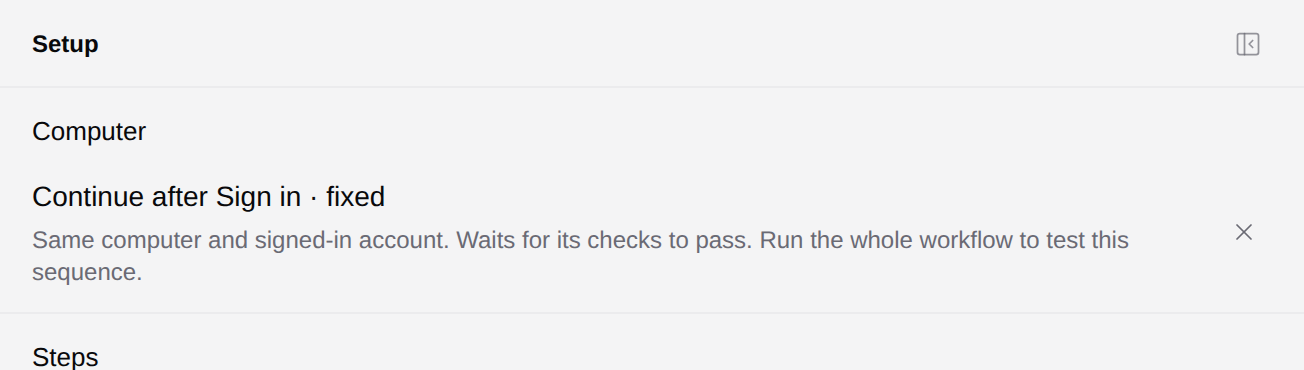
To continue an earlier Browser Use or Computer Use node, select **Continue after…** and choose **Previous node**. The node uses the same computer and signed-in account after the earlier checks pass. Each node still needs its own steps.
 ## Configure the steps
Select **Write steps** under **Steps**. For a standalone check, choose **Open a page** and set **Page URL** to `https://example.com`. Add these actions:
| Recipe action | What to configure |
| --- | --- |
| **Wait for text** (`wait`) | **Text:** `Example Domain` |
| **Check text** (`assert_text`) | **Text:** `Example Domain` |
| **Save screenshot** (`screenshot`) | **Screenshot name:** `desktop-check` |
Select **Save steps**. Computer Use matches desktop accessibility text; it does not use the browser CSS selector from the Browser Use recipe.
For a native application, set **Start > Open an application** and choose a supported application, such as `xterm` or `pcmanfm`. Do not paste shell commands into an application's name field.
To preserve the previous node's current screen, select **Continue current screen**. Opening a URL again can reset the state you intended to verify.
## Supply a recipe file
The [computer check recipe](/docs/examples/release-1.2.1/computer-check.recipe.json) contains the same standalone check:
```json
{
"version": 1,
"url": "https://example.com",
"steps": [
{"action": "wait", "text": "Example Domain"},
{"action": "assert_text", "text": "Example Domain"},
{"action": "screenshot", "name": "desktop-check"}
]
}
```
Select **From a file > Connect a recipe** and supply one JSON file. Recipe files are a different input from the previous node's results folder. Use **Continue after…** for the shared-computer connection.
## Run and review
Use **Execute** for a continuation chain. Check the node's desktop preview, logs, `result.jsonl` and saved screenshots. An execution-completed badge does not prove an assertion passed. Keep the outcome and evidence together when reporting the result.
A later node can use the results folder to build a report, but it cannot feed that folder directly into another node's recipe input.
## Take control when the run needs a person
In a running Computer Use node, select **Pause & take control** when it is available. Wait for **You have control · run paused** before interacting. Complete the requested interaction, then select **Resume automation**. Resuming disables viewer input before automation continues.
Closing or disconnecting the viewer leaves this workflow automation paused. It does not resume it. Verify run state before leaving the workflow unattended.
The workflow-node pause behavior differs from the Agent desktop. Taking control of the Agent desktop does not pause the Agent turn; stop that turn before working on the same application.
## Recover from a failure
If the computer or snapshot is unavailable, choose a usable source. If an accessibility action cannot find its target, inspect the desktop screenshot and the expected element role and name. For login failures, establish the intended session and use the signed-in-account check before later actions. A snapshot-created computer can stop on failure, so do not assume it remains available for partial retries.
The downloadable recipe passes the released validator. The screenshots are saved configuration; no new desktop or workflow run was started for this guide.
---
_Markdown source of https://trickest.com/docs/using-the-app/workflow-and-executions/using-computer-nodes._
## Configure the steps
Select **Write steps** under **Steps**. For a standalone check, choose **Open a page** and set **Page URL** to `https://example.com`. Add these actions:
| Recipe action | What to configure |
| --- | --- |
| **Wait for text** (`wait`) | **Text:** `Example Domain` |
| **Check text** (`assert_text`) | **Text:** `Example Domain` |
| **Save screenshot** (`screenshot`) | **Screenshot name:** `desktop-check` |
Select **Save steps**. Computer Use matches desktop accessibility text; it does not use the browser CSS selector from the Browser Use recipe.
For a native application, set **Start > Open an application** and choose a supported application, such as `xterm` or `pcmanfm`. Do not paste shell commands into an application's name field.
To preserve the previous node's current screen, select **Continue current screen**. Opening a URL again can reset the state you intended to verify.
## Supply a recipe file
The [computer check recipe](/docs/examples/release-1.2.1/computer-check.recipe.json) contains the same standalone check:
```json
{
"version": 1,
"url": "https://example.com",
"steps": [
{"action": "wait", "text": "Example Domain"},
{"action": "assert_text", "text": "Example Domain"},
{"action": "screenshot", "name": "desktop-check"}
]
}
```
Select **From a file > Connect a recipe** and supply one JSON file. Recipe files are a different input from the previous node's results folder. Use **Continue after…** for the shared-computer connection.
## Run and review
Use **Execute** for a continuation chain. Check the node's desktop preview, logs, `result.jsonl` and saved screenshots. An execution-completed badge does not prove an assertion passed. Keep the outcome and evidence together when reporting the result.
A later node can use the results folder to build a report, but it cannot feed that folder directly into another node's recipe input.
## Take control when the run needs a person
In a running Computer Use node, select **Pause & take control** when it is available. Wait for **You have control · run paused** before interacting. Complete the requested interaction, then select **Resume automation**. Resuming disables viewer input before automation continues.
Closing or disconnecting the viewer leaves this workflow automation paused. It does not resume it. Verify run state before leaving the workflow unattended.
The workflow-node pause behavior differs from the Agent desktop. Taking control of the Agent desktop does not pause the Agent turn; stop that turn before working on the same application.
## Recover from a failure
If the computer or snapshot is unavailable, choose a usable source. If an accessibility action cannot find its target, inspect the desktop screenshot and the expected element role and name. For login failures, establish the intended session and use the signed-in-account check before later actions. A snapshot-created computer can stop on failure, so do not assume it remains available for partial retries.
The downloadable recipe passes the released validator. The screenshots are saved configuration; no new desktop or workflow run was started for this guide.
---
_Markdown source of https://trickest.com/docs/using-the-app/workflow-and-executions/using-computer-nodes._