---
title: "Browser Use in Workflows"
canonical: https://trickest.com/docs/using-the-app/workflow-and-executions/using-browser-nodes
description: "Check a page with Browser Use, inspect its evidence, and continue on the same computer."
---
# Browser Use in Workflows
Use a Browser Use node when a workflow needs to interact with a rendered web page and verify what it shows. This tutorial checks a public page heading and saves a screenshot. It makes no changes to the page.
## Before you start
You need an Enterprise vault, permission to edit and execute a workflow, an execution fleet, and an available Browser Use tool. Choose a computer you can use, or a saved snapshot from which the run can create a separate computer. The tool's runtime must be configured by your deployment administrator.
A Library entry alone does not establish that the tool is runnable. If **Computer** lists no usable source, resolve that before starting. The sample uses `https://example.com`; replace it with a page you are allowed to test.
## Add the node and choose its computer
1. Open a workflow, select **Add node**, and find **Browser Use**.
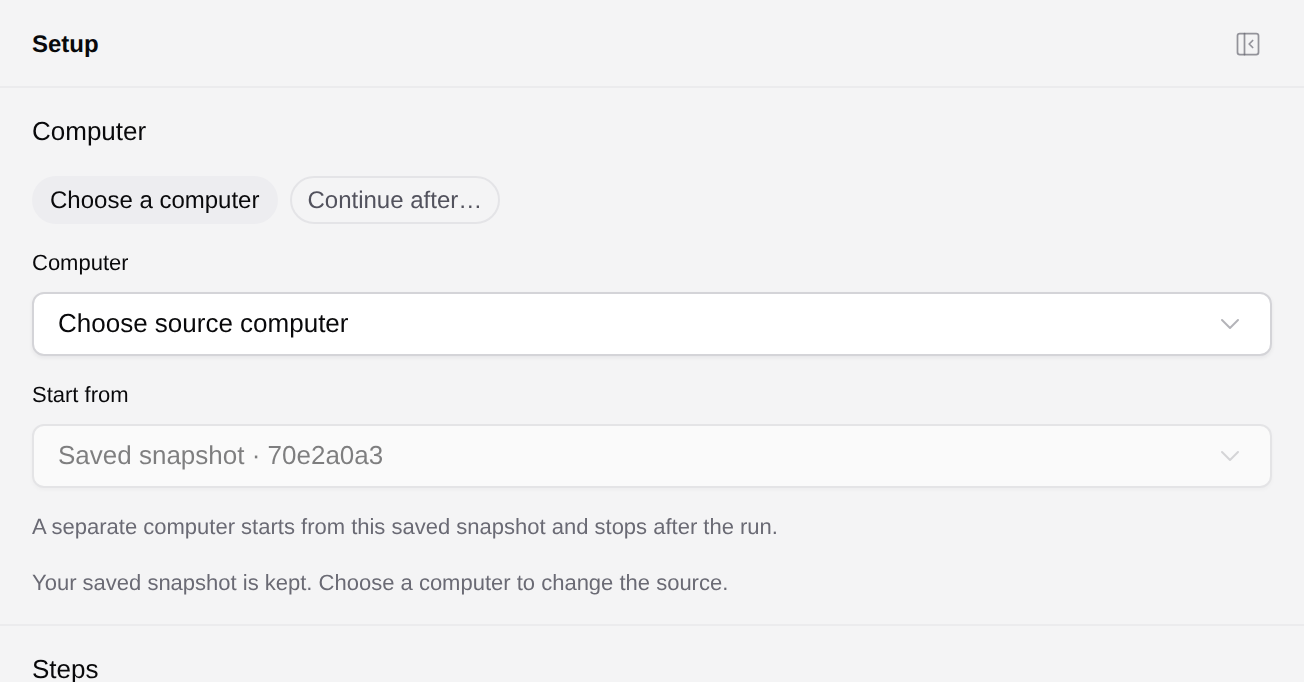
2. Open the node and show **Setup** if its side panel is collapsed.
3. Under **Computer**, select **Choose a computer** and select the source.
4. In **Start from**, choose **Current state** to use that computer as it is, or a dated saved snapshot to start a separate computer.
Using current state leaves the selected computer running after the run. A computer created from a saved snapshot stops at the end or on failure. A snapshot can remain selected even when its original computer is unavailable; choose an available source before changing it.
 ## Write a small check
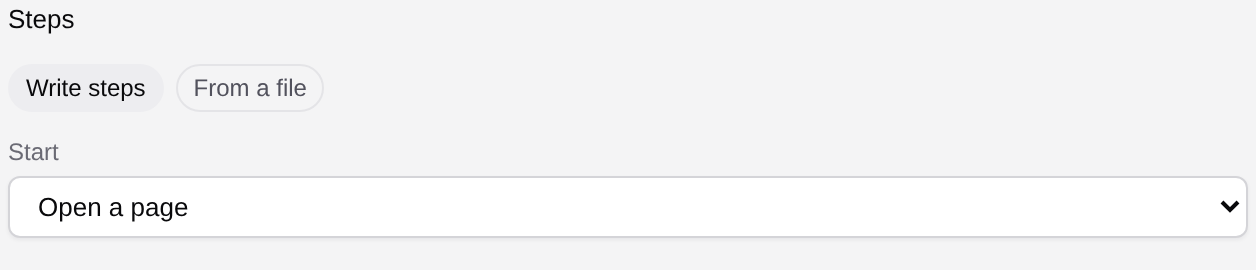
Under **Steps**, select **Write steps**. Set **Start** to **Open a page** and **Page URL** to `https://example.com`.
Use **Add step** and expand each step to configure it:
| Step action | Fields |
| --- | --- |
| **Check text** | **CSS selector:** `h1`; **Expected text:** `Example Domain` |
| **Save screenshot** | **Screenshot name:** `page-check` |
The action keys in recipe files are `assert_text` and `screenshot`. Use the action descriptions in your installed tool if the visible label differs. Select **Save steps** before running. Closing the panel keeps an unsaved draft; it does not save those steps for execution. Use **Discard changes** to return to the saved steps.
## Write a small check
Under **Steps**, select **Write steps**. Set **Start** to **Open a page** and **Page URL** to `https://example.com`.
Use **Add step** and expand each step to configure it:
| Step action | Fields |
| --- | --- |
| **Check text** | **CSS selector:** `h1`; **Expected text:** `Example Domain` |
| **Save screenshot** | **Screenshot name:** `page-check` |
The action keys in recipe files are `assert_text` and `screenshot`. Use the action descriptions in your installed tool if the visible label differs. Select **Save steps** before running. Closing the panel keeps an unsaved draft; it does not save those steps for execution. Use **Discard changes** to return to the saved steps.
 For an authenticated page, **Check the signed-in account first** lets you set an account selector and expected account text. Use it to catch an unexpected session before taking actions. It verifies the visible account indicator; it does not sign you in.
## Use a recipe file instead
Download the [browser check recipe](/docs/examples/release-1.2.1/browser-check.recipe.json), or create a JSON file containing:
```json
{
"version": 1,
"url": "https://example.com",
"steps": [
{"action": "assert_text", "selector": "h1", "equals": "Example Domain"},
{"action": "screenshot", "name": "page-check"}
]
}
```
Select **From a file > Connect a recipe** and supply that one JSON file, either from uploaded storage or a script's file output. A results folder from another Browser Use node is not a recipe. Use inline steps or a file for a node, rather than connecting both.
## Run and inspect the evidence
Run the node and open its **Browser**, **Logs**, and **Files** views. A running top-level node can show the live read-only browser; a completed node can show a screenshot saved by that run. Missing preview evidence is not a successful check.
In the results folder, inspect `result.jsonl` and the screenshots. Check the assertion outcome as well as the node's execution status. A job can finish while reporting an assertion failure or a missing login. If the assertion fails, compare the screenshot with the expected text and selector before changing the check.
## Continue in another node
Add a second Browser Use or [Computer Use](/docs/using-the-app/workflow-and-executions/using-computer-nodes) node. In the second node's **Computer** section, choose **Continue after…** and select the first node. Set its own steps to **Continue current page** or **Continue current screen** when it should preserve the current view.
For a second browser check, use the [continuation recipe](/docs/examples/release-1.2.1/browser-continue.recipe.json): reload, verify the same heading, and save `after-reload`.
Run the **whole workflow** to test a continuation chain. It is sequential and cannot be distributed. One computer can continue to one next node, and the next node waits for the previous checks to pass. Testing only the later node cannot reuse a handoff already consumed by another execution.
## If the node cannot run
Check plan access, tool availability and the selected source. Missing runtime configuration requires your deployment administrator. An invalid recipe needs correction before execution; a failed assertion needs investigation in `result.jsonl`. A disconnected live viewer does not establish that the workflow stopped, so inspect run status before retrying.
The recipe files pass the released recipe validator. Screenshots show saved configuration, not a fresh browser execution.
---
_Markdown source of https://trickest.com/docs/using-the-app/workflow-and-executions/using-browser-nodes._
For an authenticated page, **Check the signed-in account first** lets you set an account selector and expected account text. Use it to catch an unexpected session before taking actions. It verifies the visible account indicator; it does not sign you in.
## Use a recipe file instead
Download the [browser check recipe](/docs/examples/release-1.2.1/browser-check.recipe.json), or create a JSON file containing:
```json
{
"version": 1,
"url": "https://example.com",
"steps": [
{"action": "assert_text", "selector": "h1", "equals": "Example Domain"},
{"action": "screenshot", "name": "page-check"}
]
}
```
Select **From a file > Connect a recipe** and supply that one JSON file, either from uploaded storage or a script's file output. A results folder from another Browser Use node is not a recipe. Use inline steps or a file for a node, rather than connecting both.
## Run and inspect the evidence
Run the node and open its **Browser**, **Logs**, and **Files** views. A running top-level node can show the live read-only browser; a completed node can show a screenshot saved by that run. Missing preview evidence is not a successful check.
In the results folder, inspect `result.jsonl` and the screenshots. Check the assertion outcome as well as the node's execution status. A job can finish while reporting an assertion failure or a missing login. If the assertion fails, compare the screenshot with the expected text and selector before changing the check.
## Continue in another node
Add a second Browser Use or [Computer Use](/docs/using-the-app/workflow-and-executions/using-computer-nodes) node. In the second node's **Computer** section, choose **Continue after…** and select the first node. Set its own steps to **Continue current page** or **Continue current screen** when it should preserve the current view.
For a second browser check, use the [continuation recipe](/docs/examples/release-1.2.1/browser-continue.recipe.json): reload, verify the same heading, and save `after-reload`.
Run the **whole workflow** to test a continuation chain. It is sequential and cannot be distributed. One computer can continue to one next node, and the next node waits for the previous checks to pass. Testing only the later node cannot reuse a handoff already consumed by another execution.
## If the node cannot run
Check plan access, tool availability and the selected source. Missing runtime configuration requires your deployment administrator. An invalid recipe needs correction before execution; a failed assertion needs investigation in `result.jsonl`. A disconnected live viewer does not establish that the workflow stopped, so inspect run status before retrying.
The recipe files pass the released recipe validator. Screenshots show saved configuration, not a fresh browser execution.
---
_Markdown source of https://trickest.com/docs/using-the-app/workflow-and-executions/using-browser-nodes._