---
title: "Using Android Use Nodes"
canonical: https://trickest.com/docs/using-the-app/workflow-and-executions/using-android-nodes
description: "Run a repeatable sequence on an existing Android device and inspect its recorded results."
---
# Using Android Use Nodes
## Before you start
An **Android Use** node runs mobile actions as part of a workflow. You need an existing Android device, access to its space, and a fleet with the compatible Android runtime and Android Use runner. Seeing the node in the editor does not establish that your fleet can execute it.
First [open the device and verify its starting screen](/docs/using-the-app/computers/using-android-devices). Finish manual control before running automation. Taking control in Mobile during a run interrupts the node. Use a test account and a task whose effects you intend to perform.
## Configure the node
1. Add **Android Use** to the workflow and open its configuration.
2. Select the existing Android device that should receive the actions.
3. Under **Steps**, choose **Write steps** for manual configuration, or **From a file** and **Connect a recipe** for a recipe supplied through a **FILE** input. Use one recipe source for the node.
4. Define the checks and output you need, and save the workflow.
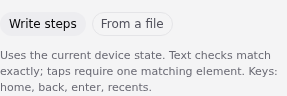 Keep each sequence focused on one task with an observable result. Android Use operates on an existing device; it does not accept the Browser Use or Computer Use snapshot and **Continue after** setup. It also does not distribute one device's actions across workers. Use sequential work for each device.
## Run and inspect
Execute the workflow when you are ready to perform the configured actions. Open the recorded run, select the Android Use node, and inspect its logs and output files, including any screenshots and result data it produced.
Check the actual assertion results and final screen. A successful job status alone does not prove that every intended business outcome occurred. For example, a submitted form still needs the expected confirmation or a separate record lookup.
The device remains available for later work after the node finishes. Check its state before starting another sequence; do not assume it returned to the original screen.
## Recover from a failure
If the runtime or device is unavailable, resolve the reported capability, access, or startup error before rerunning. If an action may already have taken effect, inspect the current screen and external result first. Restart from a known state or a supported [device snapshot](/docs/using-the-app/computers/managing-snapshots) when that is appropriate for the task.
---
_Markdown source of https://trickest.com/docs/using-the-app/workflow-and-executions/using-android-nodes._
Keep each sequence focused on one task with an observable result. Android Use operates on an existing device; it does not accept the Browser Use or Computer Use snapshot and **Continue after** setup. It also does not distribute one device's actions across workers. Use sequential work for each device.
## Run and inspect
Execute the workflow when you are ready to perform the configured actions. Open the recorded run, select the Android Use node, and inspect its logs and output files, including any screenshots and result data it produced.
Check the actual assertion results and final screen. A successful job status alone does not prove that every intended business outcome occurred. For example, a submitted form still needs the expected confirmation or a separate record lookup.
The device remains available for later work after the node finishes. Check its state before starting another sequence; do not assume it returned to the original screen.
## Recover from a failure
If the runtime or device is unavailable, resolve the reported capability, access, or startup error before rerunning. If an action may already have taken effect, inspect the current screen and external result first. Restart from a known state or a supported [device snapshot](/docs/using-the-app/computers/managing-snapshots) when that is appropriate for the task.
---
_Markdown source of https://trickest.com/docs/using-the-app/workflow-and-executions/using-android-nodes._