---
title: "Managing Secrets"
canonical: https://trickest.com/docs/using-the-app/workflow-and-executions/managing-secrets
description: "Create a scoped credential, copy its reference, and replace its value without exposing the saved secret."
---
# Managing Secrets
Store a credential in **Secrets** so workflow inputs can reference it by name. Use ordinary [variables](/docs/using-the-app/workflow-and-executions/managing-variables) for non-sensitive settings such as domains and limits.
## Choose who needs the credential
Open **Settings > Infrastructure > Secrets**. Use **Secret scope** to choose **Personal** or a workspace before creating a value.
| Scope | Use it when |
| --- | --- |
| **Personal** | The credential should belong to you |
| A workspace | The credential must be shared with members of that workspace |
A scheduled run or another member's run may use a different identity. Check that the intended runner can resolve the chosen scope. Sharing a workflow does not move a personal secret into a shared scope.
## Create a secret
1. Select the intended scope and **Create secret**.
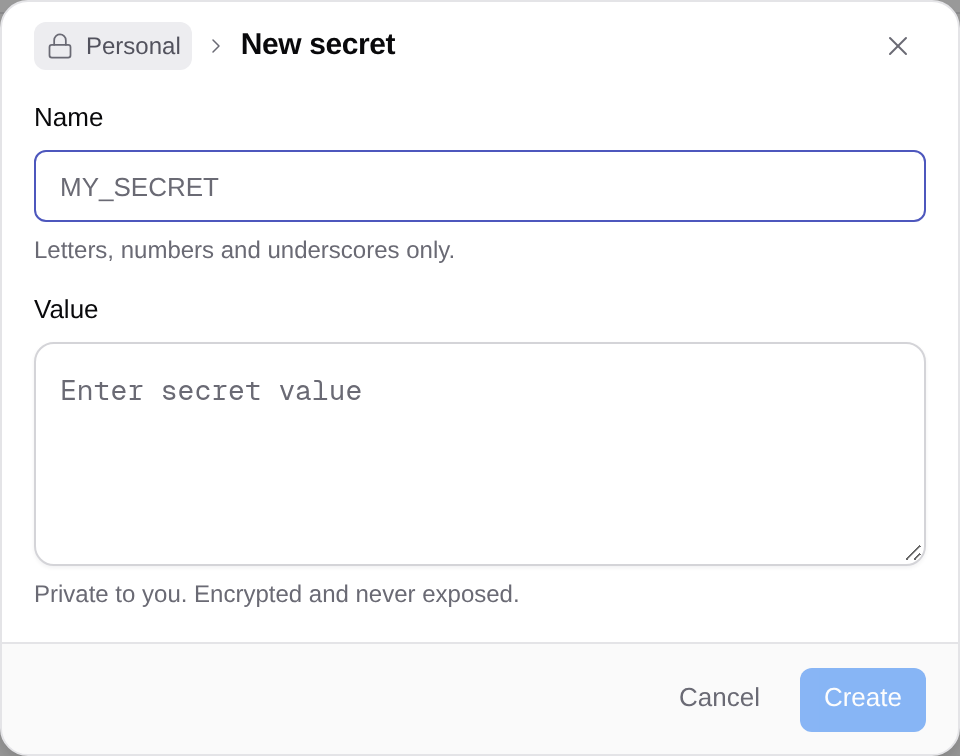
2. In **New secret**, enter **Name** and **Value**. Names accept letters, numbers and underscores. For example, use `API_KEY` as the name, not the key itself.
3. Select **Create** and check that the new row appears in the intended scope.
 ## Use its reference
Use the row's copy-reference control or enter `${{secrets.API_KEY}}` in a normal tool or script input. Copying this reference does not reveal the stored credential.
Connector argument fields use a different reference syntax: `{{secrets.API_KEY}}`. Use their reference menu to select the secret. External connectors also have their own saved account or token in **Connectors**; creating a secret does not replace that connection's credential.
Never print a resolved credential to check access. Test a small permitted operation and inspect its status or error instead. Review script quoting when inserting references into source code, because the substituted text still has to form valid code.
## Replace a stored value
Open the secret row's actions and select **Edit value**. The **Update secret value** dialog leaves **Value** empty because the current value cannot be retrieved. Enter the replacement and select **Update value**.
The name stays the same, so existing references still point to that secret. Renaming is not supported. For a different name or scope, create the replacement in the intended scope and update workflow references before removing the old secret.
Confirm the intended runner can use the replacement. A value change should not be treated as updating credentials already held by an external account or an in-progress run.
## Delete an unused secret
Choose the row's delete action and read **Delete secret?** before confirming **Delete secret**. Workflows and integrations that still reference the name lose access. Cancel if you have not finished updating those callers.
## If access fails
Check the exact name and namespace, the workflow's scope, and the run initiator's access. A missing name differs from a provider rejecting a validly resolved key. Ask a person with the required scope permissions to manage a shared value if the action is unavailable.
The form was inspected without creating, replacing or deleting a credential.
---
_Markdown source of https://trickest.com/docs/using-the-app/workflow-and-executions/managing-secrets._
## Use its reference
Use the row's copy-reference control or enter `${{secrets.API_KEY}}` in a normal tool or script input. Copying this reference does not reveal the stored credential.
Connector argument fields use a different reference syntax: `{{secrets.API_KEY}}`. Use their reference menu to select the secret. External connectors also have their own saved account or token in **Connectors**; creating a secret does not replace that connection's credential.
Never print a resolved credential to check access. Test a small permitted operation and inspect its status or error instead. Review script quoting when inserting references into source code, because the substituted text still has to form valid code.
## Replace a stored value
Open the secret row's actions and select **Edit value**. The **Update secret value** dialog leaves **Value** empty because the current value cannot be retrieved. Enter the replacement and select **Update value**.
The name stays the same, so existing references still point to that secret. Renaming is not supported. For a different name or scope, create the replacement in the intended scope and update workflow references before removing the old secret.
Confirm the intended runner can use the replacement. A value change should not be treated as updating credentials already held by an external account or an in-progress run.
## Delete an unused secret
Choose the row's delete action and read **Delete secret?** before confirming **Delete secret**. Workflows and integrations that still reference the name lose access. Cancel if you have not finished updating those callers.
## If access fails
Check the exact name and namespace, the workflow's scope, and the run initiator's access. A missing name differs from a provider rejecting a validly resolved key. Ask a person with the required scope permissions to manage a shared value if the action is unavailable.
The form was inspected without creating, replacing or deleting a credential.
---
_Markdown source of https://trickest.com/docs/using-the-app/workflow-and-executions/managing-secrets._