---
title: "Reviewing Audit Logs"
canonical: https://trickest.com/docs/using-the-app/users-access-management/reviewing-audit-logs
description: "Find an event, inspect its details, and understand what an audit log export includes."
---
# Reviewing Audit Logs
Use the audit log to investigate who performed an action in your vault. For example, find a workflow execution event, check its actor and time, then open the record for more detail.
## Before you start
You need an Enterprise vault and vault admin permissions. Open **Settings**, then **Audit log** under **Administration**. If the page shows an upgrade or permissions message, ask your vault administrator to check your access.
## Find the action
Select **Filters**, then **Event**. Use **Search filters** to narrow the available choices; for example, enter `execution` and select **Execution Created**. This searches the filter choices, not the event records.
Open **Filters** again, clear the filter-choice search, and expand **Actor** to select the person whose activity you want to review. The Event and Actor selections apply together.
Use **Search audit logs** beside the filters to search the records themselves. Wait for the list to refresh before choosing a result.
The selected filters appear as removable chips. Remove a chip to broaden the search, or use **Clear filters** in the filter picker to remove Event and Actor selections. Clear the record search separately if it is still limiting your results.
 ## Inspect a record
Select an event row to open its details. Check the event, actor, timestamp and any available resource details before drawing a conclusion. The fields depend on the event; an event record does not establish that a workflow produced the result you expected.
Close the details to return to the list. Use **Load more events** when further pages are available. If a record's details fail to load, use **Retry details** in the details panel.
## Export the audit log
Select **Export** beside the filters. Read the scope in the **Export audit logs** dialog before selecting **Export CSV**.
The CSV includes all audit events within the last 30 days, regardless of the search or filters currently applied to the list. Filtering the screen does not create a filtered export.
## Inspect a record
Select an event row to open its details. Check the event, actor, timestamp and any available resource details before drawing a conclusion. The fields depend on the event; an event record does not establish that a workflow produced the result you expected.
Close the details to return to the list. Use **Load more events** when further pages are available. If a record's details fail to load, use **Retry details** in the details panel.
## Export the audit log
Select **Export** beside the filters. Read the scope in the **Export audit logs** dialog before selecting **Export CSV**.
The CSV includes all audit events within the last 30 days, regardless of the search or filters currently applied to the list. Filtering the screen does not create a filtered export.
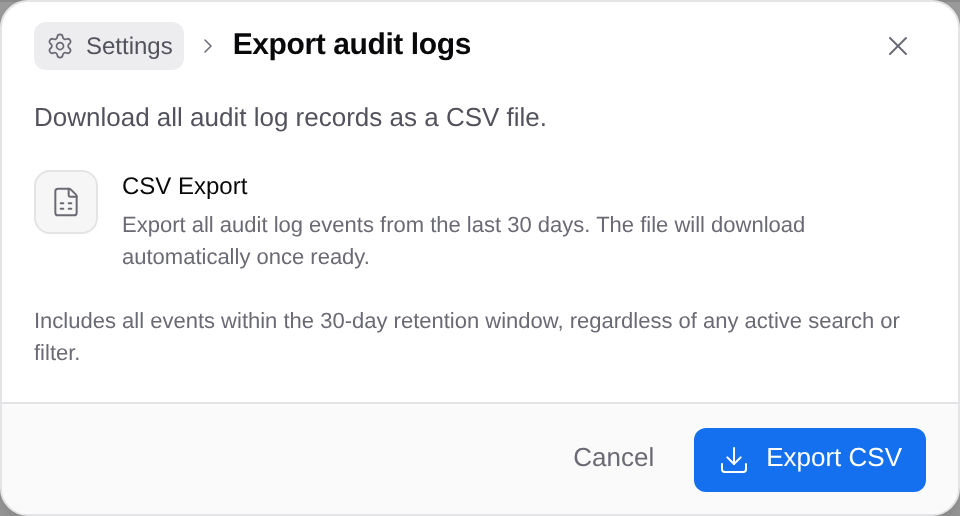 When the export succeeds, the file downloads automatically. If it fails, read the error and use **Try again**. Select **Cancel** before starting if you only wanted to inspect the export options.
## If you cannot find an event
- Clear both the Event/Actor selections and the record search, then check again.
- Confirm that you are looking in the intended vault and that the action falls within the available history.
- If the page reports a loading error, use its retry action. An error is not evidence that no event occurred.
For programmatic access, use the **API docs** button in the page header or the [audit log CLI commands](/docs/developer-tools/cli/notifications-audit).
---
_Markdown source of https://trickest.com/docs/using-the-app/users-access-management/reviewing-audit-logs._
When the export succeeds, the file downloads automatically. If it fails, read the error and use **Try again**. Select **Cancel** before starting if you only wanted to inspect the export options.
## If you cannot find an event
- Clear both the Event/Actor selections and the record search, then check again.
- Confirm that you are looking in the intended vault and that the action falls within the available history.
- If the page reports a loading error, use its retry action. An error is not evidence that no event occurred.
For programmatic access, use the **API docs** button in the page header or the [audit log CLI commands](/docs/developer-tools/cli/notifications-audit).
---
_Markdown source of https://trickest.com/docs/using-the-app/users-access-management/reviewing-audit-logs._