---
title: "Using Settings"
canonical: https://trickest.com/docs/using-the-app/settings/overview
description: "Open Settings, find the right section, and check the scope and access required before making a change."
---
# Using Settings
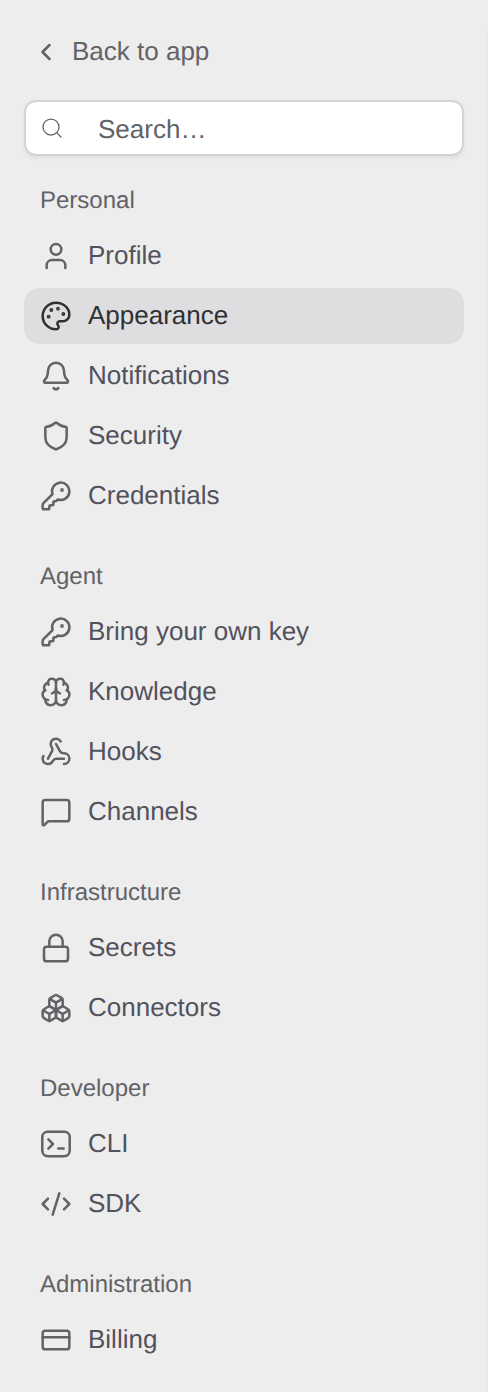
Use Settings to manage your account, configure the Agent and integrations, or administer a vault. The navigation groups destinations by task. Each page keeps its own access rules and scope.
## Open Settings
1. Open the **Account menu** at the bottom of the app sidebar.
2. Select **Settings**. It opens **Personal > Profile**.
3. Choose a destination in the Settings sidebar. Use **Back to app** to return to the app when finished.
 ## Find the right section
| Section | What to use it for | Start here |
| --- | --- | --- |
| **Personal** | Your profile, this browser's appearance, notifications, sign-in security and account credentials | [General Settings](/docs/using-the-app/settings/general) |
| **Agent** | Model provider keys, Knowledge, Hooks and chat Channels | [Bring your own key](/docs/using-the-app/agent/bring-your-own-key), [memory](/docs/using-the-app/agent/editing-memory), [skills](/docs/using-the-app/agent/creating-a-skill), [hooks](/docs/using-the-app/agent/configuring-agent-hooks), [channels](/docs/using-the-app/agent/connecting-chat-channels) |
| **Infrastructure** | Fleet capacity, workflow Secrets, container Registries and MCP Connectors | [Machines and Fleet](/docs/key-concepts/machines-and-fleet), [secrets](/docs/using-the-app/workflow-and-executions/managing-secrets), [registries](/docs/using-the-app/private-execution-networking/connecting-private-registry), [connectors](/docs/using-the-app/connectors) |
| **Developer** | Install the CLI or find the TypeScript SDK setup | [CLI](/docs/developer-tools/cli), [SDK](/docs/developer-tools/sdk) |
| **Administration** | Members, Teams, Billing and the Audit log | [Invite users](/docs/using-the-app/users-access-management/inviting-users), [teams and roles](/docs/using-the-app/users-access-management/teams-and-roles), [AI usage in Billing](/docs/using-the-app/agent/viewing-ai-usage), [audit logs](/docs/using-the-app/users-access-management/reviewing-audit-logs) |
Use **Knowledge** for the Agent's Memory and Skills. Use **Channels** for chats where the Agent answers, and **Connectors** for tools that the Agent and workflow nodes can call. The [connector overview](/docs/using-the-app/connectors) explains the external account used by those tools.
## Search the navigation
Select the search field at the top of the Settings sidebar, labelled **Search settings**, and type part of a destination's name. For example, `Hooks` filters the list to Hooks. Search matches navigation labels; it does not search saved values or workflow data.
Clear the search to restore the available destinations. If the result is empty, try the page's visible name. For an API token, search for `Credentials`.
## Check what a change affects
The **Personal** group contains account settings, with **Appearance** saved in the current browser. Infrastructure and administration pages can affect shared resources. Confirm the intended vault before changing membership, billing or a shared connection, and check the destination's guide for its scope.
For example, [workflow secrets](/docs/using-the-app/workflow-and-executions/managing-secrets) distinguish Personal and Space secrets. Your Trickest API token under **Personal > Credentials** and a provider key under **Agent > Bring your own key** have different purposes. [General Settings](/docs/using-the-app/settings/general#manage-your-api-token-and-connected-apps) explains account credentials.
## If a page is missing or a change fails
Availability depends on your account permissions, plan and enabled features. Members and the Audit log require Enterprise administration access; Agent destinations also depend on AI access. The Channels guide describes its Managed AI requirement. A visible form can still require additional permission to save.
1. Clear the Settings search and check the intended vault.
2. Read any access or upgrade message, then check the destination's prerequisites.
3. Ask a vault administrator to review the required access when needed.
4. If saving fails, read the error and check the displayed value before retrying. Personal pages use different save controls; [General Settings](/docs/using-the-app/settings/general) explains them.
Opening Settings does not prove that an integration works or that a configuration has been saved. Use the confirmation and verification steps in the relevant guide.
---
_Markdown source of https://trickest.com/docs/using-the-app/settings/overview._
## Find the right section
| Section | What to use it for | Start here |
| --- | --- | --- |
| **Personal** | Your profile, this browser's appearance, notifications, sign-in security and account credentials | [General Settings](/docs/using-the-app/settings/general) |
| **Agent** | Model provider keys, Knowledge, Hooks and chat Channels | [Bring your own key](/docs/using-the-app/agent/bring-your-own-key), [memory](/docs/using-the-app/agent/editing-memory), [skills](/docs/using-the-app/agent/creating-a-skill), [hooks](/docs/using-the-app/agent/configuring-agent-hooks), [channels](/docs/using-the-app/agent/connecting-chat-channels) |
| **Infrastructure** | Fleet capacity, workflow Secrets, container Registries and MCP Connectors | [Machines and Fleet](/docs/key-concepts/machines-and-fleet), [secrets](/docs/using-the-app/workflow-and-executions/managing-secrets), [registries](/docs/using-the-app/private-execution-networking/connecting-private-registry), [connectors](/docs/using-the-app/connectors) |
| **Developer** | Install the CLI or find the TypeScript SDK setup | [CLI](/docs/developer-tools/cli), [SDK](/docs/developer-tools/sdk) |
| **Administration** | Members, Teams, Billing and the Audit log | [Invite users](/docs/using-the-app/users-access-management/inviting-users), [teams and roles](/docs/using-the-app/users-access-management/teams-and-roles), [AI usage in Billing](/docs/using-the-app/agent/viewing-ai-usage), [audit logs](/docs/using-the-app/users-access-management/reviewing-audit-logs) |
Use **Knowledge** for the Agent's Memory and Skills. Use **Channels** for chats where the Agent answers, and **Connectors** for tools that the Agent and workflow nodes can call. The [connector overview](/docs/using-the-app/connectors) explains the external account used by those tools.
## Search the navigation
Select the search field at the top of the Settings sidebar, labelled **Search settings**, and type part of a destination's name. For example, `Hooks` filters the list to Hooks. Search matches navigation labels; it does not search saved values or workflow data.
Clear the search to restore the available destinations. If the result is empty, try the page's visible name. For an API token, search for `Credentials`.
## Check what a change affects
The **Personal** group contains account settings, with **Appearance** saved in the current browser. Infrastructure and administration pages can affect shared resources. Confirm the intended vault before changing membership, billing or a shared connection, and check the destination's guide for its scope.
For example, [workflow secrets](/docs/using-the-app/workflow-and-executions/managing-secrets) distinguish Personal and Space secrets. Your Trickest API token under **Personal > Credentials** and a provider key under **Agent > Bring your own key** have different purposes. [General Settings](/docs/using-the-app/settings/general#manage-your-api-token-and-connected-apps) explains account credentials.
## If a page is missing or a change fails
Availability depends on your account permissions, plan and enabled features. Members and the Audit log require Enterprise administration access; Agent destinations also depend on AI access. The Channels guide describes its Managed AI requirement. A visible form can still require additional permission to save.
1. Clear the Settings search and check the intended vault.
2. Read any access or upgrade message, then check the destination's prerequisites.
3. Ask a vault administrator to review the required access when needed.
4. If saving fails, read the error and check the displayed value before retrying. Personal pages use different save controls; [General Settings](/docs/using-the-app/settings/general) explains them.
Opening Settings does not prove that an integration works or that a configuration has been saved. Use the confirmation and verification steps in the relevant guide.
---
_Markdown source of https://trickest.com/docs/using-the-app/settings/overview._