---
title: "General Settings"
canonical: https://trickest.com/docs/using-the-app/settings/general
description: "Update your profile, appearance and notifications, and manage sign-in security, API tokens and connected apps."
---
# General Settings
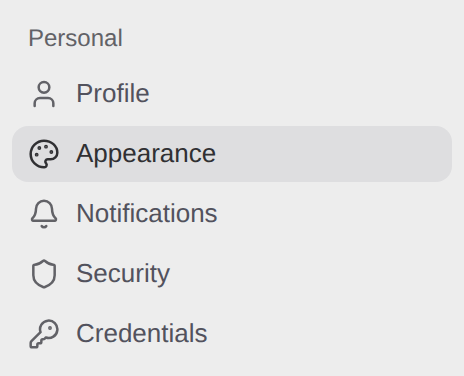
General account settings live under **Settings > Personal**. Choose **Profile**, **Appearance**, **Notifications**, **Security** or **Credentials** for the task you need. [Using Settings](/docs/using-the-app/settings/overview) explains how to open Settings and navigate the other groups.
 ## Update your profile
Open **Settings > Personal > Profile** to review your account details.
1. Edit **Username**. Use 5 to 25 characters: letters, numbers and single hyphens. A hyphen cannot start or end the username, and consecutive hyphens are not allowed.
2. Select **Save**. Wait for **Saved** or the **Username updated** confirmation.
3. Reload the page and check that it shows the intended username. If it reports an error, correct the value before retrying.
The **Email address** row offers **Contact support** to request an email change. Account details can also show your status and vault information. **Timezone** reports the browser's timezone, and **Language** displays English (US); these are information rows in this release.
The **Session** section contains **Log out**. The **Delete account** row under **Danger zone** opens an email request through **Contact support**.
## Choose an appearance
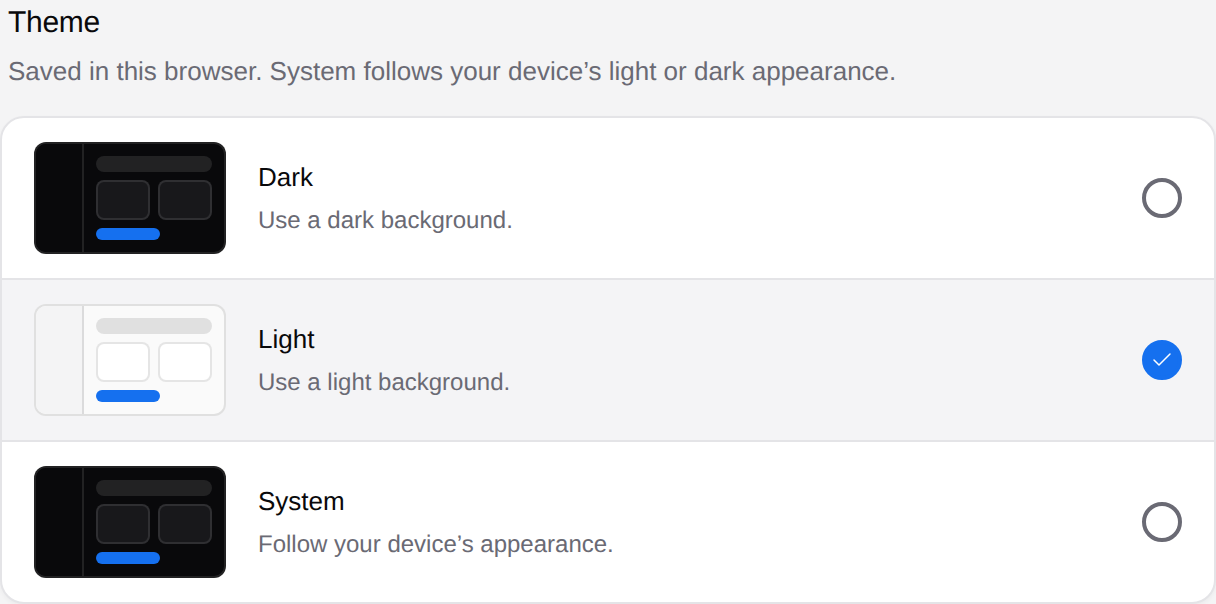
Open **Settings > Personal > Appearance** and select one option:
| Option | Result |
| --- | --- |
| **Dark** | Use a dark background |
| **Light** | Use a light background |
| **System** | Follow the device's light or dark appearance |
The selected option shows a check mark and applies immediately. It is saved in this browser, so another browser can use a different appearance. There is no separate Save action.
## Update your profile
Open **Settings > Personal > Profile** to review your account details.
1. Edit **Username**. Use 5 to 25 characters: letters, numbers and single hyphens. A hyphen cannot start or end the username, and consecutive hyphens are not allowed.
2. Select **Save**. Wait for **Saved** or the **Username updated** confirmation.
3. Reload the page and check that it shows the intended username. If it reports an error, correct the value before retrying.
The **Email address** row offers **Contact support** to request an email change. Account details can also show your status and vault information. **Timezone** reports the browser's timezone, and **Language** displays English (US); these are information rows in this release.
The **Session** section contains **Log out**. The **Delete account** row under **Danger zone** opens an email request through **Contact support**.
## Choose an appearance
Open **Settings > Personal > Appearance** and select one option:
| Option | Result |
| --- | --- |
| **Dark** | Use a dark background |
| **Light** | Use a light background |
| **System** | Follow the device's light or dark appearance |
The selected option shows a check mark and applies immediately. It is saved in this browser, so another browser can use a different appearance. There is no separate Save action.
 ## Choose notification delivery
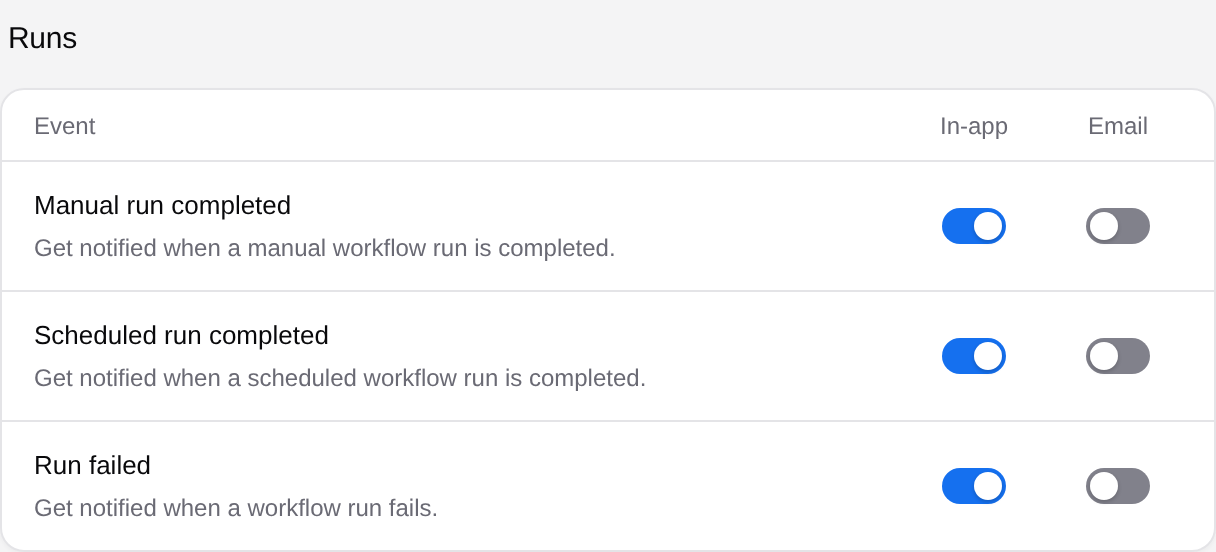
Open **Settings > Personal > Notifications**. The **Runs** and **Releases** sections provide separate **In-app** and **Email** switches for each event, including run completion, run failure and released workflow, tool or script versions.
1. Find the event and delivery channel you want to change.
2. Toggle its switch and wait for **Notification settings updated** before making another change.
3. Check the switch position. If saving fails, the page restores the previous value and reports an error.
A disabled Email switch can mean email delivery is unavailable for that event. The page states this next to the event. While a change is saving, the switches are also temporarily disabled.
## Choose notification delivery
Open **Settings > Personal > Notifications**. The **Runs** and **Releases** sections provide separate **In-app** and **Email** switches for each event, including run completion, run failure and released workflow, tool or script versions.
1. Find the event and delivery channel you want to change.
2. Toggle its switch and wait for **Notification settings updated** before making another change.
3. Check the switch position. If saving fails, the page restores the previous value and reports an error.
A disabled Email switch can mean email delivery is unavailable for that event. The page states this next to the event. While a change is saving, the switches are also temporarily disabled.
 Under **Reports**, **Monthly activity report** is an Enterprise email subscription. Its switch saves separately from the event switches. If notification settings fail to load, select **Try again** or reload the page; inspect the saved values before changing them.
## Manage sign-in security
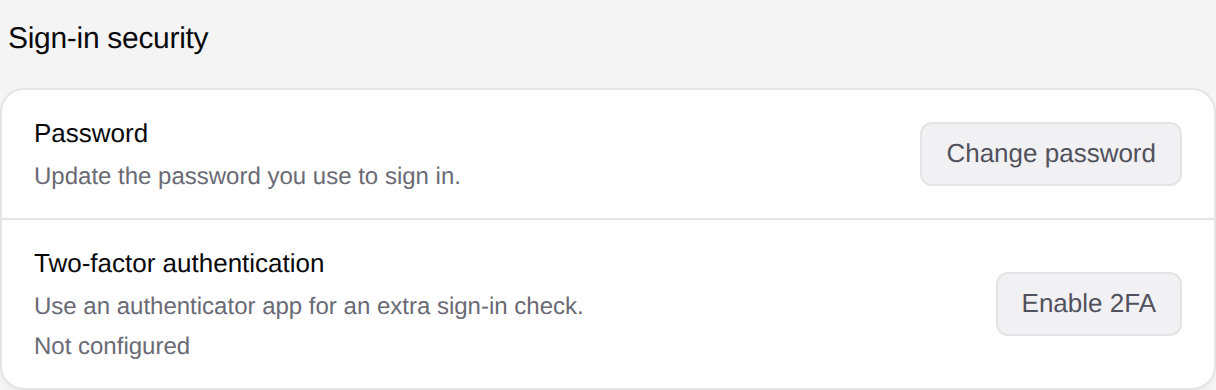
Open **Settings > Personal > Security** for your password and two-factor authentication.
### Change your password
Select **Change password**, then fill **Current password**, **New password** and **Confirm new password**. The new password must meet the displayed requirements: at least 12 characters, lowercase and uppercase letters, a number, and a special character from `#?!@$%^&*.-`.
Select **Update password** when the requirements and confirmation match. Check for the success message. **Cancel** closes the form without submitting it.
### Set up two-factor authentication
If two-factor authentication is **Not configured**, select **Enable 2FA** to open setup and generate a QR code. Scan it with your authenticator app, enter its six-digit code, then select **Enable 2FA** in the setup dialog. Wait for confirmation and check that the page reports **Enabled**.
Keep the setup QR code private. If two-factor authentication is already enabled, the page offers **Disable 2FA** with a confirmation; review that action before removing the extra sign-in check.
Under **Reports**, **Monthly activity report** is an Enterprise email subscription. Its switch saves separately from the event switches. If notification settings fail to load, select **Try again** or reload the page; inspect the saved values before changing them.
## Manage sign-in security
Open **Settings > Personal > Security** for your password and two-factor authentication.
### Change your password
Select **Change password**, then fill **Current password**, **New password** and **Confirm new password**. The new password must meet the displayed requirements: at least 12 characters, lowercase and uppercase letters, a number, and a special character from `#?!@$%^&*.-`.
Select **Update password** when the requirements and confirmation match. Check for the success message. **Cancel** closes the form without submitting it.
### Set up two-factor authentication
If two-factor authentication is **Not configured**, select **Enable 2FA** to open setup and generate a QR code. Scan it with your authenticator app, enter its six-digit code, then select **Enable 2FA** in the setup dialog. Wait for confirmation and check that the page reports **Enabled**.
Keep the setup QR code private. If two-factor authentication is already enabled, the page offers **Disable 2FA** with a confirmation; review that action before removing the extra sign-in check.
 ## Manage your API token and connected apps
Open **Settings > Personal > Credentials** for the token and applications that can act on your Trickest account. Model provider keys are managed separately under [Bring your own key](/docs/using-the-app/agent/bring-your-own-key).
### Use or replace your API token
The **Your API token** section masks the value by default. Use **Copy token** for a client configuration, or **Show token** when you need to inspect it. Anyone with the token can act as you; keep it out of screenshots, shared files and committed source. If copying fails, check the browser's clipboard access before retrying.
Follow the [CLI setup guide](/docs/developer-tools/cli) or [SDK setup guide](/docs/developer-tools/sdk/client-setup) for the client you intend to use.
**Regenerate API Token** replaces the existing token. Review the confirmation, then confirm **Regenerate** only when you intend to replace it. Update every client using the old token before relying on it again.
### Disconnect an application
**Connected apps** lists applications authorized to access your Trickest account. If the list is empty, the page shows **No apps connected**.
To revoke an application's access, select **Disconnect** on its row, review the named application in the confirmation, then confirm **Disconnect**. Check that its row disappears. Your own sessions and API token remain unchanged. Reconnecting requires authorization from that application again.
These account authorizations are separate from [MCP connector accounts](/docs/using-the-app/connectors), which are managed under **Infrastructure > Connectors**.
The screenshots show existing controls. Password changes, 2FA setup, API-token regeneration and application disconnection were not executed for this guide. Follow the confirmation and recovery messages for the action you choose.
---
_Markdown source of https://trickest.com/docs/using-the-app/settings/general._
## Manage your API token and connected apps
Open **Settings > Personal > Credentials** for the token and applications that can act on your Trickest account. Model provider keys are managed separately under [Bring your own key](/docs/using-the-app/agent/bring-your-own-key).
### Use or replace your API token
The **Your API token** section masks the value by default. Use **Copy token** for a client configuration, or **Show token** when you need to inspect it. Anyone with the token can act as you; keep it out of screenshots, shared files and committed source. If copying fails, check the browser's clipboard access before retrying.
Follow the [CLI setup guide](/docs/developer-tools/cli) or [SDK setup guide](/docs/developer-tools/sdk/client-setup) for the client you intend to use.
**Regenerate API Token** replaces the existing token. Review the confirmation, then confirm **Regenerate** only when you intend to replace it. Update every client using the old token before relying on it again.
### Disconnect an application
**Connected apps** lists applications authorized to access your Trickest account. If the list is empty, the page shows **No apps connected**.
To revoke an application's access, select **Disconnect** on its row, review the named application in the confirmation, then confirm **Disconnect**. Check that its row disappears. Your own sessions and API token remain unchanged. Reconnecting requires authorization from that application again.
These account authorizations are separate from [MCP connector accounts](/docs/using-the-app/connectors), which are managed under **Infrastructure > Connectors**.
The screenshots show existing controls. Password changes, 2FA setup, API-token regeneration and application disconnection were not executed for this guide. Follow the confirmation and recovery messages for the action you choose.
---
_Markdown source of https://trickest.com/docs/using-the-app/settings/general._