---
title: "Using the Inbox"
canonical: https://trickest.com/docs/using-the-app/inbox
description: "Review finished runs, agent replies, and Library releases from one place."
---
# Using the Inbox
## Inbox updates
Select **Inbox** in the main sidebar to review updates that need your attention. Items appear with the most recent activity first.
| Filter | What you can review |
| --- | --- |
| **All** | All available Inbox items. |
| **Runs** | Notifications for completed manual or scheduled runs, and failed runs. |
| **Agent** | Unread agent replies, conversations waiting for your input, and failed agent turns. |
| **Library** | Notifications for released tools, workflows, and scripts. |
**Agent** and **Library** filters appear when those items are available. Inbox is a place to review updates; use [Runs](./workflow-and-executions/working-with-runs) for execution history and [Agent](/docs/using-the-app/agent/using-the-agent) to return to conversations.
 ## Open an update
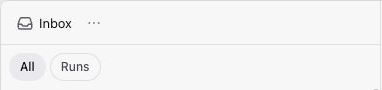
Select **All**, **Runs**, **Agent**, or **Library** above the list. An unread dot identifies an update you have not opened.
On a larger screen, its contents open beside the list. A run opens its workflow and recorded run; an agent item opens the conversation. A Library item offers **Open in library**. On a small screen, selecting an item takes you to its page instead.
Inspect the run, reply to the agent, or open the Library item. Use **Open in Agent** above an agent conversation when you want the full Agent page.
## Read and dismiss updates
Opening an item marks it as read. To clear unread indicators together, select **Mark all read**, or open **Inbox options > Mark all as read**.
Agent items follow the conversation’s state. A reply can leave the Inbox once you have read it; find the conversation again in **Agent**. A conversation waiting for input or reporting an error can remain until that state changes. Marking it as read does not answer the question or resolve the error.
Run and Library notifications have a dismiss control on their row. Dismissing removes the notification, not the workflow, run, or Library item. Agent items do not have this control.
## Notification settings
Open **Inbox options > Notification settings** to review your notification preferences. Changing a preference is separate from reading or dismissing an item already in the Inbox.
---
_Markdown source of https://trickest.com/docs/using-the-app/inbox._
## Open an update
Select **All**, **Runs**, **Agent**, or **Library** above the list. An unread dot identifies an update you have not opened.
On a larger screen, its contents open beside the list. A run opens its workflow and recorded run; an agent item opens the conversation. A Library item offers **Open in library**. On a small screen, selecting an item takes you to its page instead.
Inspect the run, reply to the agent, or open the Library item. Use **Open in Agent** above an agent conversation when you want the full Agent page.
## Read and dismiss updates
Opening an item marks it as read. To clear unread indicators together, select **Mark all read**, or open **Inbox options > Mark all as read**.
Agent items follow the conversation’s state. A reply can leave the Inbox once you have read it; find the conversation again in **Agent**. A conversation waiting for input or reporting an error can remain until that state changes. Marking it as read does not answer the question or resolve the error.
Run and Library notifications have a dismiss control on their row. Dismissing removes the notification, not the workflow, run, or Library item. Agent items do not have this control.
## Notification settings
Open **Inbox options > Notification settings** to review your notification preferences. Changing a preference is separate from reading or dismissing an item already in the Inbox.
---
_Markdown source of https://trickest.com/docs/using-the-app/inbox._