---
title: "Maintaining Live Tables"
canonical: https://trickest.com/docs/using-the-app/database-management/maintaining-live-tables
description: "Find failed imports, review new fields and check the source before re-indexing."
---
# Maintaining Live Tables
## Before you start
Use this guide when a workflow produced JSON Lines but its Live Table is missing records or columns. You need access to the table and its source run. Changing columns, sources or indexing also requires permission to manage that table.
Open the workflow’s **Database** view and select the table. Keep the source output available beside it. A successful workflow confirms execution; table indexing is a separate operation.
## Inspect indexing history
Open the table’s **More actions > Indexing history**. An **Indexing failed** badge also opens this panel when the latest request failed.
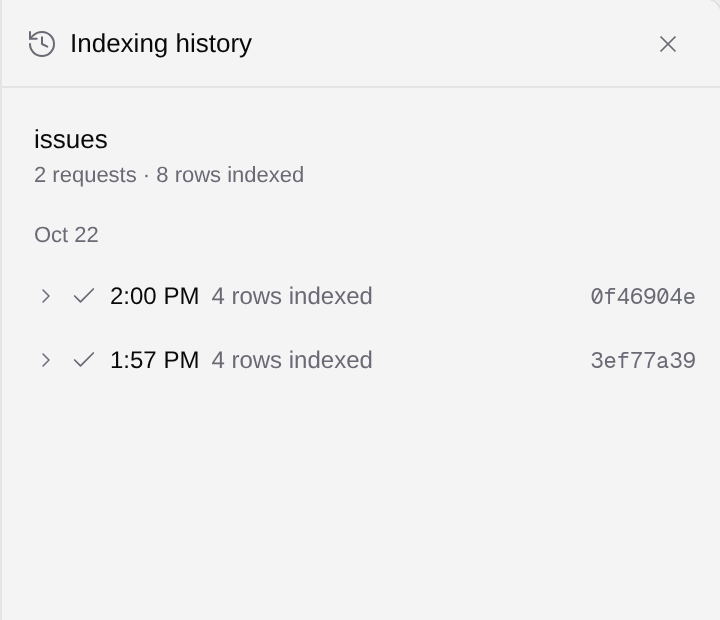 Find the request for the run you expected. Read its status, indexed row count and any diagnostic. Follow the source run or node link to check the exact producing execution and output file. Detection can use an older matching completed execution; do not infer the source from the newest workflow run alone.
A total of eight indexed rows across two requests does not necessarily mean eight distinct records: repeated primary keys can update earlier records. Compare keys in the source file with keys in the current table.
| What you see | What to do |
| --- | --- |
| No request for the expected run | Check the table’s linked source node and output file, then confirm that node produced the file. |
| Failed or incomplete indexing | Read the diagnostic; inspect malformed JSONL, missing key values and incompatible column types before retrying. |
| Completed indexing but fewer distinct records | Compare unique primary keys with source row count. Check whether repeated keys intentionally identify updates. |
| Table fetch or history error | Retry the read. An unavailable response does not prove that the table is empty. |
## Review new fields
Select the **N new fields** badge to open **Review new fields**. Inspect each field and its detected type against real values in the source output. If different sources produced different types, choose a type deliberately rather than accepting the first sample.
Find the request for the run you expected. Read its status, indexed row count and any diagnostic. Follow the source run or node link to check the exact producing execution and output file. Detection can use an older matching completed execution; do not infer the source from the newest workflow run alone.
A total of eight indexed rows across two requests does not necessarily mean eight distinct records: repeated primary keys can update earlier records. Compare keys in the source file with keys in the current table.
| What you see | What to do |
| --- | --- |
| No request for the expected run | Check the table’s linked source node and output file, then confirm that node produced the file. |
| Failed or incomplete indexing | Read the diagnostic; inspect malformed JSONL, missing key values and incompatible column types before retrying. |
| Completed indexing but fewer distinct records | Compare unique primary keys with source row count. Check whether repeated keys intentionally identify updates. |
| Table fetch or history error | Retry the read. An unavailable response does not prove that the table is empty. |
## Review new fields
Select the **N new fields** badge to open **Review new fields**. Inspect each field and its detected type against real values in the source output. If different sources produced different types, choose a type deliberately rather than accepting the first sample.
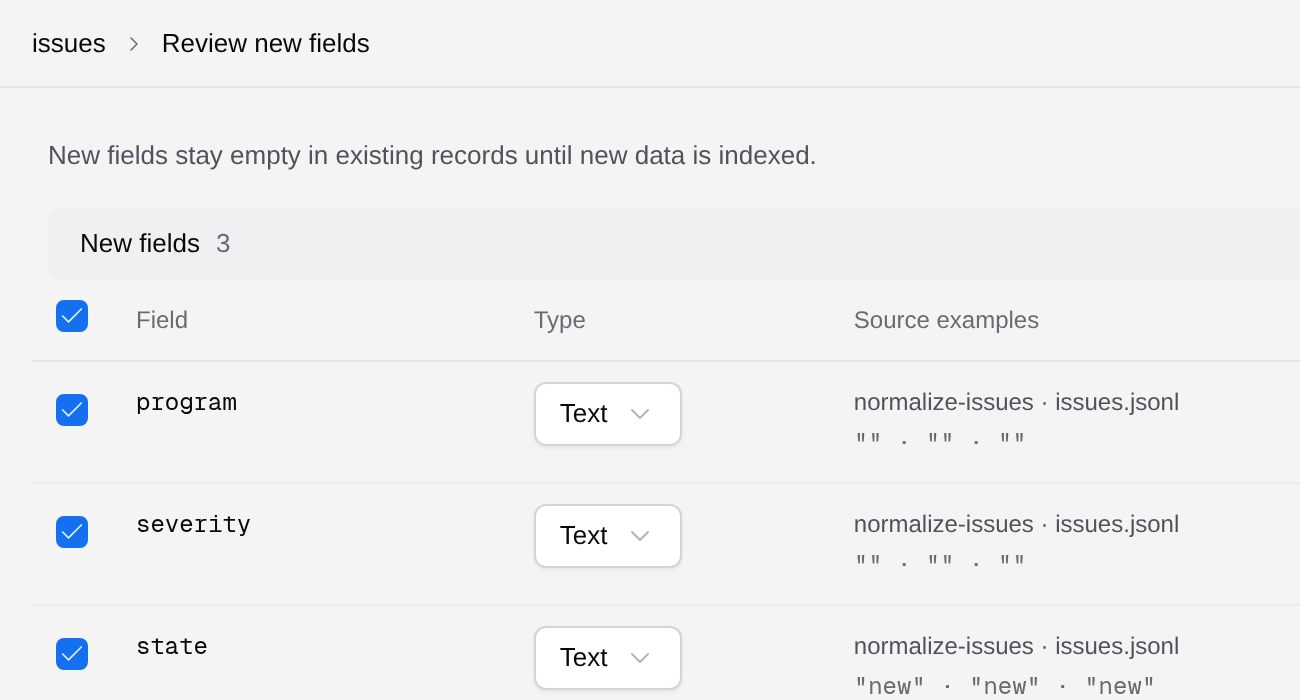 Select only the fields you intend to expose, then use **Add N fields**. If only some fields are added successfully, review the remaining fields and the reported errors. Do not assume the whole selection succeeded.
Older records can remain empty for newly added fields until their source data is indexed again. Keep the existing primary key stable when evolving the schema; replacing it with a collection timestamp changes record identity.
## Check source links
1. Open the detected output’s **Review output** screen. Use its **Sources** selection to include only the node outputs you intend to ingest. **Preview source** changes the sample being inspected; it does not change that selection.
2. Select **Link to existing table**, or **Link to [table name]** when there is only one compatible destination. If no link action appears, check source compatibility and your table-management access.
3. In **Link sources**, choose **Destination table** when offered. Review the listed source nodes and files, and the destination’s **Record key**. Linking uses the existing table’s columns and key; matching keys update existing records.
4. Select **Link sources** only after confirming that destination and source selection. Read the result and verify which links exist before retrying a partial failure.
Keep the same meaning for each key across all linked sources. For example, two issue systems can both use issue number `42`; include `source` in the key to keep those records distinct.
Linking another source does not prove its historical rows have been imported. Check its indexing request and sample records separately. If linking fails, retain the diagnostic and confirm which source links actually exist before retrying.
## Re-index after fixing the cause
Inspect and correct the producing workflow or table schema first. Then open **More actions > Re-index Data**, review any confirmation and start the re-index only when you intend to ingest that source again.
Use **Indexing history** to verify the new request and its result. **Refresh data** reloads the table view; it does not repair malformed source data or establish that a re-index succeeded.
Open a known record and [inspect its history](/docs/using-the-app/database-management/inspecting-row-history). If rows were inserted locally and a filtered query reports that overlay rows are unsupported, use the unfiltered table or row API; see [Querying](/docs/using-the-app/database-management/querying). Repeatedly submitting the same filter does not resolve that limitation.
---
_Markdown source of https://trickest.com/docs/using-the-app/database-management/maintaining-live-tables._
Select only the fields you intend to expose, then use **Add N fields**. If only some fields are added successfully, review the remaining fields and the reported errors. Do not assume the whole selection succeeded.
Older records can remain empty for newly added fields until their source data is indexed again. Keep the existing primary key stable when evolving the schema; replacing it with a collection timestamp changes record identity.
## Check source links
1. Open the detected output’s **Review output** screen. Use its **Sources** selection to include only the node outputs you intend to ingest. **Preview source** changes the sample being inspected; it does not change that selection.
2. Select **Link to existing table**, or **Link to [table name]** when there is only one compatible destination. If no link action appears, check source compatibility and your table-management access.
3. In **Link sources**, choose **Destination table** when offered. Review the listed source nodes and files, and the destination’s **Record key**. Linking uses the existing table’s columns and key; matching keys update existing records.
4. Select **Link sources** only after confirming that destination and source selection. Read the result and verify which links exist before retrying a partial failure.
Keep the same meaning for each key across all linked sources. For example, two issue systems can both use issue number `42`; include `source` in the key to keep those records distinct.
Linking another source does not prove its historical rows have been imported. Check its indexing request and sample records separately. If linking fails, retain the diagnostic and confirm which source links actually exist before retrying.
## Re-index after fixing the cause
Inspect and correct the producing workflow or table schema first. Then open **More actions > Re-index Data**, review any confirmation and start the re-index only when you intend to ingest that source again.
Use **Indexing history** to verify the new request and its result. **Refresh data** reloads the table view; it does not repair malformed source data or establish that a re-index succeeded.
Open a known record and [inspect its history](/docs/using-the-app/database-management/inspecting-row-history). If rows were inserted locally and a filtered query reports that overlay rows are unsupported, use the unfiltered table or row API; see [Querying](/docs/using-the-app/database-management/querying). Repeatedly submitting the same filter does not resolve that limitation.
---
_Markdown source of https://trickest.com/docs/using-the-app/database-management/maintaining-live-tables._