---
title: "Download Workflow Examples"
canonical: https://trickest.com/docs/using-the-app/connectors/workflow-examples
description: "Use portable Agent recipes for connector nodes and import offline fixture workflows to test the data-processing steps."
---
# Download Workflow Examples
Use these companion files to build the tutorial workflows without carrying another vault's connector IDs or credentials. There are two formats: portable Agent recipes for live connector authoring, and native editor imports that process synthetic data locally in script nodes.
## Before you start
For live connector recipes, you need Agent access, Enterprise connector access, enabled provider accounts, and permission to create workflows. Confirm provider permissions and replace the documented placeholders before running.
Native fixture workflows need workflow editing access and a fleet for platform execution. Their scripts can also be tested locally with Python. They use synthetic records and make no provider calls.
## Use an Agent recipe
1. Download a `.agent.json` file from the table below and inspect it. All recipes start with `mode: preview` and a new workflow name.
2. Give it to the Agent and ask it to inspect the current connection and tool schemas, then preview the graph. Replace `YOUR_…` inputs and connection names with your intended values.
3. Review the nodes, arguments, result paths and call limits. The preview can discover tools but does not save or execute the graph.
4. Ask the Agent to apply the reviewed recipe when ready to save. Keep execution as a separate request, then test a small input using the linked guide.
These are inputs to the Agent's **WorkflowApply** tool. They are not native editor snapshot JSON, and the CLI's generic workflow-apply command is not a substitute for the Agent's connector expansion.
| Recipe | What it prepares |
| --- | --- |
| [GitHub](/docs/examples/release-1.2.1/github.agent.json) | Query lines → repository search → repository-name lines |
| [Linear](/docs/examples/release-1.2.1/linear.agent.json) | Assigned and created issue lists → deduplicated Python merge |
| [Notion](/docs/examples/release-1.2.1/notion.agent.json) | Page search → one fetch per page ID |
| [Jira](/docs/examples/release-1.2.1/jira.agent.json) | Project-scoped JQL search → issue-key lines |
| [Slack](/docs/examples/release-1.2.1/slack.agent.json) | Channel search → exact-name parser → channel read |
| [HackerOne](/docs/examples/release-1.2.1/hackerone.agent.json) | Program handles → reports per program |
| [Trickest](/docs/examples/release-1.2.1/trickest.agent.json) | Workflow list → definitions by ID |
| [Jira to GitHub](/docs/examples/release-1.2.1/jira-to-github.agent.json) | Issue keys → three search branches → candidate-match report |
| [Recurring HackerOne collector](/docs/examples/release-1.2.1/recurring-hackerone.agent.json) | Load persistent state → collect → validate and save records → commit checkpoint |
The first eight recipes have no provider-write tool or Slack sender. The recurring collector updates its dedicated platform checkpoint when **executed**; review its account permissions and [single-writer requirements](/docs/using-the-app/connectors/recurring-collection) first.
## Import a native fixture workflow
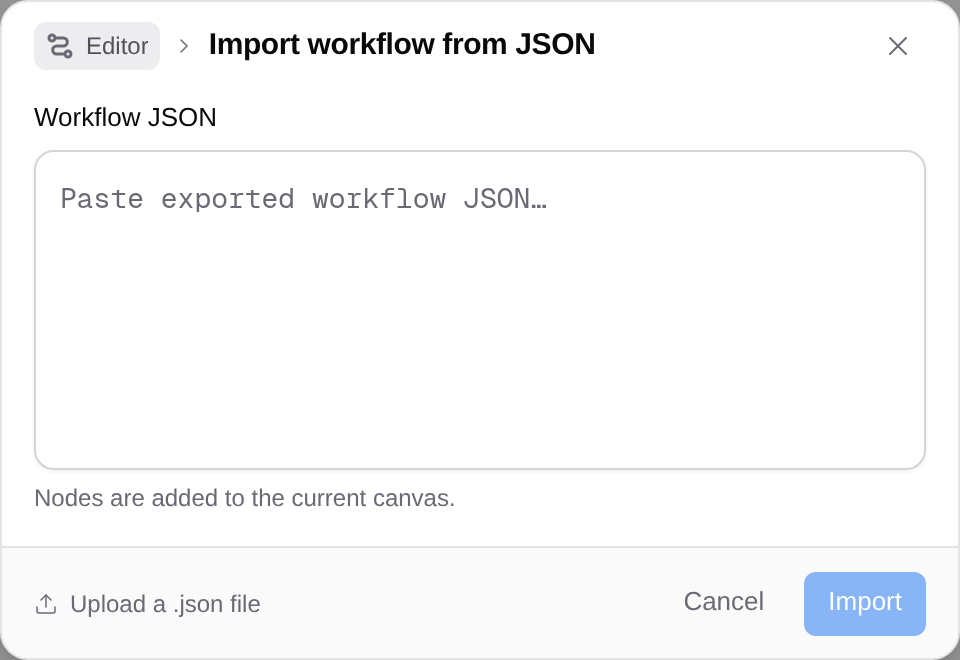
Download a `.workflow.json` file below. Open a new empty workflow, focus the canvas, and press **Ctrl+I** on Linux/Windows or **⌘I** on macOS. The canvas context menu also offers **Import workflow…**.
In **Import workflow from JSON**, use **Upload a .json file**, or paste the contents in **Workflow JSON** and select **Import**. Uploading the file imports it immediately. Nodes are added to the current canvas; it does not replace the whole workflow. Name collisions can rename nodes, so start with an empty workflow to preserve the example's mounted paths.
| Native JSON | Fixture contract and result |
| --- | --- |
| [Linear merge](/docs/examples/release-1.2.1/linear-merge-fixture.workflow.json) | Two issue lists with a duplicate → two unique issue rows, retaining their original states |
| [Jira/GitHub report](/docs/examples/release-1.2.1/jira-report-fixture.workflow.json) | Three searches for one issue key → match rows plus an explicit no-match row |
| [Slack channel parser](/docs/examples/release-1.2.1/slack-channel-fixture.workflow.json) | Two named channels → one exact `docs-review` channel ID |
Run each imported fixture and inspect its output. These are synthetic expected results, not observed provider responses. The scripts were executed against these same fixture contracts in local checks; no platform run is claimed.
## Replace fixtures with your connector nodes
The fixture sources write the same per-node filenames used by the processors: `in//output.txt`. Remove the synthetic sources, add the real connector nodes, and preserve the source names and folder connections. Use **Save as > JSON** on those live nodes.
Before executing, inspect the actual JSON. The [shared result helper](/docs/examples/release-1.2.1/mcp_records.py) handles the versioned MCP wrapper and repeated-call records; it does not guess every provider's response schema.
- **Linear:** the processor expects an `issues` list with stable IDs. It merges duplicates and retains all states, including completed issues. Add a reviewed filter for your workspace's active states if needed.
- **Jira/GitHub:** each search must repeat over issue-key lines, so the call record's `item` preserves the key. Each result needs an `items` list with `html_url` fields. A failed call stops processing rather than appearing as no matches.
- **Slack:** the parser expects the concise `results` text shape and one exact channel name. Change `wanted` in the script and reject zero or multiple matches. Keep reading as the first test; the fixture contains no message sender.
Standalone script downloads are [Linear merge](/docs/examples/release-1.2.1/linear_merge.py), [Jira/GitHub report](/docs/examples/release-1.2.1/jira_github_report.py) and [Slack parser](/docs/examples/release-1.2.1/slack_channel.py). Download `mcp_records.py` beside them for local use. The native imports and Agent recipes embed that helper, so those script nodes need no extra package installation.
## Validation and limits
The recipes pass the parameter schema from released v2 1.2.1. The native imports pass that release's JSON parser and edge checks, and their Python nodes run against local fixtures. Browser and Computer recipe files pass the released recipe validator.
These checks do not verify your provider account, current tool schema, fleet execution or end-to-end delivery. If a connector needs reconnection or is unavailable, resolve it before applying or running the graph. Stop on a discovery or schema error.
The [download manifest](/docs/examples/release-1.2.1/manifest.json) records the source release and validation status. It separates offline checks from provider and platform execution.
---
_Markdown source of https://trickest.com/docs/using-the-app/connectors/workflow-examples._
 | Native JSON | Fixture contract and result |
| --- | --- |
| [Linear merge](/docs/examples/release-1.2.1/linear-merge-fixture.workflow.json) | Two issue lists with a duplicate → two unique issue rows, retaining their original states |
| [Jira/GitHub report](/docs/examples/release-1.2.1/jira-report-fixture.workflow.json) | Three searches for one issue key → match rows plus an explicit no-match row |
| [Slack channel parser](/docs/examples/release-1.2.1/slack-channel-fixture.workflow.json) | Two named channels → one exact `docs-review` channel ID |
Run each imported fixture and inspect its output. These are synthetic expected results, not observed provider responses. The scripts were executed against these same fixture contracts in local checks; no platform run is claimed.
## Replace fixtures with your connector nodes
The fixture sources write the same per-node filenames used by the processors: `in/
| Native JSON | Fixture contract and result |
| --- | --- |
| [Linear merge](/docs/examples/release-1.2.1/linear-merge-fixture.workflow.json) | Two issue lists with a duplicate → two unique issue rows, retaining their original states |
| [Jira/GitHub report](/docs/examples/release-1.2.1/jira-report-fixture.workflow.json) | Three searches for one issue key → match rows plus an explicit no-match row |
| [Slack channel parser](/docs/examples/release-1.2.1/slack-channel-fixture.workflow.json) | Two named channels → one exact `docs-review` channel ID |
Run each imported fixture and inspect its output. These are synthetic expected results, not observed provider responses. The scripts were executed against these same fixture contracts in local checks; no platform run is claimed.
## Replace fixtures with your connector nodes
The fixture sources write the same per-node filenames used by the processors: `in/