---
title: "Using Connectors in Workflows"
canonical: https://trickest.com/docs/using-the-app/connectors/using-connectors-in-workflows
description: "Choose a tool, pass upstream data into its fields, and inspect each call before using its output."
---
# Using Connectors in Workflows
Build a connector workflow one call at a time. First confirm that a tool returns the data you need. Then connect the output to the next node or repeat the tool for each input line.
## Before you start
You need an enabled [connector](/docs/using-the-app/connectors), access to create or edit a workflow, and execution capacity to run it. An administrator must resolve expired sign-in or connection errors before you can use its tools. Connector settings and tool discovery also require the [AI access described in the connector prerequisites](/docs/using-the-app/connectors#before-you-start).
## Add and open a tool
1. Open a workflow and select **Add node** in the canvas toolbar.
2. Find the connector and choose the required tool. The available tools depend on its current catalog and permissions.
3. Select the node and **Open node**. Check **Connection** in the **Setup** panel. **Manage** opens its connector settings.
4. Fill the required fields. Use **Add option** to expose optional fields such as a result limit. Start with a small limit.
The form uses readable field labels. These guides also give the server's argument name in code, such as **Page size** (`page_size`), so you can distinguish similar fields.
## Choose how the node runs
| Run setting | Use it for | How to supply data |
| --- | --- | --- |
| **Once** | One search, or one summary message | Fixed fields or a whole connected file |
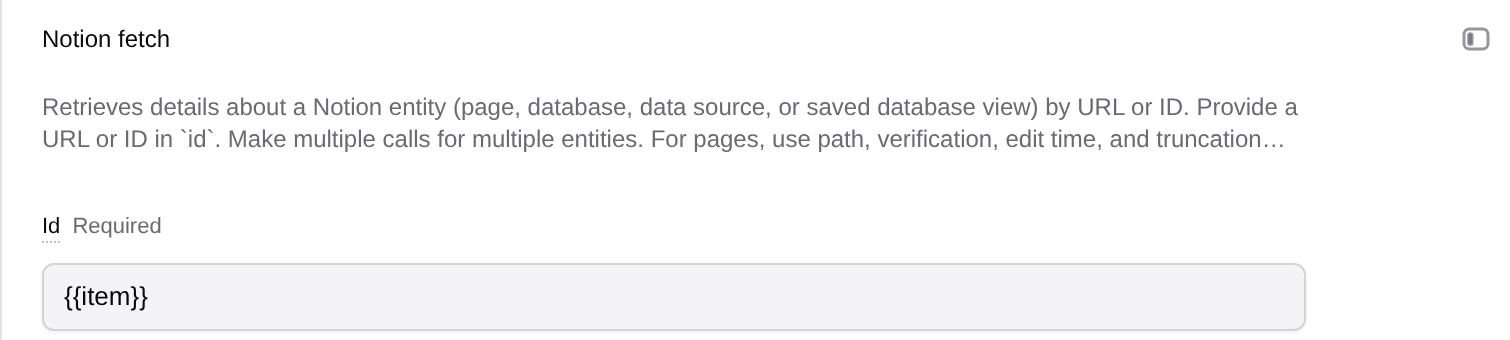
| **For each line of …** | One call per repository, page ID, or program handle | Connect an upstream node under **Data**, then use `{{item}}` or `{{item.field}}` |
To repeat a call, choose **Connect a node** under **Data**, select its output, then choose that node in **Run**. A connection alone does not select the repeat source.
For plain text lines, `{{item}}` is the current line. For JSON object lines such as `{"channel_id":"C_EXAMPLE"}`, `{{item.channel_id}}` selects that field. Put references in the tool's input field, not in a separate script argument.
Open **Limits and failures** to set **Call limit** and **Node fails**. Later lines beyond the limit are skipped. For an initial two-line example, set the limit to `2` and choose **When any call fails** so a partial failure is visible at node level.
The default failure rule can leave a node successful when some calls failed. Inspect the individual results and skipped inputs before treating a batch as complete. A call limit also limits coverage.
 ## Pass a whole file into a field
Some tasks need one call containing an entire upstream file. For example, Slack should receive one prepared summary rather than one message per report.
Connect the upstream node under **Data**. In the target field, use its **Insert into …** reference control, choose the connected source under **Connected nodes**, and use **Whole file** for text. Keep **Run** set to **Once**. List and object fields can offer **One item per line** or **Parsed JSON** instead; choose the mode matching the tool's expected type.
## Choose JSON or Lines
Use **Save as > JSON** to retain the tool's full result. Use **Lines** when a later node needs one value per line. Set **Field path** to the part of the actual result you want to extract.
| Actual result shape | Field path | Downstream input |
| --- | --- | --- |
| An object with an `items` array of repositories | `items[].full_name` | One repository name per line |
| An object with a `results` array of pages | `results[].id` | One page ID per line |
| An object containing `data.issues` | `data.issues[].key` | One Jira key per line |
| A top-level array of workflows | `[].id` | One workflow ID per line |
`[]` visits each list entry. A provider can change its response shape, so inspect **Result** before copying a path from an example. Keep the first test as JSON if you are unsure. The node writes its selected result to `out/output.txt` for downstream nodes.
## Pass a whole file into a field
Some tasks need one call containing an entire upstream file. For example, Slack should receive one prepared summary rather than one message per report.
Connect the upstream node under **Data**. In the target field, use its **Insert into …** reference control, choose the connected source under **Connected nodes**, and use **Whole file** for text. Keep **Run** set to **Once**. List and object fields can offer **One item per line** or **Parsed JSON** instead; choose the mode matching the tool's expected type.
## Choose JSON or Lines
Use **Save as > JSON** to retain the tool's full result. Use **Lines** when a later node needs one value per line. Set **Field path** to the part of the actual result you want to extract.
| Actual result shape | Field path | Downstream input |
| --- | --- | --- |
| An object with an `items` array of repositories | `items[].full_name` | One repository name per line |
| An object with a `results` array of pages | `results[].id` | One page ID per line |
| An object containing `data.issues` | `data.issues[].key` | One Jira key per line |
| A top-level array of workflows | `[].id` | One workflow ID per line |
`[]` visits each list entry. A provider can change its response shape, so inspect **Result** before copying a path from an example. Keep the first test as JSON if you are unsure. The node writes its selected result to `out/output.txt` for downstream nodes.
 ## Run and check the result
Close the inspector, select the node, and use **Run this node** for the first test. Make sure any upstream data has a successful result available. Open the node's **Result**, **Log**, and **Files** to check the returned data and errors. Once the steps work together, use **Execute** in the workflow header.
Confirm the number of input lines, calls made, failures, extracted values, and any pagination limit. Empty output can mean an empty search, missing permissions, or a field path that matched nothing.
## Recover from a changed connection
- **Connection unavailable:** use **Manage** and ask an administrator to restore or enable it.
- **Tool unavailable:** reconnect or check discovery in the connector settings, then select an available tool and review its fields. A historical result does not prove the tool can run now.
- An input is **not connected:** reconnect the source under **Data** and reselect the repeat source or field reference.
- A schema-change warning: review the tool's current required fields and types before retrying. Do not assume an old saved binding remains valid.
Continue with a [provider tutorial](/docs/using-the-app/connectors#choose-a-tutorial).
---
_Markdown source of https://trickest.com/docs/using-the-app/connectors/using-connectors-in-workflows._
## Run and check the result
Close the inspector, select the node, and use **Run this node** for the first test. Make sure any upstream data has a successful result available. Open the node's **Result**, **Log**, and **Files** to check the returned data and errors. Once the steps work together, use **Execute** in the workflow header.
Confirm the number of input lines, calls made, failures, extracted values, and any pagination limit. Empty output can mean an empty search, missing permissions, or a field path that matched nothing.
## Recover from a changed connection
- **Connection unavailable:** use **Manage** and ask an administrator to restore or enable it.
- **Tool unavailable:** reconnect or check discovery in the connector settings, then select an available tool and review its fields. A historical result does not prove the tool can run now.
- An input is **not connected:** reconnect the source under **Data** and reselect the repeat source or field reference.
- A schema-change warning: review the tool's current required fields and types before retrying. Do not assume an old saved binding remains valid.
Continue with a [provider tutorial](/docs/using-the-app/connectors#choose-a-tutorial).
---
_Markdown source of https://trickest.com/docs/using-the-app/connectors/using-connectors-in-workflows._