---
title: "Trickest: Inspect Workflows"
canonical: https://trickest.com/docs/using-the-app/connectors/trickest
description: "Use the built-in connector to list workflows and retrieve each definition with your own access."
---
# Trickest: Inspect Workflows
Use Trickest's built-in connector to list workflows and retrieve their definitions from another workflow. This example reads definitions; it does not execute the workflows it finds.
## Before you start
You need an Enterprise vault where the built-in Trickest connector is available and enabled, plus access to the workflows you want to inspect. You also need permission and capacity to execute your inspection workflow.
Unlike external connectors, this connection uses your own Trickest access. In workflow nodes, calls act as the person who initiated the run. They do not inherit a vault administrator's external account.
Connector settings and tool discovery also require Managed AI or BYOK access with a verified provider key. Check the [shared access requirements](/docs/using-the-app/connectors#before-you-start) before setup.
## Check the built-in connection
Open **Settings > Infrastructure > Connectors** and open **Trickest**. An administrator can turn it on for the workspace if disabled. No external sign-in or API token is required for the built-in connection.
If Trickest is absent from the directory, ask your deployment administrator whether the built-in MCP endpoint is configured. A saved node from another environment does not make the connection available here.
Leave **Start and stop runs** off for this tutorial. Listing and reading workflows use the read tools.
## List a small workflow set
Create a workflow named `Inspect workflows`, add the built-in tool `trickest_workflow_list`, and name the node `workflow-list`.
| Setting | Value |
| --- | --- |
| **Run** | **Once** |
| **Space** (`space`) | Select a workspace you can access |
| **Filter** (`filter`) | A distinctive workflow-name fragment |
| **Save as** | **JSON** for the first test |
Run the node. Check that the returned workflows are the ones you intended to inspect. If the result is a top-level array with `id` fields, change **Save as** to **Lines**, set **Field path** to `[].id`, and run again.
## Retrieve each definition
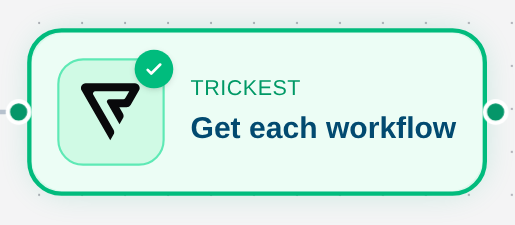
Add `trickest_workflow_get` and name it `workflow-details`. Set:
| Setting | Value |
| --- | --- |
| **Data** | Connect `workflow-list` output |
| **Run** | **For each line of workflow-list** |
| **Workflow id** (`workflowId`) | `{{item}}` |
| **Call limit** | `2` for an initial sample |
| **Node fails** | **When any call fails** |
| **Save as** | **JSON** |
Run this node and inspect each definition. Compare its workflow ID and node list with a workflow you can open in the editor.
 ## Use the definitions
Connect the result to a script to summarize node types or compare definitions. A definition describes the graph; it does not prove a workflow ran successfully. Use the run and output read tools when your task needs execution evidence.
A call limit of `2` intentionally covers only two returned IDs. Raise it after checking the sample, and reconcile the list count with the number of fetched definitions.
## Optional run controls
An administrator can enable **Start and stop runs** in the built-in connector's settings for workflow nodes. Agent chat keeps the read tools. A node cannot start its own workflow; one run can start at most five other runs, and chains stop at two levels. Starting a run does not mean it has completed, so inspect its status and outputs separately.
## If access fails
Confirm the active vault and the initiating user's permissions. Ask an administrator to enable a disabled connector. If the directory has no Trickest entry or discovery cannot reach its server, resolve deployment availability before editing saved tool fields.
The saved graph in the screenshot is historical. The built-in connector is not offered by the local capture environment's current directory, so fresh tool discovery and execution remain unverified.
---
_Markdown source of https://trickest.com/docs/using-the-app/connectors/trickest._
## Use the definitions
Connect the result to a script to summarize node types or compare definitions. A definition describes the graph; it does not prove a workflow ran successfully. Use the run and output read tools when your task needs execution evidence.
A call limit of `2` intentionally covers only two returned IDs. Raise it after checking the sample, and reconcile the list count with the number of fetched definitions.
## Optional run controls
An administrator can enable **Start and stop runs** in the built-in connector's settings for workflow nodes. Agent chat keeps the read tools. A node cannot start its own workflow; one run can start at most five other runs, and chains stop at two levels. Starting a run does not mean it has completed, so inspect its status and outputs separately.
## If access fails
Confirm the active vault and the initiating user's permissions. Ask an administrator to enable a disabled connector. If the directory has no Trickest entry or discovery cannot reach its server, resolve deployment availability before editing saved tool fields.
The saved graph in the screenshot is historical. The built-in connector is not offered by the local capture environment's current directory, so fresh tool discovery and execution remain unverified.
---
_Markdown source of https://trickest.com/docs/using-the-app/connectors/trickest._