---
title: "Notion: Search and Fetch Pages"
canonical: https://trickest.com/docs/using-the-app/connectors/notion
description: "Connect Notion, extract page IDs from a search, and fetch one page per workflow call."
---
# Notion: Search and Fetch Pages
Find Notion pages about a topic, then fetch each matching page in a second node. Keeping search and fetch separate lets you inspect the selected page IDs before retrieving their contents.
## Before you start
You need an Enterprise vault, a vault administrator to connect Notion, and a Notion account with access to the pages. You also need workflow editing and execution access. The connector uses the saved Notion account for other vault members too.
Connector settings and tool discovery also require Managed AI or BYOK access with a verified provider key. Check the [shared access requirements](/docs/using-the-app/connectors#before-you-start) before setup.
## Connect Notion
1. Open **Settings > Infrastructure > Connectors** and choose **Add connector > Notion**, or open an existing connection.
2. Select **Connect to Trickest** or **Reconnect** and complete Notion authorization for the intended workspace and account.
3. Return to Trickest, wait for tool discovery, and confirm the search and fetch tools are available.
This preset uses OAuth. It does not offer the token option shown by some other connectors. Access to pages still follows Notion permissions. See [Notion's MCP overview](https://developers.notion.com/guides/mcp/overview).
## Search for pages
Create a workflow and add Notion's search tool (`notion-search`). Name the node `page-search` and open its inspector.
| Setting | Value |
| --- | --- |
| **Run** | **Once** |
| **Query** (`query`) | `workflow`, or a word from a page you can access |
| **Page size** (`page_size`) | `5`, using **Add option** if hidden |
| **Save as** | **JSON** for the first test |
Run the search node and inspect the returned entries. Confirm that they refer to pages you want to fetch. If its result contains a `results` array with page IDs, change **Save as** to **Lines** and set **Field path** to `results[].id`. Run it again and inspect the ID list.
The search terms and response fields depend on the server's current schema. If your search tool returns another shape, choose the ID field from that actual result rather than assuming this path applies.
## Fetch each selected page
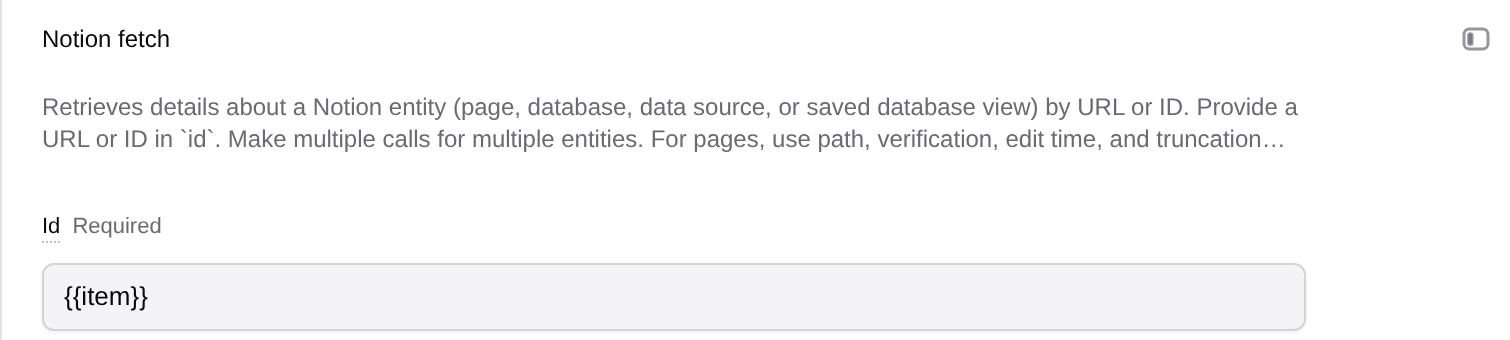
Add Notion's fetch tool (`notion-fetch`) and name it `fetch-pages`. Open the node and configure:
| Setting | Value |
| --- | --- |
| **Data** | Connect `page-search` output |
| **Run** | **For each line of page-search** |
| **Id** (`id`) | `{{item}}` |
| **Call limit** | `5` for this sample |
| **Node fails** | **When any call fails** |
| **Save as** | **JSON** |
Run the fetch node after the search has produced the page IDs.

 ## Use the fetched pages
Inspect the fetch results for the selected IDs and any errors. Keep page IDs and source links when passing the contents to a script or an AI Agent node. The optional Python node in the screenshot flattens page results into a table; it is not required to retrieve the pages.
A five-result search retrieves a sample. Follow the search tool's current pagination fields if you need all matches. The fetch call limit must also cover the intended ID list.
## If a page is missing
Check that the page is visible to the connected Notion account and included in the authorized access. Try a known title term to distinguish a search mismatch from a permission problem. Reconnect when sign-in expires. If IDs are present but fetching fails, inspect each error before treating the batch as complete.
The screenshot is a saved workflow and historical run state; this walkthrough does not claim a new provider execution. See [Using connectors in workflows](/docs/using-the-app/connectors/using-connectors-in-workflows) for the shared controls.
---
_Markdown source of https://trickest.com/docs/using-the-app/connectors/notion._
## Use the fetched pages
Inspect the fetch results for the selected IDs and any errors. Keep page IDs and source links when passing the contents to a script or an AI Agent node. The optional Python node in the screenshot flattens page results into a table; it is not required to retrieve the pages.
A five-result search retrieves a sample. Follow the search tool's current pagination fields if you need all matches. The fetch call limit must also cover the intended ID list.
## If a page is missing
Check that the page is visible to the connected Notion account and included in the authorized access. Try a known title term to distinguish a search mismatch from a permission problem. Reconnect when sign-in expires. If IDs are present but fetching fails, inspect each error before treating the batch as complete.
The screenshot is a saved workflow and historical run state; this walkthrough does not claim a new provider execution. See [Using connectors in workflows](/docs/using-the-app/connectors/using-connectors-in-workflows) for the shared controls.
---
_Markdown source of https://trickest.com/docs/using-the-app/connectors/notion._