---
title: "Linear: Collect Team Issues"
canonical: https://trickest.com/docs/using-the-app/connectors/linear
description: "Connect Linear and collect a small set of assigned issues before combining issue lists."
---
# Linear: Collect Team Issues
Read issues from a Linear team into a workflow. Start with issues assigned to one person, then add a second branch for issues they created if you need a combined review list.
## Before you start
You need an Enterprise vault, an administrator to add the connector, and a Linear account with access to the team. Workflow editors can use the shared connection after it is enabled.
Connector settings and tool discovery also require Managed AI or BYOK access with a verified provider key. Check the [shared access requirements](/docs/using-the-app/connectors#before-you-start) before setup.
## Connect Linear
1. Open **Settings > Infrastructure > Connectors** and select **Add connector > Linear**, or open the existing connection.
2. Select **Connect to Trickest** or **Reconnect**, authorize the intended Linear account, and return to Trickest.
3. Wait for the discovered tool list and confirm that issue listing is available.
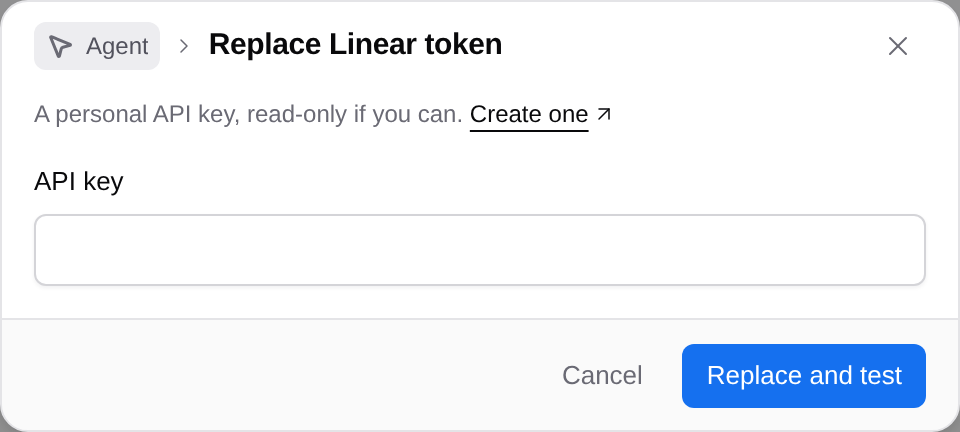
You can use a personal **API key** instead of OAuth. Choose **Use a token**, or **Use a token instead** in the connection menu. Prefer a read-only key for this workflow. Enter the key and select **Connect** or **Replace and test**. The connection is enabled after the test succeeds. See [Linear's MCP authentication reference](https://linear.app/docs/mcp).
 ## List assigned issues
Create a workflow and use **Add node** to select Linear's issue-listing tool (`list_issues`). Name the node `assigned-issues`, open it, and keep **Run** set to **Once**.
Use **Add option** for optional fields that are hidden:
| Argument | What to enter |
| --- | --- |
| **Team** (`team`) | Select the team you want to review |
| **Assignee** (`assignee`) | Select the person whose issues you want |
| **Include sub teams** (`includeSubTeams`) | Turn off for the first test, then verify the teams on the returned issues |
| **Limit** (`limit`) | `10` |
The current server notes that team-ID filters can include descendant teams even when **Include sub teams** is off. Check each returned issue’s team before describing the result as limited to one team.
Use the resource picker where offered. If you enter an identifier, use the value expected by the field's help. Do not substitute a display name for a required ID.
Set **Save as** to **JSON**, then run this node. Open **Result** and check each issue's identifier, title, state and assignee. A query for assigned issues can include closed issues; do not label the result “open” until you have checked its state filter or filtered the returned records.
## Add issues created by the same person
Add another `list_issues` node named `created-issues`. Use the same team and limit, and set **Creator** (`creator`) to the person. Leave **Assignee** unset on this branch so it does not restrict the creator search to issues also assigned to them.
## List assigned issues
Create a workflow and use **Add node** to select Linear's issue-listing tool (`list_issues`). Name the node `assigned-issues`, open it, and keep **Run** set to **Once**.
Use **Add option** for optional fields that are hidden:
| Argument | What to enter |
| --- | --- |
| **Team** (`team`) | Select the team you want to review |
| **Assignee** (`assignee`) | Select the person whose issues you want |
| **Include sub teams** (`includeSubTeams`) | Turn off for the first test, then verify the teams on the returned issues |
| **Limit** (`limit`) | `10` |
The current server notes that team-ID filters can include descendant teams even when **Include sub teams** is off. Check each returned issue’s team before describing the result as limited to one team.
Use the resource picker where offered. If you enter an identifier, use the value expected by the field's help. Do not substitute a display name for a required ID.
Set **Save as** to **JSON**, then run this node. Open **Result** and check each issue's identifier, title, state and assignee. A query for assigned issues can include closed issues; do not label the result “open” until you have checked its state filter or filtered the returned records.
## Add issues created by the same person
Add another `list_issues` node named `created-issues`. Use the same team and limit, and set **Creator** (`creator`) to the person. Leave **Assignee** unset on this branch so it does not restrict the creator search to issues also assigned to them.
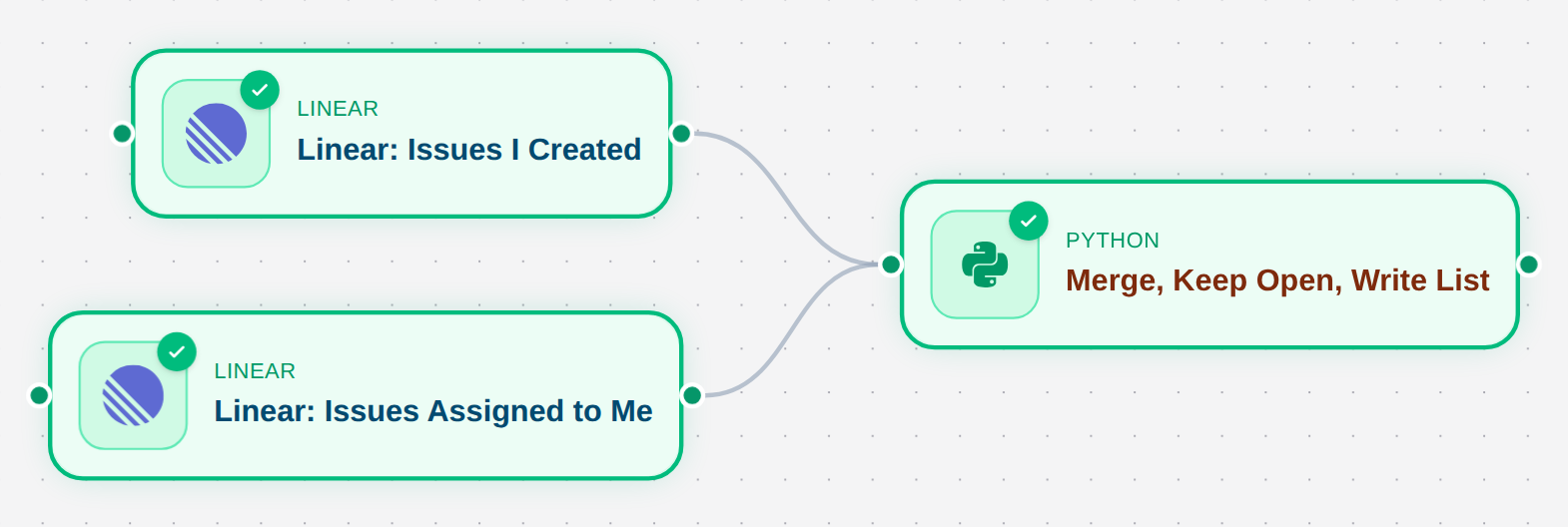 Connect both outputs to a Python script through its connected inputs. Read the actual JSON from both branches, deduplicate by the stable issue ID, and apply your chosen active-state filter. Keep the original issue identifier and URL so the review list leads back to Linear. [Using scripts](/docs/using-the-app/workflow-and-executions/using-scripts#input-and-output-paths) explains the mounted input paths.
The single `assigned-issues` node is the smallest usable version of this tutorial. Add the merge step only when you need both lists; an issue can be present in both.
## Check coverage and recover
Compare the output against a known issue visible to the connected account. If it is missing, check team access, the assignee selection and the limit before changing the workflow. Use the current tool's pagination controls to retrieve more than the first page.
If the issue-listing tool is absent or the node reports a schema change, inspect the connector's current tools and update the node's fields. An expired sign-in requires an administrator to **Reconnect**. The screenshot shows a saved example, not a fresh Linear run.
See [Using connectors in workflows](/docs/using-the-app/connectors/using-connectors-in-workflows) for result formats and failure handling.
Use the [downloadable merge example](/docs/using-the-app/connectors/workflow-examples) for the Python step. It retains all issue states; choose an explicit active-state filter for your team.
---
_Markdown source of https://trickest.com/docs/using-the-app/connectors/linear._
Connect both outputs to a Python script through its connected inputs. Read the actual JSON from both branches, deduplicate by the stable issue ID, and apply your chosen active-state filter. Keep the original issue identifier and URL so the review list leads back to Linear. [Using scripts](/docs/using-the-app/workflow-and-executions/using-scripts#input-and-output-paths) explains the mounted input paths.
The single `assigned-issues` node is the smallest usable version of this tutorial. Add the merge step only when you need both lists; an issue can be present in both.
## Check coverage and recover
Compare the output against a known issue visible to the connected account. If it is missing, check team access, the assignee selection and the limit before changing the workflow. Use the current tool's pagination controls to retrieve more than the first page.
If the issue-listing tool is absent or the node reports a schema change, inspect the connector's current tools and update the node's fields. An expired sign-in requires an administrator to **Reconnect**. The screenshot shows a saved example, not a fresh Linear run.
See [Using connectors in workflows](/docs/using-the-app/connectors/using-connectors-in-workflows) for result formats and failure handling.
Use the [downloadable merge example](/docs/using-the-app/connectors/workflow-examples) for the Python step. It retains all issue states; choose an explicit active-state filter for your team.
---
_Markdown source of https://trickest.com/docs/using-the-app/connectors/linear._