---
title: "Jira: Export Issue Keys"
canonical: https://trickest.com/docs/using-the-app/connectors/jira
description: "Connect Jira, search with JQL, and extract issue keys for a downstream workflow."
---
# Jira: Export Issue Keys
Search Jira with JQL and turn the result into one issue key per line. Those keys can feed GitHub searches or a report-building script.
## Before you start
You need an Enterprise vault and an administrator to connect Jira. The Atlassian account must be able to read the target site and project. Have the site's identity and a small JQL query ready; workflow editing and execution access are also required.
Connector settings and tool discovery also require Managed AI or BYOK access with a verified provider key. Check the [shared access requirements](/docs/using-the-app/connectors#before-you-start) before setup.
## Connect Jira
1. Open **Settings > Infrastructure > Connectors** and choose **Add connector > Jira**, or open an existing Jira connection.
2. Select **Connect to Trickest** or **Reconnect**, authorize the intended Atlassian account, and return to Trickest.
3. Wait for discovery and confirm the JQL search tool appears. If several sites are accessible, choose the intended site in the tool's **Cloud id** field; do not assume the first site is correct.
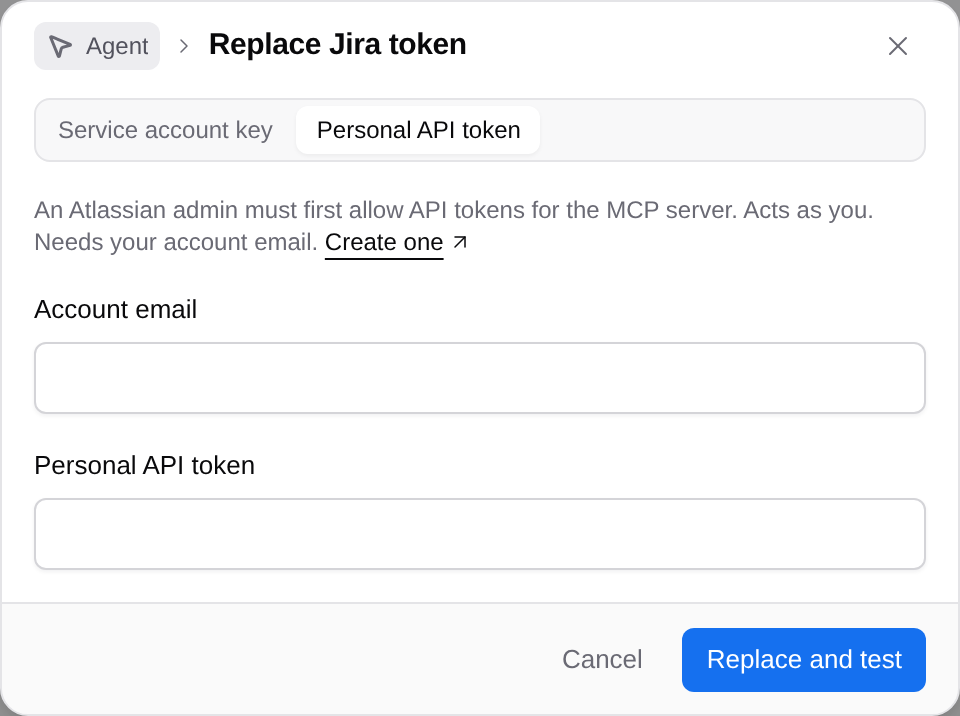
For token authentication, an Atlassian administrator must first allow API tokens for the MCP server. Choose **Use a token**, or **Use a token instead** in the existing connection's menu. Select **Service account key** or **Personal API token**. A personal API token also requires the **Account email** that created it. Select **Connect** or **Replace and test**. See [Atlassian's token authentication guide](https://developer.atlassian.com/cloud/rovo-mcp/guides/configuring-authentication-via-api-token/) for token permissions and organization requirements.
 ## Search a small issue set
Create a workflow and add Jira's JQL search tool (`searchJiraIssuesUsingJql`). Name it `issue-keys` and open its inspector.
| Setting | Value |
| --- | --- |
| **Run** | **Once** |
| **Cloud id** (`cloudId`) | Select your Jira site |
| **Jql** (`jql`) | The query below, replacing `YOUR_PROJECT` |
| **Max results** (`maxResults`) | `10` |
| **Save as** | **JSON** for the first test |
```text
project = YOUR_PROJECT AND created >= startOfWeek() ORDER BY created DESC
```
Use a project you can read. This query means issues created since the start of the current week; it does not select every issue updated this week.
Run the node and inspect the JSON. Confirm the site and issue keys against Jira. If the response contains `data.issues`, change **Save as** to **Lines**, set **Field path** to `data.issues[].key`, and run again.
## Use the keys in another node
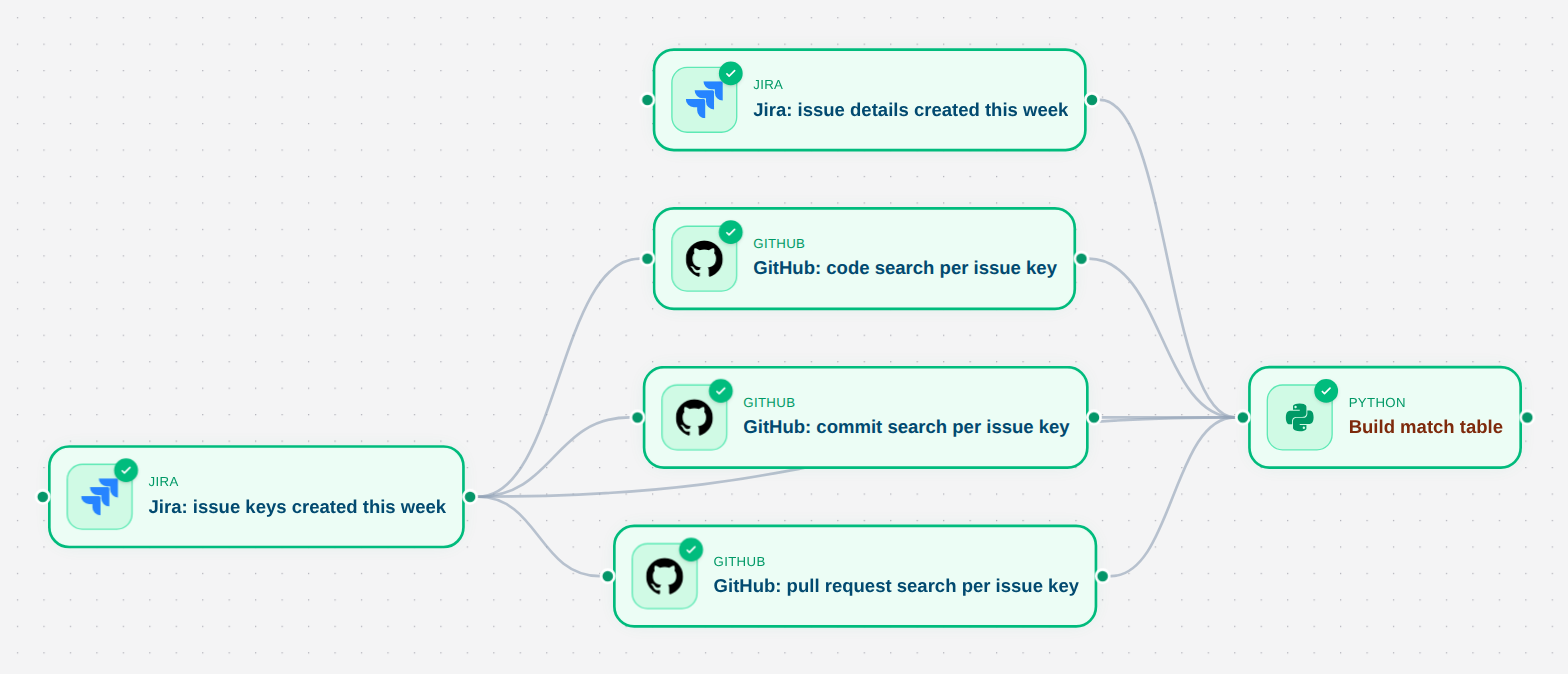
Connect `issue-keys` under the next node's **Data**, select **For each line of issue-keys**, and use `{{item}}` in its input. The [Jira-to-GitHub tutorial](/docs/using-the-app/connectors/jira-to-github) uses each key in pull-request, code and commit searches.
## Search a small issue set
Create a workflow and add Jira's JQL search tool (`searchJiraIssuesUsingJql`). Name it `issue-keys` and open its inspector.
| Setting | Value |
| --- | --- |
| **Run** | **Once** |
| **Cloud id** (`cloudId`) | Select your Jira site |
| **Jql** (`jql`) | The query below, replacing `YOUR_PROJECT` |
| **Max results** (`maxResults`) | `10` |
| **Save as** | **JSON** for the first test |
```text
project = YOUR_PROJECT AND created >= startOfWeek() ORDER BY created DESC
```
Use a project you can read. This query means issues created since the start of the current week; it does not select every issue updated this week.
Run the node and inspect the JSON. Confirm the site and issue keys against Jira. If the response contains `data.issues`, change **Save as** to **Lines**, set **Field path** to `data.issues[].key`, and run again.
## Use the keys in another node
Connect `issue-keys` under the next node's **Data**, select **For each line of issue-keys**, and use `{{item}}` in its input. The [Jira-to-GitHub tutorial](/docs/using-the-app/connectors/jira-to-github) uses each key in pull-request, code and commit searches.
 ## Check the result and recover
A maximum of `10` results is a sample. Check the provider's pagination fields before calling the export complete. If the raw result has issues but the Lines view is empty, correct the field path to match the response.
If the wrong site is selected, change **Cloud id** before running again. A missing project can reflect account permissions. A sign-in error requires **Reconnect**; a rejected API token can mean the organization has not allowed token authentication.
The saved Jira connection in this local review needs reconnection. The screenshot shows a historical workflow state; this walkthrough was not rerun against Jira.
---
_Markdown source of https://trickest.com/docs/using-the-app/connectors/jira._
## Check the result and recover
A maximum of `10` results is a sample. Check the provider's pagination fields before calling the export complete. If the raw result has issues but the Lines view is empty, correct the field path to match the response.
If the wrong site is selected, change **Cloud id** before running again. A missing project can reflect account permissions. A sign-in error requires **Reconnect**; a rejected API token can mean the organization has not allowed token authentication.
The saved Jira connection in this local review needs reconnection. The screenshot shows a historical workflow state; this walkthrough was not rerun against Jira.
---
_Markdown source of https://trickest.com/docs/using-the-app/connectors/jira._