---
title: "Collecting MCP Results into a Live Table"
canonical: https://trickest.com/docs/using-the-app/connectors/collecting-into-live-tables
description: "Normalize a connector response, choose stable identity and inspect updates across runs."
---
# Collecting MCP Results into a Live Table
## Before you start
Use the [HackerOne connector](/docs/using-the-app/connectors/hackerone) to collect a bounded sample from one program you may read. You need Enterprise workflow access, a fleet, connector access, and permission to create a Live Table. Start with a manual run before adding a schedule.
This walkthrough keeps reports as data. It does not send Slack messages or use an AI judgment step. The source can contain sensitive findings; collect only the fields the table needs.
## Collect and normalize
Follow [Summarize reports to Slack](/docs/using-the-app/connectors/reports-to-slack) through its **Normalize the records** step, then stop before its summary and Slack nodes. That step contains selectable Python that reads the MCP wrapper and writes `out/reports.jsonl`.
Configure one program and a small creation-time interval. Inspect the connector’s output and error metadata. A failed or truncated collection must not be treated as a complete snapshot. The normalizer rejects call errors; also inspect pagination/truncation before relying on the collected set.
The resulting records use this shape. These lines are synthetic examples of the normalized file:
```jsonl
{"program":"example-program","report_id":"101","state":"new"}
{"program":"example-program","report_id":"102","state":"triaged"}
```
Keep source IDs as strings consistently. Do not wrap the records in a JSON array. Save the source run ID and collection interval with your review evidence so you can explain where the table’s records came from.
## Promote the normalized output
After the normalizer completes, open the workflow’s **Database** view. Select its detected `reports.jsonl` output and choose **Make live**. Name the table `report-inventory`, include `program`, `report_id` and `state`, and choose **both `program` and `report_id` as the primary key**.
Use [Creating a Database](/docs/using-the-app/database-management/creating-database) for the creation form. Review the selected node and file before **Create live table**. Then inspect **Indexing history** and the table’s actual records.
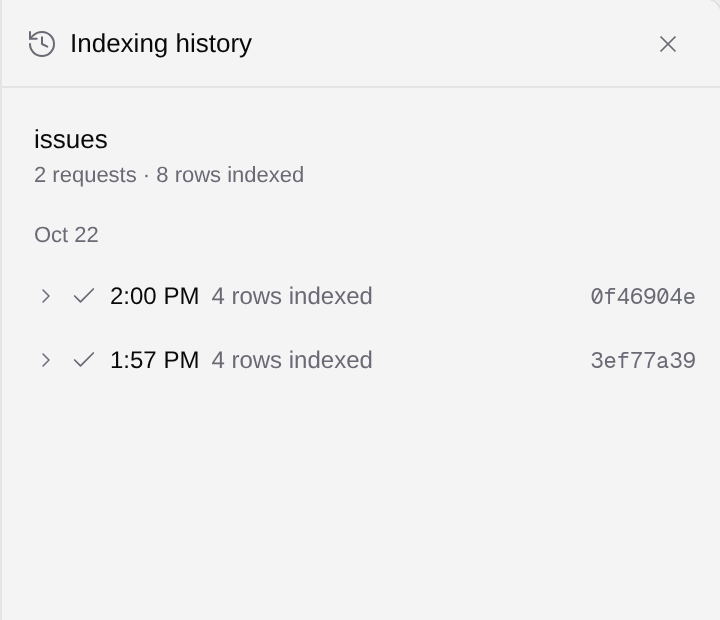 Compare the number of distinct `(program, report_id)` pairs in the normalized file with the records ingested for that source. Repeated keys represent the same report, not additional reports.
## Verify a second collection
Choose a known report ID and note its current state. After the source changes, collect an interval that includes that report again and wait for indexing. Reopen the same composite key: a state change should update its identity rather than create a second logical report.
A creation-time feed may omit edits to older reports. For this update check, deliberately re-read the known report or use a source query that includes changed records. The [recurring creation collector](/docs/using-the-app/connectors/recurring-collection) alone does not provide full update reconciliation.
Open **History** for that row and compare the state change with the source run. If the value did not change, there may be no visible history difference. The [row-history guide](/docs/using-the-app/database-management/inspecting-row-history) explains the empty states and bounded history.
Compare the number of distinct `(program, report_id)` pairs in the normalized file with the records ingested for that source. Repeated keys represent the same report, not additional reports.
## Verify a second collection
Choose a known report ID and note its current state. After the source changes, collect an interval that includes that report again and wait for indexing. Reopen the same composite key: a state change should update its identity rather than create a second logical report.
A creation-time feed may omit edits to older reports. For this update check, deliberately re-read the known report or use a source query that includes changed records. The [recurring creation collector](/docs/using-the-app/connectors/recurring-collection) alone does not provide full update reconciliation.
Open **History** for that row and compare the state change with the source run. If the value did not change, there may be no visible history difference. The [row-history guide](/docs/using-the-app/database-management/inspecting-row-history) explains the empty states and bounded history.
 ## Save a useful query
Open the table filter and enter:
```text
state = "triaged"
```
Run the filter and verify a known row before saving it as `triaged-reports`. Follow [Creating Views](/docs/using-the-app/database-management/creating-views) for the current Save query controls. A saved query stores the selection, not a frozen copy of report data.
If filtered reads reject locally inserted overlay rows, use the unfiltered table or row API until supported; the [querying guide](/docs/using-the-app/database-management/querying) describes that release limitation.
## Operate the collector
Once two manual collections and indexing checks pass, schedule a single writer for the source. Keep collection checkpoints separate from table indexing status: advancing a creation cursor does not prove a downstream table import completed. Retain artifacts so a failed import can be investigated or re-indexed without inventing data.
Missing records require checks of collection coverage, pagination, key collisions and indexing. Removing a source record does not by itself establish a deletion from the Live Table; define and verify your deletion or reconciliation policy separately.
The normalization examples have offline fixture checks. No connector collection, promotion, second-run update or query save was submitted for this local review; the screenshots show existing product controls.
---
_Markdown source of https://trickest.com/docs/using-the-app/connectors/collecting-into-live-tables._
## Save a useful query
Open the table filter and enter:
```text
state = "triaged"
```
Run the filter and verify a known row before saving it as `triaged-reports`. Follow [Creating Views](/docs/using-the-app/database-management/creating-views) for the current Save query controls. A saved query stores the selection, not a frozen copy of report data.
If filtered reads reject locally inserted overlay rows, use the unfiltered table or row API until supported; the [querying guide](/docs/using-the-app/database-management/querying) describes that release limitation.
## Operate the collector
Once two manual collections and indexing checks pass, schedule a single writer for the source. Keep collection checkpoints separate from table indexing status: advancing a creation cursor does not prove a downstream table import completed. Retain artifacts so a failed import can be investigated or re-indexed without inventing data.
Missing records require checks of collection coverage, pagination, key collisions and indexing. Removing a source record does not by itself establish a deletion from the Live Table; define and verify your deletion or reconciliation policy separately.
The normalization examples have offline fixture checks. No connector collection, promotion, second-run update or query save was submitted for this local review; the screenshots show existing product controls.
---
_Markdown source of https://trickest.com/docs/using-the-app/connectors/collecting-into-live-tables._