---
title: "Using Android Devices"
canonical: https://trickest.com/docs/using-the-app/computers/using-android-devices
description: "Open an Android device, let the Agent work on a mobile app, and take manual control when needed."
---
# Using Android Devices
## Before you start
Android requires Enterprise access, the Android capability enabled for your environment, and a compatible runtime. You need access to the device's space; starting it or changing its state requires write access. If Android is unavailable, check these prerequisites before retrying device creation.
## Open a mobile workspace
1. Open **Devices** and choose an existing Android device, or use **New device** and select Android as its type.
2. Start the device and complete any required license acceptance in Mobile. Wait for Android to finish booting.
3. Open **Mobile** to view the screen. Opening a stopped device or checking its status does not start it.
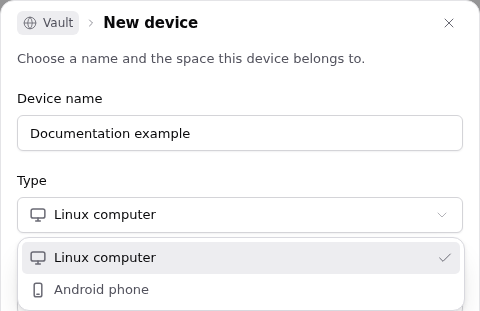 The **Files** view and terminal belong to the device's Linux host. Android apps and their internal data live in the Android guest; a file in the host workspace is not automatically installed in Android.
## Give the Agent a bounded task
In the conversation, select the Android device and use **Use this device for agent**. Name the app, the starting screen, the action, and the visible result you want checked. For example:
> Open Settings and find the Android version. Report the version shown and capture the screen. Leave the settings unchanged.
The Agent's Android tools can inspect the screen, navigate, install an APK when requested, and run bounded actions. Review the resulting screenshot and reported observations. Finishing an action sequence does not by itself prove that an external submission or account change succeeded.
If the Agent cannot identify a control or verify the next step, inspect the screen and clarify the task. Repeating an uncertain tap can submit an action twice.
## Take manual control
Select **Take control** in the Mobile viewer to perform a step yourself. While you hold control, Android automation that changes the device is blocked; status and screenshot inspection remain available.
When finished, select **Return control**, then tell the Agent what changed and what to do next. After a restore, take control again if you need another manual step; an earlier control hold does not carry across the restored state.
## Keep or reuse the result
Leave the device running when the next task needs the same app session. Stop it when the work is finished, after checking for active work. Where supported, [save a snapshot](/docs/using-the-app/computers/managing-snapshots) to retain a named state.
For repeatable work in a graph, use an [Android Use node](/docs/using-the-app/workflow-and-executions/using-android-nodes).
---
_Markdown source of https://trickest.com/docs/using-the-app/computers/using-android-devices._
The **Files** view and terminal belong to the device's Linux host. Android apps and their internal data live in the Android guest; a file in the host workspace is not automatically installed in Android.
## Give the Agent a bounded task
In the conversation, select the Android device and use **Use this device for agent**. Name the app, the starting screen, the action, and the visible result you want checked. For example:
> Open Settings and find the Android version. Report the version shown and capture the screen. Leave the settings unchanged.
The Agent's Android tools can inspect the screen, navigate, install an APK when requested, and run bounded actions. Review the resulting screenshot and reported observations. Finishing an action sequence does not by itself prove that an external submission or account change succeeded.
If the Agent cannot identify a control or verify the next step, inspect the screen and clarify the task. Repeating an uncertain tap can submit an action twice.
## Take manual control
Select **Take control** in the Mobile viewer to perform a step yourself. While you hold control, Android automation that changes the device is blocked; status and screenshot inspection remain available.
When finished, select **Return control**, then tell the Agent what changed and what to do next. After a restore, take control again if you need another manual step; an earlier control hold does not carry across the restored state.
## Keep or reuse the result
Leave the device running when the next task needs the same app session. Stop it when the work is finished, after checking for active work. Where supported, [save a snapshot](/docs/using-the-app/computers/managing-snapshots) to retain a named state.
For repeatable work in a graph, use an [Android Use node](/docs/using-the-app/workflow-and-executions/using-android-nodes).
---
_Markdown source of https://trickest.com/docs/using-the-app/computers/using-android-devices._