---
title: "Saving and Restoring Device Snapshots"
canonical: https://trickest.com/docs/using-the-app/computers/managing-snapshots
description: "Save a named recovery point, restore a device, or create another device from saved state."
---
# Saving and Restoring Device Snapshots
## Before you start
Open a device from **Devices**. Snapshot actions require write access to its space and configured snapshot storage. Android snapshots also require a compatible Android runtime; a visible device alone does not establish snapshot support.
| Device | What a snapshot keeps |
| --- | --- |
| Linux | Files and the saved browser profile. Running programs, process memory, and open tabs are not restored. |
| Android device | Installed apps, device data, and the running Android state, where the runtime supports capture and restore. |
A snapshot can contain signed-in sessions. Use it only in a space whose members should have access to that state. Restoring a device does not undo changes made to websites or external accounts.
## Save a named snapshot
1. Finish or pause work on the device. For Linux, close the browser so its profile can be saved consistently.
2. Keep the device running, open its **Snapshots** panel, and select **Save snapshot**.
3. Enter a **Snapshot name** describing the state, then select **Save snapshot**.
4. Wait for the confirmation that the snapshot was saved. The device pauses during capture and resumes afterward; large Android captures can take several minutes.
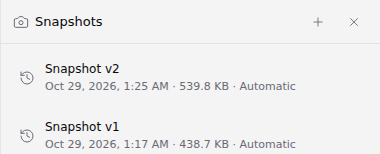 If the save is unconfirmed, use **Check again** on that attempt. Do not assume a timeout means the save failed or start duplicate captures. A failed save leaves earlier snapshots unchanged. If the device is busy, finish its active work and retry when it is idle.
Named snapshots are managed separately from automatic checkpoints and remain available after deleting the original device. Check the snapshot list for the actual state before relying on one as a recovery point.
## Restore a device
Open the saved snapshot's actions and choose **Restore…**, or **Stop and restore…** if the device is running. Read the confirmation before proceeding: the device's current state will be replaced.
If the save is unconfirmed, use **Check again** on that attempt. Do not assume a timeout means the save failed or start duplicate captures. A failed save leaves earlier snapshots unchanged. If the device is busy, finish its active work and retry when it is idle.
Named snapshots are managed separately from automatic checkpoints and remain available after deleting the original device. Check the snapshot list for the actual state before relying on one as a recovery point.
## Restore a device
Open the saved snapshot's actions and choose **Restore…**, or **Stop and restore…** if the device is running. Read the confirmation before proceeding: the device's current state will be replaced.
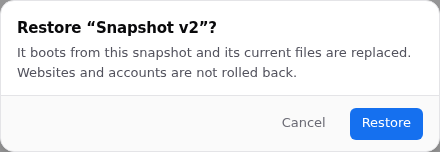 Copy out any files you need first. If a goal reserves the device, end or complete it and wait for cleanup; pausing alone does not release the reservation. After restore, check the device status, open the relevant view, and verify the files or app state you expected. Linux applications may need to be started again. Android can resume only on a compatible runtime.
## Create a device from a snapshot
Choose **New device from snapshot**, then set the new device's name and space in the dialog. Review any **Stop source** choice, especially when copying a signed-in browser profile: the same protected saved login cannot run on two devices at once.
Creating a copy does not transfer the source device's active commands. Open the new device and verify its state before assigning work to it.
## Rename or remove a snapshot
**Rename** changes the label, not the captured contents. **Delete snapshot** removes its archive; devices already created from it are unaffected. Keep a snapshot until you have verified any replacement you intend to rely on.
---
_Markdown source of https://trickest.com/docs/using-the-app/computers/managing-snapshots._
Copy out any files you need first. If a goal reserves the device, end or complete it and wait for cleanup; pausing alone does not release the reservation. After restore, check the device status, open the relevant view, and verify the files or app state you expected. Linux applications may need to be started again. Android can resume only on a compatible runtime.
## Create a device from a snapshot
Choose **New device from snapshot**, then set the new device's name and space in the dialog. Review any **Stop source** choice, especially when copying a signed-in browser profile: the same protected saved login cannot run on two devices at once.
Creating a copy does not transfer the source device's active commands. Open the new device and verify its state before assigning work to it.
## Rename or remove a snapshot
**Rename** changes the label, not the captured contents. **Delete snapshot** removes its archive; devices already created from it are unaffected. Keep a snapshot until you have verified any replacement you intend to rely on.
---
_Markdown source of https://trickest.com/docs/using-the-app/computers/managing-snapshots._