---
title: "Managing Devices"
canonical: https://trickest.com/docs/using-the-app/computers/managing-computers
description: "Create a persistent Linux or Android device, inspect its workspace, and choose where the Agent works."
---
# Managing Devices
## Before you start
Use **Devices** in the sidebar to find the Linux computers and Android devices available in your spaces. The API and CLI also call these resources **computers**.
Creating a device requires Enterprise access, available spend, and write access to its space. Android also requires an enabled Android capability and a compatible runtime. Reading a device does not grant permission to start, stop, or change it.
## Create a device
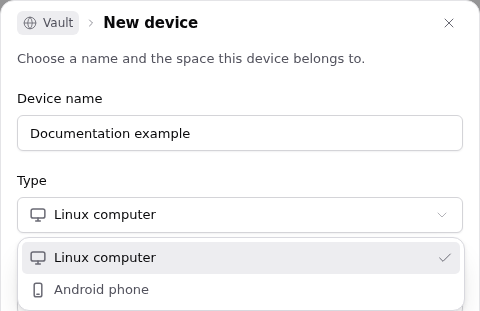
1. Open **Devices**, then select **New device**.
2. Enter a **Device name** that describes the work it will hold.
3. Choose **Type** and **Space**. Choose a Linux computer for shell, browser, desktop, or app work; choose Android for mobile apps.
4. Select **Create device** and wait for the result. Open the resulting device and check its status before using it.
If the request has an uncertain result, check the device list before creating another copy. If creation is unavailable, check the space permissions and the capability reported by the dialog.
 ## Find and open a device
Use **All devices**, **Running**, or **Stopped** and **Find a device** to narrow the list. Open a device by name. Its workspace offers **Desktop**, **Files**, and **App** for Linux, or **Mobile** and **Files** for Android.
Opening a stopped device does not start it. Use **Start** when you are ready to use it, and wait for a running state. A view showing **Showing last known state** needs a successful refresh before you can rely on that state.
Activity records commands and lifecycle events. Manual mouse and keyboard work may not appear there; **No recorded use** does not establish that the device has never been used.
## Choose the Agent's device
The device you are viewing and the device the Agent uses can differ.
1. In the conversation workspace, open **Select device** and choose a device to inspect.
2. To move subsequent Agent work there, open that menu again and choose **Use this device for agent**.
3. Choose **Follow agent** to return the workspace view to the Agent's current device.
Save modified files before switching. Commands already running stay on the device where they started. Switching does not copy files, move processes, or cancel work. Ask the Agent to copy any files it needs and verify the destination before continuing.
Each conversation keeps a **Home** computer. Connecting a workflow identifies the graph to work on; it does not automatically move the Agent to another computer. A workflow association also does not move a device to another space or grant access to it.
## Stop and resume work
Check the device's current work before selecting **Stop**. Stop ends running processes; saved files and the browser profile can persist, but open applications and Linux process memory do not. Start the device again and restart the programs you need.
If a goal reserves the device, [end or complete the goal](/docs/using-the-app/agent/working-with-goals) and wait for cleanup before stopping or restoring it. Pausing alone does not release that reservation.
Use [snapshots](/docs/using-the-app/computers/managing-snapshots) to keep a named recovery point, or follow [Using Android Devices](/docs/using-the-app/computers/using-android-devices) for mobile work.
---
_Markdown source of https://trickest.com/docs/using-the-app/computers/managing-computers._
## Find and open a device
Use **All devices**, **Running**, or **Stopped** and **Find a device** to narrow the list. Open a device by name. Its workspace offers **Desktop**, **Files**, and **App** for Linux, or **Mobile** and **Files** for Android.
Opening a stopped device does not start it. Use **Start** when you are ready to use it, and wait for a running state. A view showing **Showing last known state** needs a successful refresh before you can rely on that state.
Activity records commands and lifecycle events. Manual mouse and keyboard work may not appear there; **No recorded use** does not establish that the device has never been used.
## Choose the Agent's device
The device you are viewing and the device the Agent uses can differ.
1. In the conversation workspace, open **Select device** and choose a device to inspect.
2. To move subsequent Agent work there, open that menu again and choose **Use this device for agent**.
3. Choose **Follow agent** to return the workspace view to the Agent's current device.
Save modified files before switching. Commands already running stay on the device where they started. Switching does not copy files, move processes, or cancel work. Ask the Agent to copy any files it needs and verify the destination before continuing.
Each conversation keeps a **Home** computer. Connecting a workflow identifies the graph to work on; it does not automatically move the Agent to another computer. A workflow association also does not move a device to another space or grant access to it.
## Stop and resume work
Check the device's current work before selecting **Stop**. Stop ends running processes; saved files and the browser profile can persist, but open applications and Linux process memory do not. Start the device again and restart the programs you need.
If a goal reserves the device, [end or complete the goal](/docs/using-the-app/agent/working-with-goals) and wait for cleanup before stopping or restoring it. Pausing alone does not release that reservation.
Use [snapshots](/docs/using-the-app/computers/managing-snapshots) to keep a named recovery point, or follow [Using Android Devices](/docs/using-the-app/computers/using-android-devices) for mobile work.
---
_Markdown source of https://trickest.com/docs/using-the-app/computers/managing-computers._