---
title: "Use MCP Connectors with the Agent"
canonical: https://trickest.com/docs/using-the-app/agent/using-mcp-connectors
description: "Read a small Notion page set, inspect tool evidence, then prepare a workflow without executing it."
---
# Use MCP Connectors with the Agent
Ask the Agent to read a small set of Notion pages, inspect the source evidence, and turn the task into a workflow you can review. This walkthrough separates reading external data, saving a workflow and executing it.
## Before you start
You need Agent access through managed AI or BYOK, an Enterprise vault with the [Notion connector](/docs/using-the-app/connectors/notion) enabled, and access to the pages through its saved Notion account. To save a graph, you also need permission to create or edit a workflow.
External connector calls use the vault's saved external account. The built-in Trickest connector uses the caller's own Trickest access. Confirm which connection the task will use before requesting private data.
## Make a bounded request
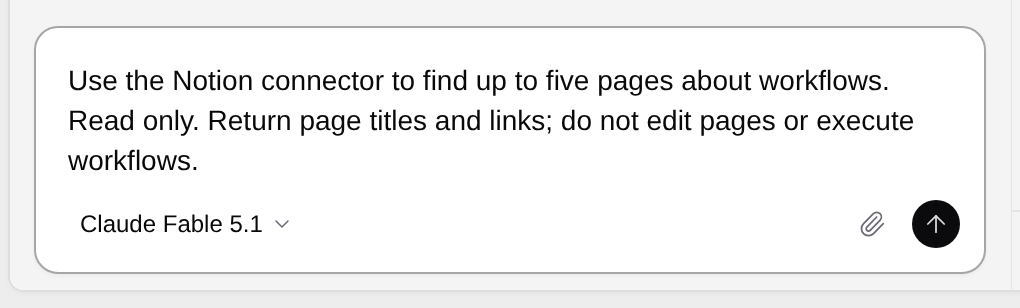
Open the Agent and start a conversation. Send a request such as:
```text
Use the Notion connector to find up to five pages about workflows.
Read only. Return each page's title, ID and source link, and summarize
what it says about building workflows. Report failed or unavailable reads.
Do not edit pages, create workflows or execute workflows.
```
 ## Review tools and permission requests
Inspect the tool activity in the conversation. Confirm the provider, tool and search scope. Read any **Permission required** card before choosing **Allow** or **Deny**. Denying a request means the Agent must continue without that action; a plan preview alone is not a provider result.
The Agent's wording is not the evidence. Check the returned page IDs and source links. Open a known page and compare its contents with the summary. If a read fails, keep that gap in the answer rather than treating the page as empty.
If the connection is missing or expired, ask a vault administrator to restore it under **Settings > Infrastructure > Connectors**. Do not paste a provider credential into the chat.
## Prepare the same task as a workflow
Download the [Notion Agent recipe](/docs/examples/release-1.2.1/notion.agent.json) from [Workflow examples](/docs/using-the-app/connectors/workflow-examples). Give the file to the Agent and ask:
```text
Read this workflow recipe. Check the Notion connection and current tool schemas.
Use WorkflowApply in preview mode to prepare a new workflow. Keep the five-page
limit. Show the proposed nodes and connections. Do not apply it or run it yet.
If the schema differs, explain the change before revising the recipe.
```
The recipe specifies a search node and a fetch node. The Agent resolves the connection name in your vault, discovers the current schemas, and prepares the binding. It does not need an exported connection ID or another user's token.
## Review and save the graph
Check the proposed search term, connection, page-ID output path, fetch input and call limit. Ask the Agent to change anything outside your intended scope.
When ready to save, request **apply** for that reviewed recipe while keeping execution separate:
```text
Apply the reviewed workflow recipe. Save the graph, but do not execute it.
Show me the workflow and the inputs I need to review before running.
```
Open the resulting workflow and inspect both nodes. Saving a graph does not verify provider execution. Follow [Notion: Search and fetch pages](/docs/using-the-app/connectors/notion) to run a small test and check the output.
## If the result differs from the request
Check whether the failure came from discovery, page permissions, the call limit, an output path, or a provider call. Stop before applying a graph if the Agent could not resolve the intended tool. Keep identifiers and source links when handing the results to another workflow step.
The recipe is validated against the released Agent parameter schema. No new model turn, provider data read, graph save or workflow execution was performed for this screenshot walkthrough.
---
_Markdown source of https://trickest.com/docs/using-the-app/agent/using-mcp-connectors._
## Review tools and permission requests
Inspect the tool activity in the conversation. Confirm the provider, tool and search scope. Read any **Permission required** card before choosing **Allow** or **Deny**. Denying a request means the Agent must continue without that action; a plan preview alone is not a provider result.
The Agent's wording is not the evidence. Check the returned page IDs and source links. Open a known page and compare its contents with the summary. If a read fails, keep that gap in the answer rather than treating the page as empty.
If the connection is missing or expired, ask a vault administrator to restore it under **Settings > Infrastructure > Connectors**. Do not paste a provider credential into the chat.
## Prepare the same task as a workflow
Download the [Notion Agent recipe](/docs/examples/release-1.2.1/notion.agent.json) from [Workflow examples](/docs/using-the-app/connectors/workflow-examples). Give the file to the Agent and ask:
```text
Read this workflow recipe. Check the Notion connection and current tool schemas.
Use WorkflowApply in preview mode to prepare a new workflow. Keep the five-page
limit. Show the proposed nodes and connections. Do not apply it or run it yet.
If the schema differs, explain the change before revising the recipe.
```
The recipe specifies a search node and a fetch node. The Agent resolves the connection name in your vault, discovers the current schemas, and prepares the binding. It does not need an exported connection ID or another user's token.
## Review and save the graph
Check the proposed search term, connection, page-ID output path, fetch input and call limit. Ask the Agent to change anything outside your intended scope.
When ready to save, request **apply** for that reviewed recipe while keeping execution separate:
```text
Apply the reviewed workflow recipe. Save the graph, but do not execute it.
Show me the workflow and the inputs I need to review before running.
```
Open the resulting workflow and inspect both nodes. Saving a graph does not verify provider execution. Follow [Notion: Search and fetch pages](/docs/using-the-app/connectors/notion) to run a small test and check the output.
## If the result differs from the request
Check whether the failure came from discovery, page permissions, the call limit, an output path, or a provider call. Stop before applying a graph if the Agent could not resolve the intended tool. Keep identifiers and source links when handing the results to another workflow step.
The recipe is validated against the released Agent parameter schema. No new model turn, provider data read, graph save or workflow execution was performed for this screenshot walkthrough.
---
_Markdown source of https://trickest.com/docs/using-the-app/agent/using-mcp-connectors._