---
title: "Working with Files, Terminal, and Previews"
canonical: https://trickest.com/docs/using-the-app/agent/files-terminal-previews
description: "Find Agent resources, inspect background work, open files and preview an app."
---
# Working with Files, Terminal, and Previews
## Open Files
In the Agent workspace, the files sit beside the chat. If that area is hidden, select **Show workspace**.
Select **Files** and check the device or resource name in the workspace header. The device you are inspecting can differ from the Agent's active device. If Files asks you to start the device, do so only when you need it running. If the view is ready but no file is open, select a file or open one from the chat. **Files** in the main sidebar is vault storage.
Save modified files before switching devices. An explicit file link from chat retains its source device; changing the current view does not copy that file elsewhere.
## Read or download a file
Expand the folders, or use **Find files**. Select a file to open it. If a file the Agent just created is missing, select **Refresh files**.
To keep a copy, use **Download saved sandbox file** in the preview toolbar. The download reflects the saved sandbox file, so save any edits before downloading.
## Use the terminal
In Files, select **Show terminal**. The shell opens below the file view and works with the same sandbox files, so commands can change what appears in the list. Read the command output in the panel, then hide the terminal when you are done.
## Preview the work
The preview is separate from the files and terminal. Select **App** for a Linux device's application preview. The app server must be running; opening App can start the managed preview and requires the relevant write access. An empty preview does not by itself indicate a failure. Check the selected device and ask the Agent to inspect the server and preview route.
Use **Desktop** for Linux applications and **Mobile** for Android. Android devices do not offer the Linux App view. Opening a workspace resource does not change the conversation's workflow binding or assign a different device to the Agent.
The desktop is a different view of the same environment. [Using the Device Screen](/docs/using-the-app/agent/using-the-computer) covers it.
## Find conversation resources
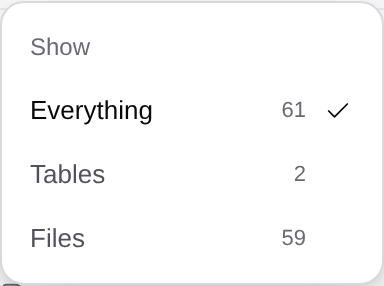
Select **Hide workspace** to return to the conversation’s resource rail. At desktop widths, **Workspace** sits on the chat’s right edge; expand its collapsed strip if needed. On a narrow screen, open the resource summary above the thread. Use **Search workspace** to find a named resource, or open **Filter** and choose an available category: **Workflows**, **Runs**, **Tables**, **Files** or **Browser**. Categories appear when this conversation has matching resources. **Everything** clears that category filter. Workflows includes modules; Files can include generated artifacts and storage resources as well as sandbox files.
Hover a resource to read its activity and path. **Created** and **Updated** identify work the Agent changed. The **Looked at** section groups referenced resources and can be folded. A table or workflow appearing there does not mean the Agent created it or changed its contents.
Open the exact run, table or file from the rail and confirm its identity. The resource list belongs to this conversation; searching it does not establish a complete vault-wide inventory.
 ## Check what is still running
The workspace can show active delegated work and background commands. Open a background command to inspect its own output and status. Use that command's **Stop** control when you need to stop it, and wait for the resulting state before starting a replacement. A finished chat turn does not prove that a background command or external workflow stopped.
Stopping Agent chat does not automatically cancel an already launched workflow. Open the relevant run and use its own cancel controls when needed. Likewise, check a background process before starting a duplicate server or command.
The resource rail records activity and references. It is not a file-version backup or a guarantee that a process and sandbox will survive indefinitely. Download important saved files and check durable storage separately. For a complete data-backed app journey, see [Building an App over Workflow Data](/docs/using-the-app/agent/building-a-data-app).
---
_Markdown source of https://trickest.com/docs/using-the-app/agent/files-terminal-previews._
## Check what is still running
The workspace can show active delegated work and background commands. Open a background command to inspect its own output and status. Use that command's **Stop** control when you need to stop it, and wait for the resulting state before starting a replacement. A finished chat turn does not prove that a background command or external workflow stopped.
Stopping Agent chat does not automatically cancel an already launched workflow. Open the relevant run and use its own cancel controls when needed. Likewise, check a background process before starting a duplicate server or command.
The resource rail records activity and references. It is not a file-version backup or a guarantee that a process and sandbox will survive indefinitely. Download important saved files and check durable storage separately. For a complete data-backed app journey, see [Building an App over Workflow Data](/docs/using-the-app/agent/building-a-data-app).
---
_Markdown source of https://trickest.com/docs/using-the-app/agent/files-terminal-previews._