---
title: "Evaluating Evidence"
canonical: https://trickest.com/docs/using-the-app/agent/evaluating-evidence
description: "Ask typed questions about supplied evidence and preserve unknown or failed cases."
---
# Evaluating Evidence
## What you will build
Evaluate two synthetic issue records with boolean, choice and score questions. The evaluator receives evidence you supply; it does not browse a source or collect missing evidence for you. Keep collection separate from judgment so you can inspect exactly what each answer used.
## Check availability
Open an AI node’s **Setup**. These modes appear only when the node’s tool registration exposes the corresponding inputs. Some AI Agent registrations offer **Agent** alone. If the requested mode is absent, ask your vault administrator for a compatible tool registration; changing a prompt does not add it.
Generate and Evaluate execution require the deployment’s managed AI gateway and model access. Ordinary provider-key chat access alone does not establish access to these operations. Check the selected vault, policy and budget before a paid run.
 ## Prepare cases and questions
Download [evaluation-cases.jsonl](/docs/examples/release-1.2.1/evaluation-cases.jsonl) and [evaluation-questions.json](/docs/examples/release-1.2.1/evaluation-questions.json). The cases contain a stable unique `case_id` and `state` with the evidence:
```jsonl
{"case_id":"issue-1","state":{"evidence":"The synthetic issue explicitly says the fix was verified in a retest."}}
{"case_id":"issue-2","state":{"evidence":"The synthetic issue has no verification result."}}
```
The question file is a map keyed by question ID, without an outer `questions` wrapper:
```json
{
"verified": {"type":"boolean","instructions":"Does the evidence explicitly state that a fix was verified?"},
"decision": {"type":"choice","instructions":"Classify only the supplied evidence. Choose unknown if there is no explicit verification result.","criteria":{"verified":"Explicit verified fix","failed":"Explicit failed verification","unknown":"No explicit result"}},
"strength": {"type":"score","instructions":"How explicit is the verification evidence?","criteria":["No result","Ambiguous result","Explicit result"]}
}
```
A boolean answer represents a probability for its proposition; do not treat it as a calibrated guarantee of real-world accuracy. Choice questions return a category from their criteria. Score questions use the ordered criteria you define. Include an explicit `unknown` choice when missing evidence should remain unresolved.
Keep at most 100 questions and 1 MiB of request data per case. Keep evidence small enough to inspect, with source IDs or citations when available. A timestamp and source label help a later reviewer distinguish current evidence from an older snapshot.
## Configure Evaluate
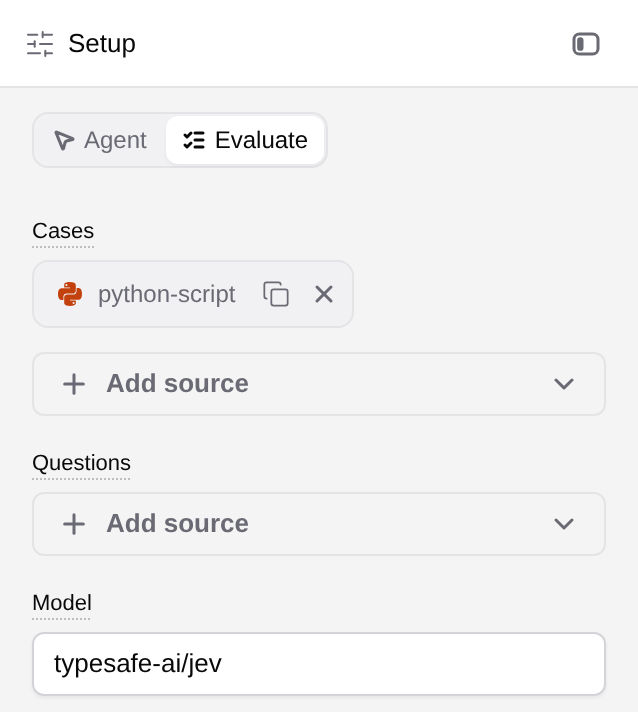
Open a compatible AI node and select **Evaluate**. Review any warning about clearing inputs from its former mode. Connect the JSONL to **Cases** and the question map to **Questions**. Alternatively, put a `questions` map inside each case and leave the shared Questions input disconnected. Supplying both is rejected.
Evaluate uses **Jev** (`typesafe-ai/jev`), rather than the general text-model picker used by Generate. Do not substitute a chat model. If Jev or managed evaluation is unavailable, resolve the entitlement or deployment configuration before retrying a paid run.
## Validate before making AI requests
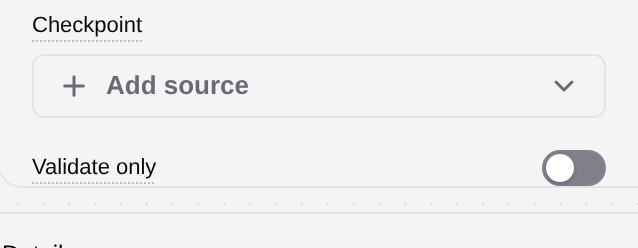
Turn on **Validate only**, then run the configured node on the small sample. Inspect the validation file and its case count. This checks case structure without AI requests; it does not test model entitlement, available budget, answer quality or every provider’s schema support.
## Prepare cases and questions
Download [evaluation-cases.jsonl](/docs/examples/release-1.2.1/evaluation-cases.jsonl) and [evaluation-questions.json](/docs/examples/release-1.2.1/evaluation-questions.json). The cases contain a stable unique `case_id` and `state` with the evidence:
```jsonl
{"case_id":"issue-1","state":{"evidence":"The synthetic issue explicitly says the fix was verified in a retest."}}
{"case_id":"issue-2","state":{"evidence":"The synthetic issue has no verification result."}}
```
The question file is a map keyed by question ID, without an outer `questions` wrapper:
```json
{
"verified": {"type":"boolean","instructions":"Does the evidence explicitly state that a fix was verified?"},
"decision": {"type":"choice","instructions":"Classify only the supplied evidence. Choose unknown if there is no explicit verification result.","criteria":{"verified":"Explicit verified fix","failed":"Explicit failed verification","unknown":"No explicit result"}},
"strength": {"type":"score","instructions":"How explicit is the verification evidence?","criteria":["No result","Ambiguous result","Explicit result"]}
}
```
A boolean answer represents a probability for its proposition; do not treat it as a calibrated guarantee of real-world accuracy. Choice questions return a category from their criteria. Score questions use the ordered criteria you define. Include an explicit `unknown` choice when missing evidence should remain unresolved.
Keep at most 100 questions and 1 MiB of request data per case. Keep evidence small enough to inspect, with source IDs or citations when available. A timestamp and source label help a later reviewer distinguish current evidence from an older snapshot.
## Configure Evaluate
Open a compatible AI node and select **Evaluate**. Review any warning about clearing inputs from its former mode. Connect the JSONL to **Cases** and the question map to **Questions**. Alternatively, put a `questions` map inside each case and leave the shared Questions input disconnected. Supplying both is rejected.
Evaluate uses **Jev** (`typesafe-ai/jev`), rather than the general text-model picker used by Generate. Do not substitute a chat model. If Jev or managed evaluation is unavailable, resolve the entitlement or deployment configuration before retrying a paid run.
## Validate before making AI requests
Turn on **Validate only**, then run the configured node on the small sample. Inspect the validation file and its case count. This checks case structure without AI requests; it does not test model entitlement, available budget, answer quality or every provider’s schema support.
 For Evaluate, inspect `evaluation_validation.json`. The sample should report two valid cases and `ai_requests: 0`. This verifies typed question syntax, not whether the judgments will be correct.
## Read answers and coverage
After reviewing access and budget, turn off Validate only and execute the small sample. Open `evaluations.jsonl` for successful cases and their `answers`, and inspect `evaluation_errors.jsonl`, `evaluation_retries.jsonl` and `evaluation_summary.jsonl` for failures and counts.
Join answers back to evidence by `case_id`. Keep these outcomes separate: evidence supports a negative answer; evidence is insufficient; a request failed; a case is missing from the output. A failed request is never evidence for a negative decision.
Before using answers downstream, compare the admitted case IDs with the union of successful and failed IDs. Investigate missing or duplicated IDs and inspect a labeled sample of decisions. Measure false positives and missed positives separately when the evaluation will decide which records receive attention.
## Resume and troubleshoot
Connect a previous output folder to **Checkpoint** to reuse matching recorded answers. The fingerprint includes the case ID, state, questions and model. Changed evidence or question criteria require a new judgment. Keep the checkpoint files intact, including `jev-checkpoint.jsonl` when produced by the tool.
For malformed cases, fix the input and rerun Validate only. For access or budget failures, resolve that cause before retrying. For an interrupted request with an uncertain outcome, inspect saved results and usage first; replay can incur another request.
The example inputs were validated offline against the compatible tool contract. No Jev requests or judgment-quality experiment was run for this local review. The screenshots show configuration controls, not newly executed evaluation results.
---
_Markdown source of https://trickest.com/docs/using-the-app/agent/evaluating-evidence._
For Evaluate, inspect `evaluation_validation.json`. The sample should report two valid cases and `ai_requests: 0`. This verifies typed question syntax, not whether the judgments will be correct.
## Read answers and coverage
After reviewing access and budget, turn off Validate only and execute the small sample. Open `evaluations.jsonl` for successful cases and their `answers`, and inspect `evaluation_errors.jsonl`, `evaluation_retries.jsonl` and `evaluation_summary.jsonl` for failures and counts.
Join answers back to evidence by `case_id`. Keep these outcomes separate: evidence supports a negative answer; evidence is insufficient; a request failed; a case is missing from the output. A failed request is never evidence for a negative decision.
Before using answers downstream, compare the admitted case IDs with the union of successful and failed IDs. Investigate missing or duplicated IDs and inspect a labeled sample of decisions. Measure false positives and missed positives separately when the evaluation will decide which records receive attention.
## Resume and troubleshoot
Connect a previous output folder to **Checkpoint** to reuse matching recorded answers. The fingerprint includes the case ID, state, questions and model. Changed evidence or question criteria require a new judgment. Keep the checkpoint files intact, including `jev-checkpoint.jsonl` when produced by the tool.
For malformed cases, fix the input and rerun Validate only. For access or budget failures, resolve that cause before retrying. For an interrupted request with an uncertain outcome, inspect saved results and usage first; replay can incur another request.
The example inputs were validated offline against the compatible tool contract. No Jev requests or judgment-quality experiment was run for this local review. The screenshots show configuration controls, not newly executed evaluation results.
---
_Markdown source of https://trickest.com/docs/using-the-app/agent/evaluating-evidence._