---
title: "Connecting a Custom MCP Server"
canonical: https://trickest.com/docs/using-the-app/agent/connecting-a-custom-mcp-server
description: "Add a remote Streamable HTTP server, test its tools, and enable it for the Agent and workflows."
---
# Connecting a Custom MCP Server
Connect a remote MCP server when the service you need is not covered by a [connector preset](/docs/using-the-app/workflow-and-executions/using-connectors-in-workflows). An administrator configures the server once; its enabled tools can then be used by the Agent and workflow nodes.
If an external client needs to connect to Trickest instead, see [Trickest MCP](/docs/developer-tools/mcp).
## Before you start
You need an Enterprise vault, vault administrator permissions, and Managed AI or BYOK access with a verified provider key. See the [shared connector access requirements](/docs/using-the-app/workflow-and-executions/using-connectors-in-workflows#before-you-start). Have a reachable **Streamable HTTP** MCP endpoint and its authentication requirements ready. Local `stdio` commands and legacy SSE endpoints are not supported by this connector flow.
Credentials and the connected external account are shared with people using this vault's connector. Choose permissions appropriate for those users. Never put a token in a server name or a workflow's ordinary text fields.
## Add the server
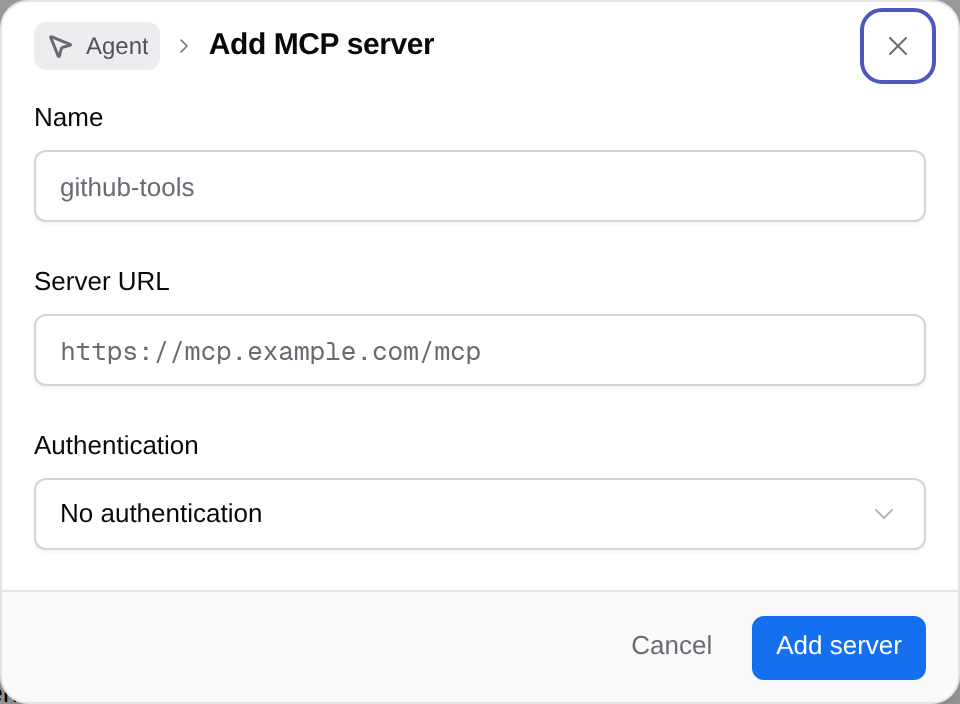
1. Open **Settings > Infrastructure > Connectors**.
2. Choose **Add connector > Custom MCP server**.
3. Enter a unique **Name** using letters, numbers, hyphens and underscores. The name cannot be changed later.
4. Set **Server URL** to the server's Streamable HTTP endpoint.
5. Choose **Authentication** and supply the required settings below.
6. Select **Add server**. The new server starts disabled until its connection has been tested.
 | Authentication | What to supply |
| --- | --- |
| **No authentication** | Only for a server that permits unauthenticated access |
| **Sign in with OAuth** | Complete its sign-in flow; **Advanced** offers scopes and a public client ID when required |
| **Access token** | Enter the token without a `Bearer` prefix |
| **Custom headers** | Add the header names and values required by the server |
Use server defaults for OAuth unless its operator gives you different settings. Automatic client registration depends on the server; not every endpoint supports it.
## Test and enable it
Open the custom connection and select **Test connection and discover tools**. Check the returned status and tool list. If OAuth is required, complete **Connect to Trickest** or **Reconnect** before testing.
After a successful test, turn on the connection using its enable control. A saved row alone does not prove connectivity. If discovery fails, check the endpoint, authentication, network reachability and server support for Streamable HTTP.
## Use a tool
In a workflow, select **Add node**, find a discovered tool from this connection, and open it to fill the schema's required fields. Follow [Using connectors in workflows](/docs/using-the-app/workflow-and-executions/using-connectors-in-workflows#build-and-check-a-connector-node) to connect data, repeat calls and choose a result format.
The Agent can also use enabled tools. Describe the task and scope, and review any permission request. See [Using the Agent](/docs/using-the-app/agent/using-the-agent).
## Change or remove a connection
Use **Edit** to change its endpoint or authentication. Changing the endpoint requires credentials for that endpoint and a new test; old credentials are not forwarded automatically. Recheck the tool list and any affected workflow fields before running again.
Turning off a connection makes its tools unavailable while preserving its configuration. **Delete** removes the connection. Existing workflow nodes that refer to it must be updated before they can run.
---
_Markdown source of https://trickest.com/docs/using-the-app/agent/connecting-a-custom-mcp-server._
| Authentication | What to supply |
| --- | --- |
| **No authentication** | Only for a server that permits unauthenticated access |
| **Sign in with OAuth** | Complete its sign-in flow; **Advanced** offers scopes and a public client ID when required |
| **Access token** | Enter the token without a `Bearer` prefix |
| **Custom headers** | Add the header names and values required by the server |
Use server defaults for OAuth unless its operator gives you different settings. Automatic client registration depends on the server; not every endpoint supports it.
## Test and enable it
Open the custom connection and select **Test connection and discover tools**. Check the returned status and tool list. If OAuth is required, complete **Connect to Trickest** or **Reconnect** before testing.
After a successful test, turn on the connection using its enable control. A saved row alone does not prove connectivity. If discovery fails, check the endpoint, authentication, network reachability and server support for Streamable HTTP.
## Use a tool
In a workflow, select **Add node**, find a discovered tool from this connection, and open it to fill the schema's required fields. Follow [Using connectors in workflows](/docs/using-the-app/workflow-and-executions/using-connectors-in-workflows#build-and-check-a-connector-node) to connect data, repeat calls and choose a result format.
The Agent can also use enabled tools. Describe the task and scope, and review any permission request. See [Using the Agent](/docs/using-the-app/agent/using-the-agent).
## Change or remove a connection
Use **Edit** to change its endpoint or authentication. Changing the endpoint requires credentials for that endpoint and a new test; old credentials are not forwarded automatically. Recheck the tool list and any affected workflow fields before running again.
Turning off a connection makes its tools unavailable while preserving its configuration. **Delete** removes the connection. Existing workflow nodes that refer to it must be updated before they can run.
---
_Markdown source of https://trickest.com/docs/using-the-app/agent/connecting-a-custom-mcp-server._