---
title: "Solutions & Database"
canonical: https://trickest.com/docs/key-concepts/solutions-database
description: "Understand reusable solutions, workflow output files, and Live Tables for querying results."
---
# Solutions & Database
## What is a Solution
A **solution** combines workflows and configuration for a particular objective, such as asset discovery or vulnerability assessment. Available templates can provide a starting point. The underlying workflow still needs suitable inputs, access, and a fleet to execute it.
Structured storage is a separate choice: a workflow can use **Live Tables** without being part of a packaged solution. Adding a workflow does not automatically create tables or normalize every file it produces.
## Files versus Live Tables
| Output files | Live Tables |
|---|---|
| Preserve a node's produced files for a particular run. | Store structured records imported from a configured workflow output. |
| Useful for logs, reports, raw data, and debugging. | Useful for filtering, selected columns, saved views, and querying through the API. |
| May be text, JSON, archives, or other formats. | Require compatible structured data and a defined table schema. |
To inspect the original output, select the recorded run, open its node, and browse that node’s output files. The workflow header’s **Files** view shows sandbox files, not the selected run’s output. Use the workflow's **Database** view to create and query Live Tables where your access and plan allow it.
## How It Works
There are two starting points in **Database**:
- **From an existing run:** choose an eligible detected JSONL output and select **Make Live**.
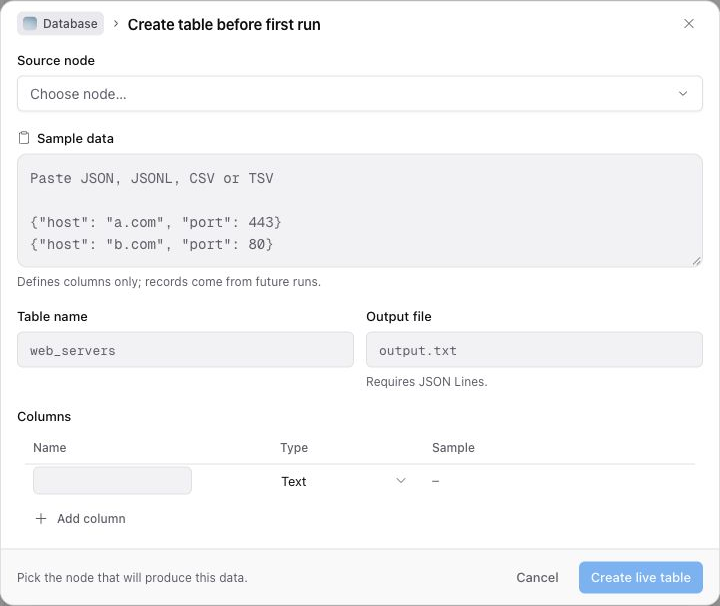
- **Before the first run:** use **Declare table** to define the output and its schema in advance.
Review the columns, choose the primary key that identifies each record, and confirm the configuration. The workflow must produce compatible JSONL at the configured output. Run it and verify that the import produces the expected rows.
A sample used to define columns is not an import of that sample as live data. Likewise, a completed workflow run does not prove a table import succeeded. Check the table and import status separately.
 ## Record identity and changes
Choose a stable primary key, such as a hostname or an appropriate combination of fields. It determines which records represent the same item across imports. Changing identities, missing fields, and duplicate keys can change the results you see.
Saved views select columns and filters over the table; they do not create a separate copy of the data. Where change tracking is available, interpret changes in the context of the configured import behavior and the coverage of that run. A missing row alone does not prove an asset is gone.
## Next Steps
- [Create a Live Table](/docs/using-the-app/database-management/creating-database).
- [Query records](/docs/using-the-app/database-management/querying).
- [Save a view](/docs/using-the-app/database-management/creating-views).
- [Export results](/docs/using-the-app/database-management/exporting).
---
_Markdown source of https://trickest.com/docs/key-concepts/solutions-database._
## Record identity and changes
Choose a stable primary key, such as a hostname or an appropriate combination of fields. It determines which records represent the same item across imports. Changing identities, missing fields, and duplicate keys can change the results you see.
Saved views select columns and filters over the table; they do not create a separate copy of the data. Where change tracking is available, interpret changes in the context of the configured import behavior and the coverage of that run. A missing row alone does not prove an asset is gone.
## Next Steps
- [Create a Live Table](/docs/using-the-app/database-management/creating-database).
- [Query records](/docs/using-the-app/database-management/querying).
- [Save a view](/docs/using-the-app/database-management/creating-views).
- [Export results](/docs/using-the-app/database-management/exporting).
---
_Markdown source of https://trickest.com/docs/key-concepts/solutions-database._